Experts Mode is Qoder CN IDE's multi-agent collaboration feature designed for complex development tasks. Simply state your requirements, and the system automatically decomposes tasks, assembles an expert team, and executes design, implementation, testing, and quality assurance in parallel—delivering production-ready engineering results.
In a nutshell: You define the goal, the AI expert team delivers the result.
Core Workflow
When you initiate a request, Lead Agent acts as the "brain" of the entire task—understanding goals, decomposing tasks, coordinating globally, ensuring quality, and dynamically pulling in experts from different domains to collaborate in parallel:
| Role | Responsibilities |
|---|
| Lead Agent | Understand requirements, decompose tasks, coordinate scheduling, ensure quality |
| Researcher | Responsible for research analysis, code location, dependency mapping, environment inspection, and report generation |
| Full-Stack Engineer | Responsible for implementing and modifying frontend and backend code, as well as handling cross-stack and general coding tasks |
| QA | Responsible for running tests and builds, and collecting validation evidence |
| Code Reviewer | Responsible for reviewing code, identifying potential risks, and providing improvement recommendations |
| UI Operator | Responsible for browser and UI end-to-end validation, as well as visual bug reproduction |
| Debug Engineer | Responsible for reproducing failures, locating root causes, and diagnosing defects, with fix recommendations |
Use Cases
Experts Mode is designed for medium-to-large engineering tasks—it delivers maximum value when you expect end-to-end, high-quality results. Here are three typical scenarios:
| Scenario | Example Task | How Experts Helps |
|---|
| Full-Stack Development | Develop user management module (registration, login, info management) | Lead Agent generates the plan, Full-Stack Engineer implements frontend and backend, QA tests in parallel, Code Reviewer ensures quality |
| Complex Issue Diagnosis & Fix | Production performance bottleneck involving multiple microservices | Lead Agent assembles Researcher and Full-Stack Engineer to analyze logs, trace call chains, and locate and fix the issue |
| Technical Solution Research | Evaluate GraphQL replacing RESTful API | Researcher gathers materials, Full-Stack Engineer assesses tech stack impact, deliver an actionable research report |
For simple, straightforward file modifications, Agent Mode remains the more efficient choice.
User Guide
1. Switch to Experts Mode
In the Editor chat panel, switch to Experts Mode.
After switching, simply describe your requirements in natural language. Lead Agent will automatically understand the goal, create a plan, and coordinate the expert team to execute.
2. Requirement Planning
Experts Mode has built-in planning capability, generating an implementation plan before task execution:
- Describe requirements: Clearly state goals, tech stack preferences, quality requirements, etc.
- Generate plan: Lead Agent analyzes requirements and generates a structured implementation plan
- Review and adjust: You can modify the plan before execution, adding missing steps
- Confirm execution: After confirmation, the expert team begins parallel work
3. Task List
During task execution, a real-time task list appears at the bottom of the chat panel:
- Pending: Tasks waiting to be executed
- In Progress: Currently executing tasks
- Completed: Finished tasks
Click on any task to view its execution progress, process, and results at any time.
Additionally, when tasks require user confirmation or intervention, notifications will appear above the dialog for your timely attention.
The expert team selects tools as needed. Whether a terminal command or tool call requires confirmation depends on your current permissions and execution settings. Review the request shown in the interface before allowing it.
4. Customize the Expert Team
Configure built-in experts in Editor by selecting a model, adding instructions, and configuring the Skills and MCP servers each expert uses.
Best Practices
Help Experts Understand Your Intent Better
| Tip | Description |
|---|
| Describe the end goal | Clearly state what result you want, not just what operation to perform |
| Provide context | Relevant business background, existing code structure, technical constraints |
| Specify quality requirements | Whether tests, documentation, code standard checks are needed |
| Indicate priorities | Which are must-haves, which are nice-to-haves |
Intervene Anytime Without Interruption
During expert team execution, you can intervene and adjust at any time without stopping the conversation:
- Correct direction: Notice something off track? Directly state what needs improvement, Lead Agent will adjust in real-time
- Add requirements: Have new ideas or missed something? Add anytime, the expert team will incrementally improve
- Change priorities: Requirements changed? Inform the new focus, the team will reallocate resources
FAQ
-
Can I modify requirements during execution?
Yes. You can add information or adjust direction at any time. Lead Agent will coordinate the expert team to adapt to changes.
-
What about the cost and time for Experts Mode?
Experts Mode is suitable for medium-to-high complexity tasks. Time and results depend on task complexity, the model, and verification. For simple tasks, use a single Agent.
-
How does the terminal tool work in Experts Mode?
Terminal execution and confirmation depend on your current permissions and terminal settings. Review any authorization prompt before allowing a command to run.


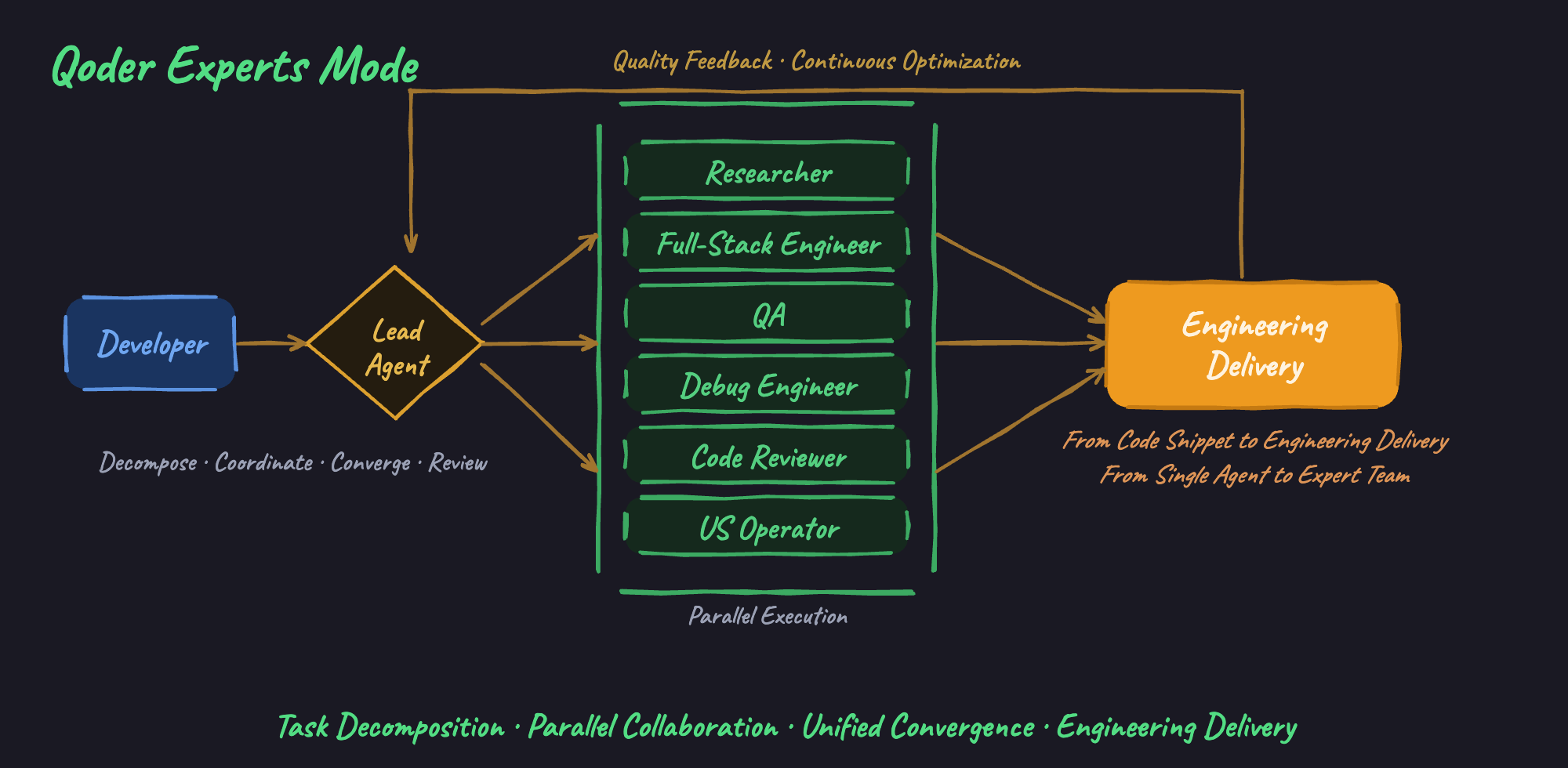 When you initiate a request, Lead Agent acts as the "brain" of the entire task—understanding goals, decomposing tasks, coordinating globally, ensuring quality, and dynamically pulling in experts from different domains to collaborate in parallel: