

Qoder CN supports project-specific rules stored in the .lingma/rules directory. These rules apply only to the current project and help the model understand your coding preferences, such as frameworks and code style.
To use this feature, you must update Qoder CN to one of the following versions or download and install Qoder CN IDE. For more information, see Installation guide.
Rules are divided into four types based on how they are imported and triggered, letting you adapt them to various scenarios.
The configuration steps differ slightly among IDEs. The following sections describe how to set and use project-specific rules in VS Code, JetBrains, Visual Studio, and Qoder CN IDE.
 Set the rule
 Use the rule
Follow these practices when writing rule files to help Qoder CN follow them effectively:

 View the Qoder CN Rule Library for best practices on system prompts.
Prerequisites
To use this feature, you must update Qoder CN to one of the following versions or download and install Qoder CN IDE. For more information, see Installation guide.
- JetBrains plugin: v2.1.5 or later.
- VS Code plugin: v2.5.16 or later.
- Visual Studio plugin: v0.4.4 or later.
- Qoder CN IDE: Downloaded and installed.
Rule limits
- Each rule file has a maximum size of 10,000 characters. Content that exceeds this limit is automatically truncated.
- You must use natural language to describe rules. Images and links cannot be parsed.
Rule synchronization
- Rule files are stored in the project folder and can be shared with your team through version control tools such as Git.
- If you want rules to apply only to your local environment, you can add the .lingma/rules folder to your project's .gitignore file.
Rule types
Rules are divided into four types based on how they are imported and triggered, letting you adapt them to various scenarios.
| Type | Trigger method | Scenario |
|---|---|---|
| Manual | This rule is triggered only when it is manually imported with #rule (VS Code) or @rule (Qoder CN IDE/JetBrains) in an AI chat or in-line session. | Use for one-time or specific workflows, custom prompts, and other on-demand tasks. |
| Model Decision | When you use the agent mode in an AI chat or enable tools in AI Q&A, the model decides whether to apply the rule based on its description. | Ideal for rules that should apply only in specific scenarios, such as generating unit tests or comments. |
| Always | This rule applies to all requests in AI chats and in-line sessions. | For setting project-level standards, such as coding style, preferred format, or a default response role. |
| Specific Files | In AI chats and in-line sessions, this rule applies to all files that match the specified file pattern, such as .js or src/**/.ts. | Use wildcard characters to precisely target files. This lets you create rules for specific languages or folders, such as a validation rule for a specific folder. |
Set and use rules
The configuration steps differ slightly among IDEs. The following sections describe how to set and use project-specific rules in VS Code, JetBrains, Visual Studio, and Qoder CN IDE.
If a rule conflicts with a memory, the rule takes precedence.
Set a rule
- Qoder CN IDE
- VS Code
- JetBrains IDE plugin
-
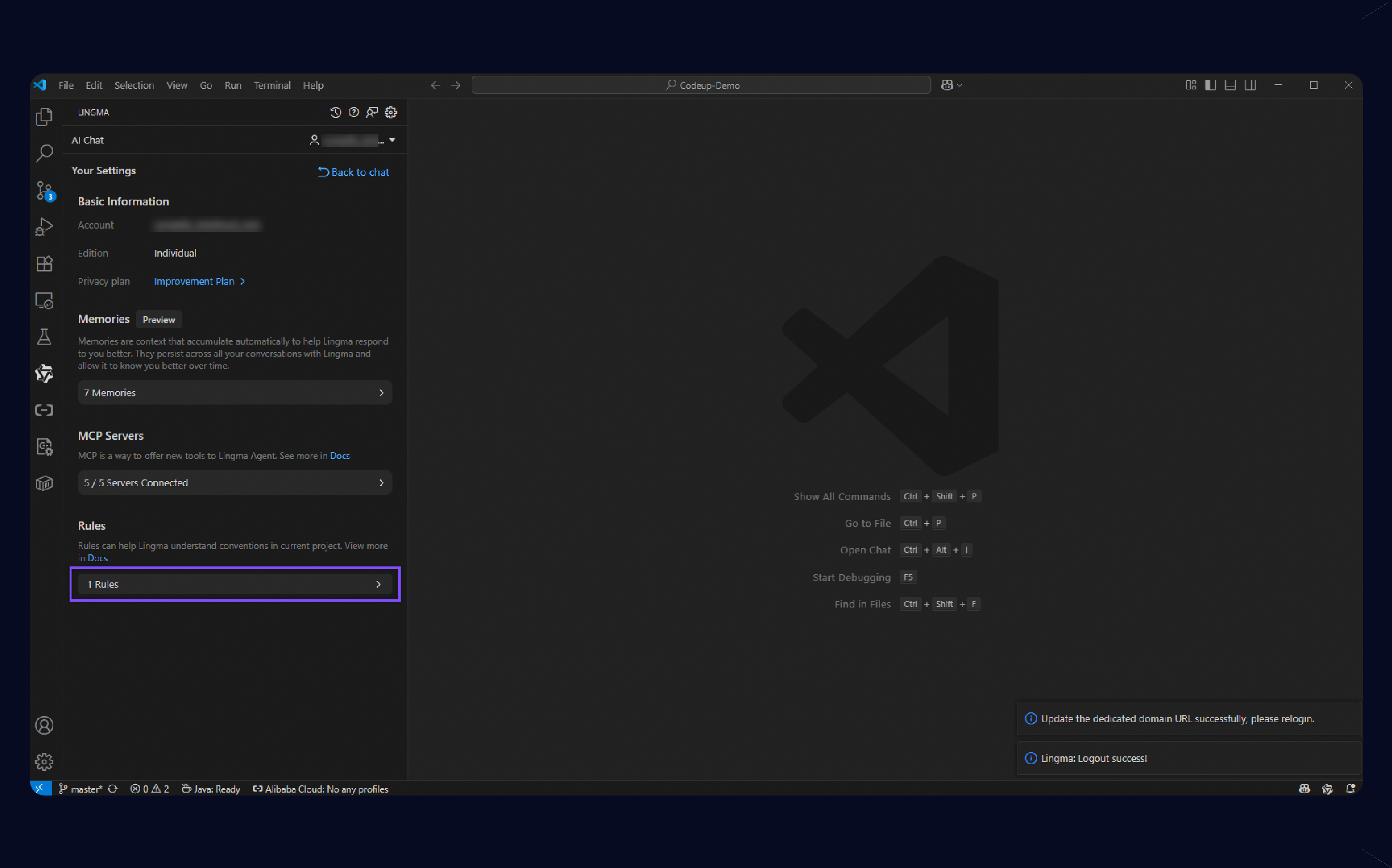
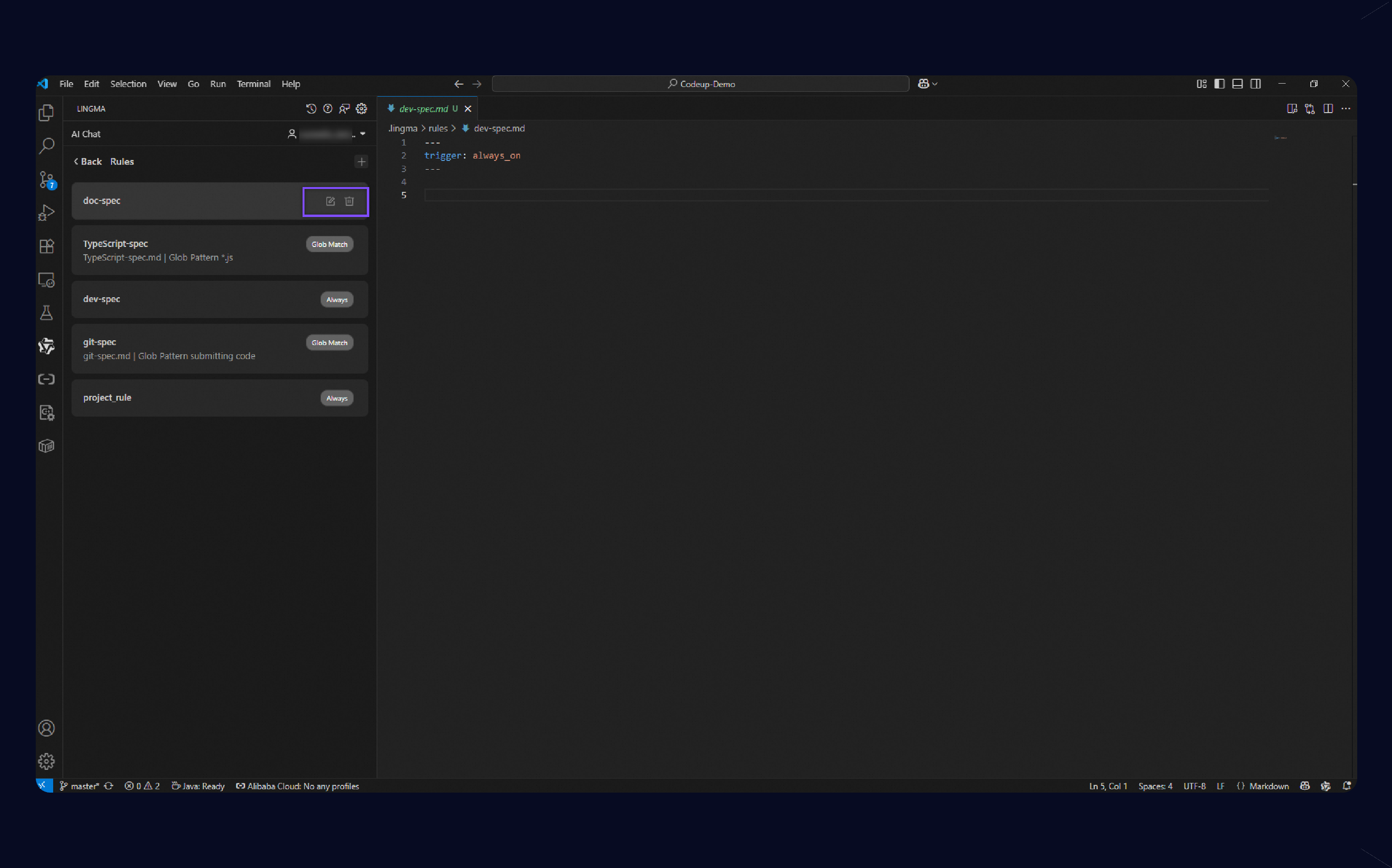
In the upper-right corner of Qoder CN IDE, click the user icon
 or use the keyboard shortcut (⌘ ⇧ , for macOS or Ctrl Shift , for Windows), and then select Personal Settings.

- In the navigation pane on the left, click Rules.
- Click Add.
- In the search bar at the top, enter a unique rule name and press Enter.
- Select a rule type:
- Manual: The rule is triggered only when it is manually imported with @rule.
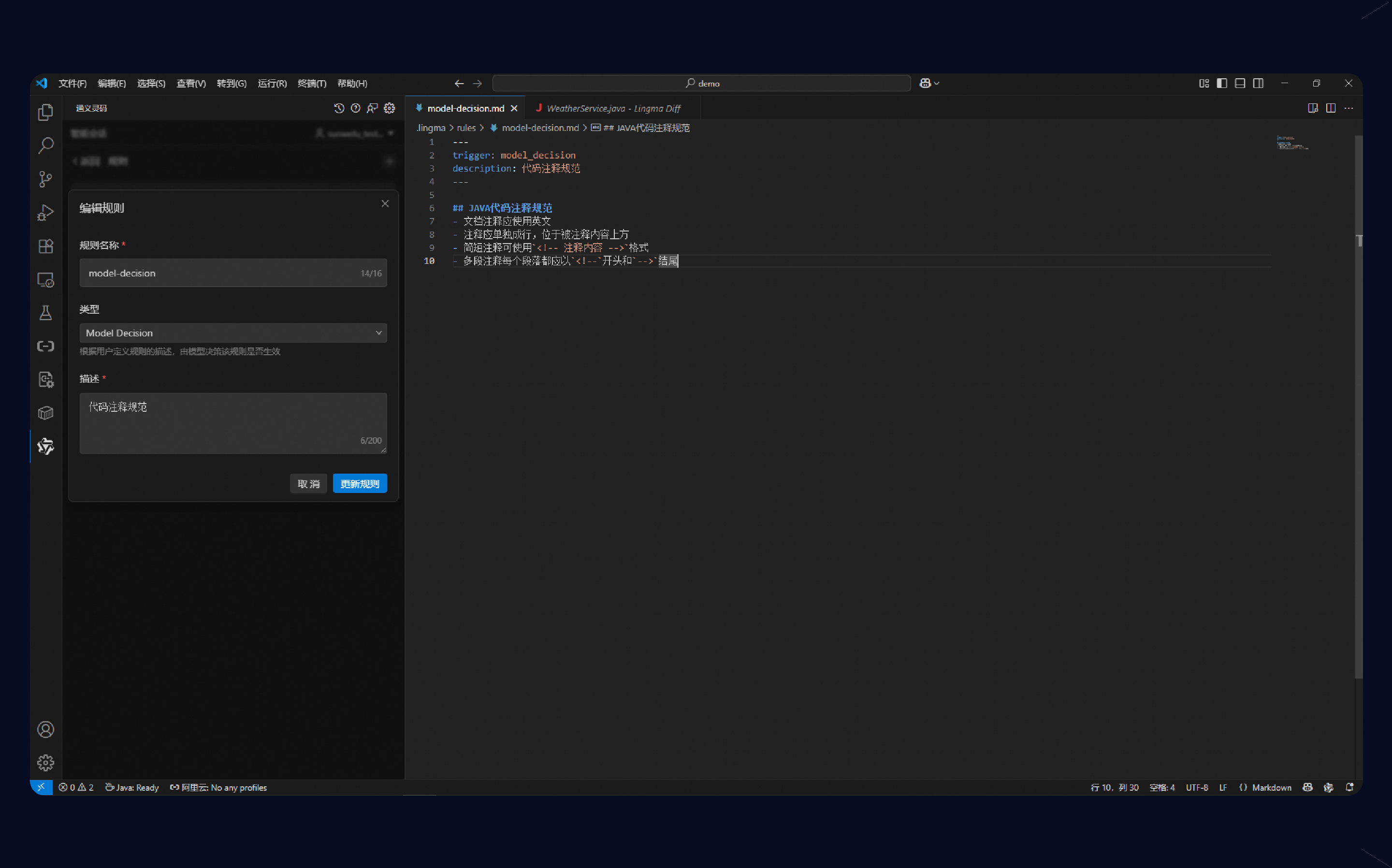
- Model Decision: Enter a description of the scenario where you want the rule to apply.
- Specific Files: Provide a comma-separated list of file path wildcard characters. For example, .md, src/.java.
- Always: The rule applies to all requests in AI chats and in-line sessions.
- Close the window to save the changes.
 in the IDE sidebar to open the AI Chat.

 Personal Settings.


Use a rule
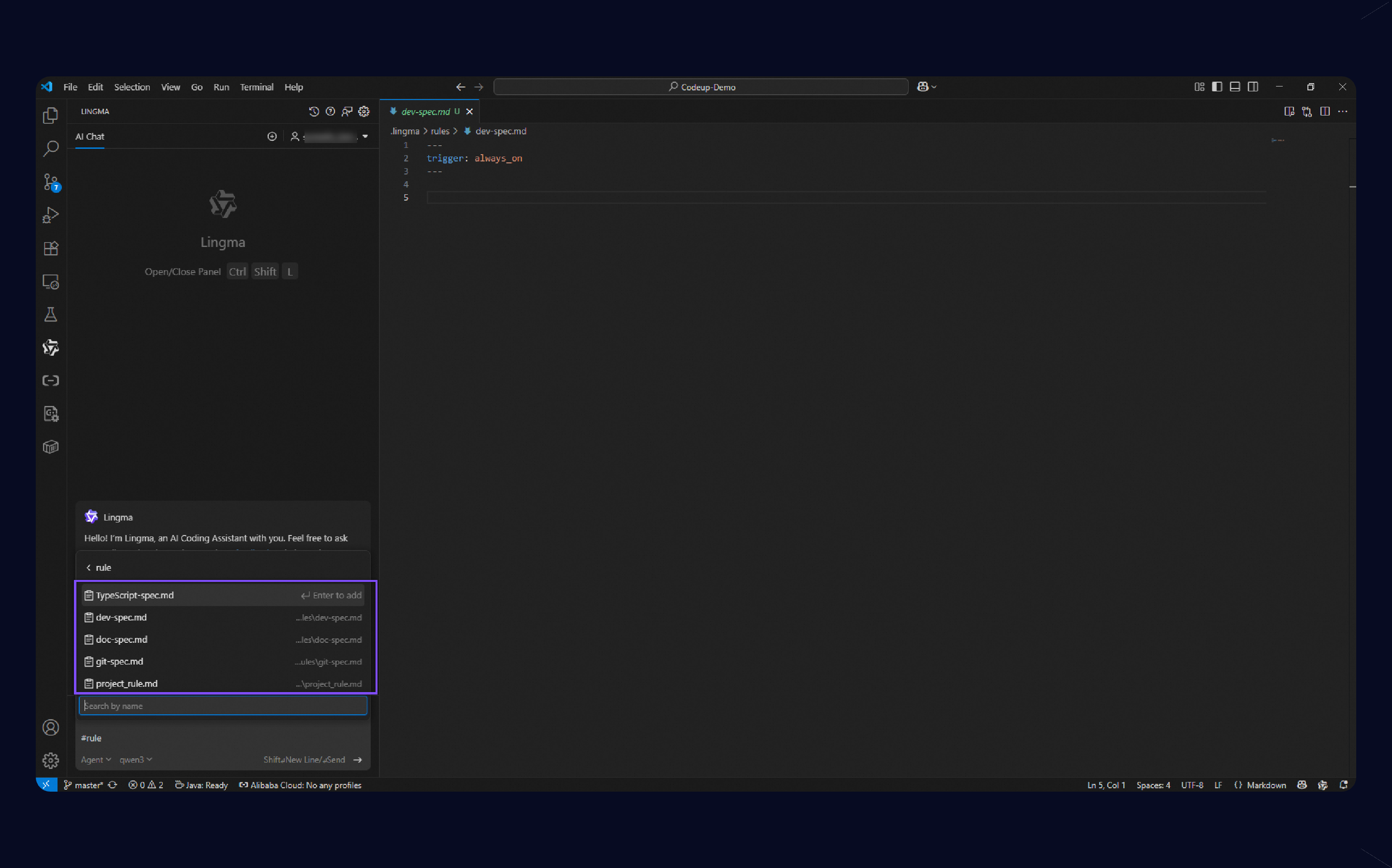
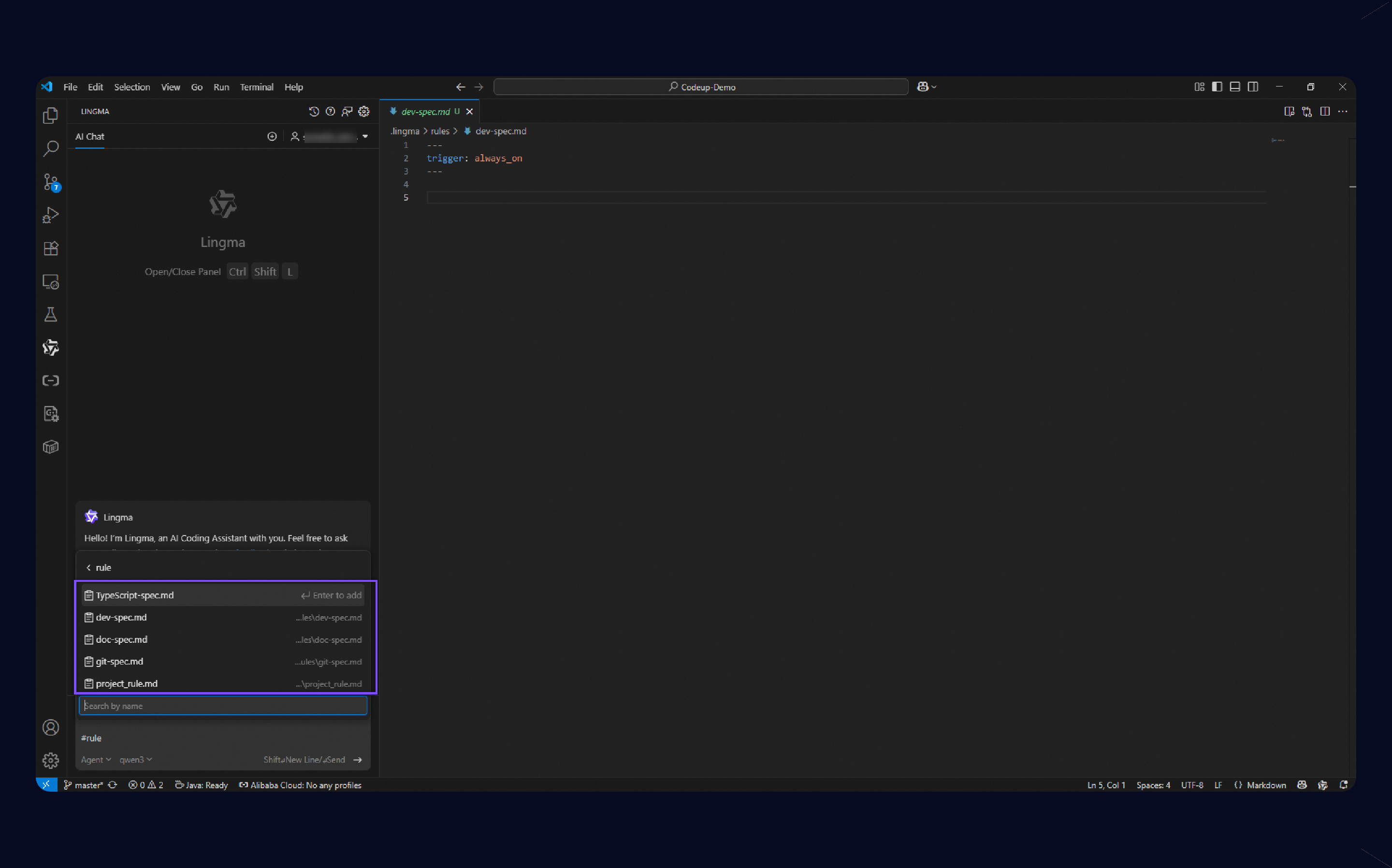
- Manual: In VS Code, enter #rule in the dialog box. In Qoder CN IDE and JetBrains IDEs, enter @rule. Then select the required rule from the list.
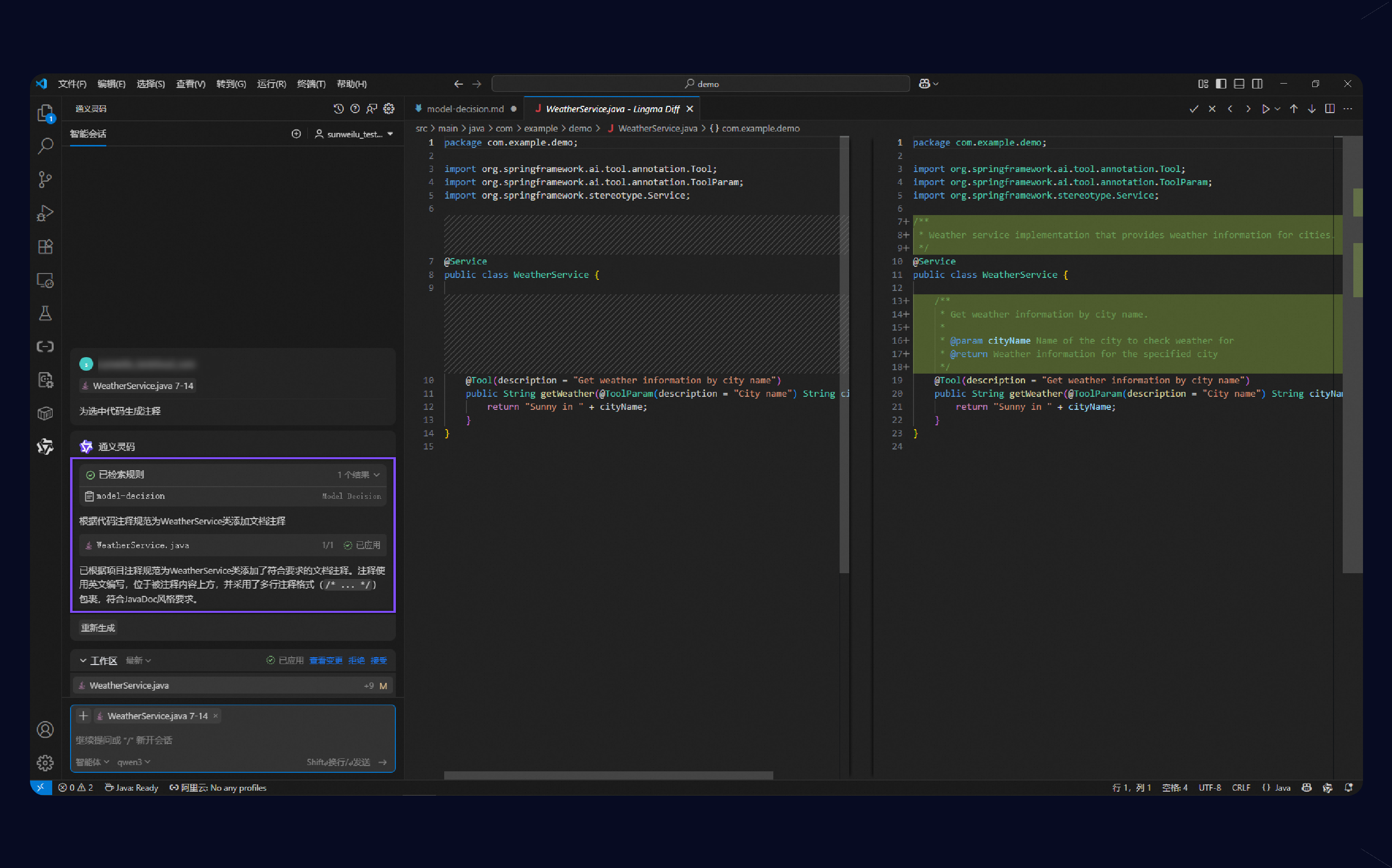
- Model Decision: When you use the Agent mode in AI Q&A, the model decides whether to apply a Model Decision rule based on its description. As shown in the figure, the model can dynamically call the rule retrieval tool in different scenarios.
-
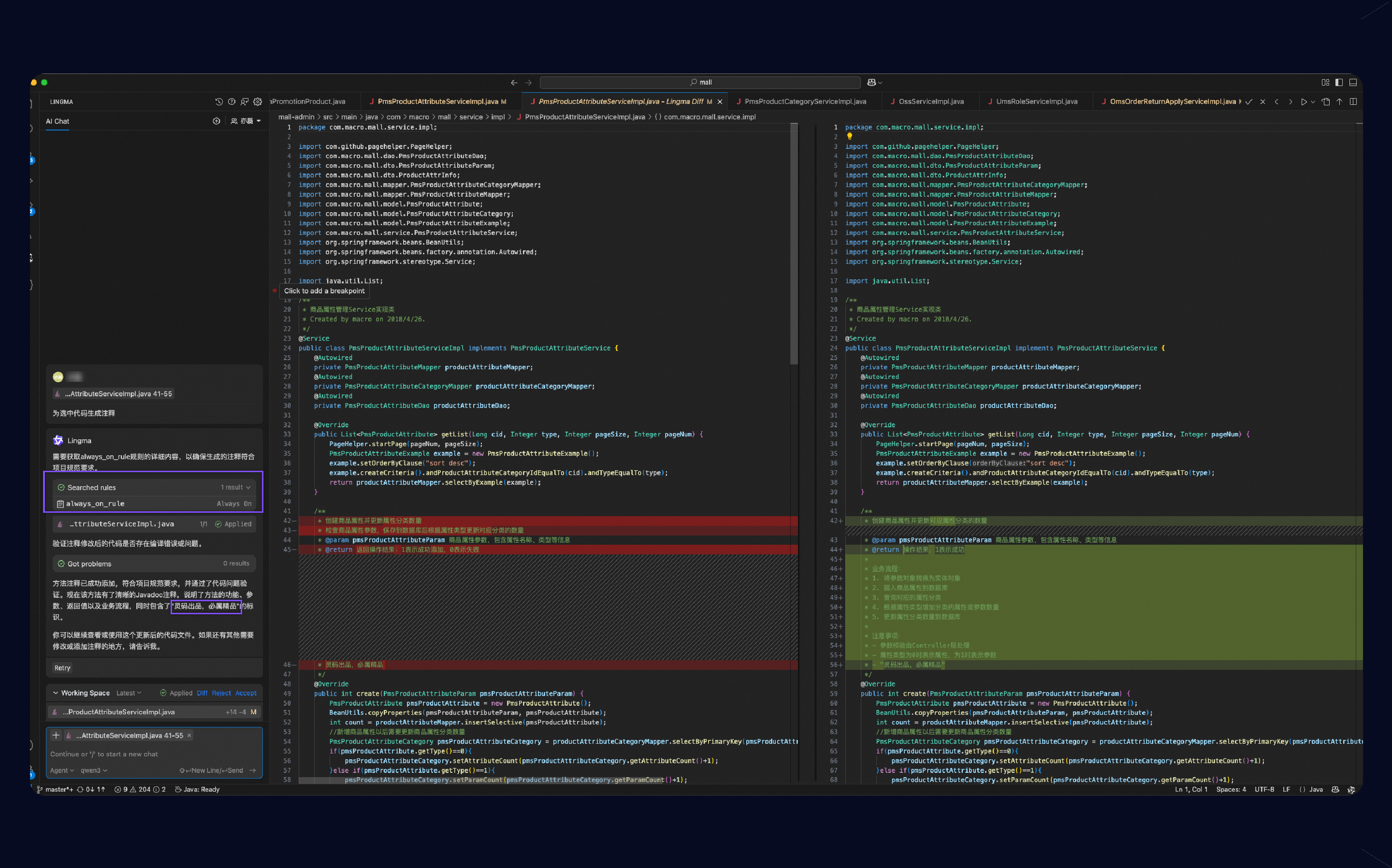
Always: This rule applies to all requests in AI chats and in-line sessions. As shown in the following figure:
- Specific Files: This rule applies to all files that match the wildcard pattern you define, such as .js, src/**/.ts.
Best practices
Follow these practices when writing rule files to help Qoder CN follow them effectively:
- Keep it simple and clear: Write concise, specific rules. Overly long or ambiguous rules may confuse Qoder CN.
- Use a structured format: Use bullets, numbered lists, and Markdown formatting. Structured rules are easier for Qoder CN to interpret than long paragraphs.
- Provide examples: Including "Do" examples of good code in your rules greatly helps the model understand your intent.
- Iterate and optimize: After creating a rule, test it through actual code generation and Q&A sessions. Refine your rule descriptions based on the model's responses.