

Introduction
Terminal execution depends heavily on your environment and configuration. VS Code and JetBrains IDEs have certain limitations and compatibility issues with terminals on different operating systems. As a result, you may encounter problems such as being unable to properly invoke the terminal to execute commands or being unable to obtain execution output when using Qoder CN Agent mode.
VSCode
Common troubleshooting methods
The Qoder CN VSCode plugin relies on the VSCode Shell integration API to invoke the terminal to run commands and read their output. This API is a new feature provided in VSCode version 1.93 and currently only supports the following shell types. You need to ensure that your VSCode version is greater than 1.93 and that the default terminal is configured to one of the following types:
- Linux/macOS: bash, fish, pwsh, zsh
- Windows: Git Bash, pwsh
Method 1: Upgrade VSCode
Check your VSCode version and ensure it is 1.93 or later:
- Open VSCode;
- Press Cmd + Shift + P (Mac) or Ctrl + Shift + P (Windows/Linux);
- Type Code: Check for Updates, then select it;
- After the update completes, restart VSCode.
Method 2: Configure a VSCode-supported Shell
- Open VSCode;
- Press Cmd + Shift + P (Mac) or Ctrl + Shift + P (Windows/Linux);
- Type Terminal: Select Default Profile, then select it;
- Choose a supported Shell:
- Linux/macOS: bash, fish, pwsh, zsh
- Windows: Git Bash, pwsh
- Fully exit VSCode, then reopen it.
Method 3: Manually install Shell integration
If you still encounter issues after trying the troubleshooting steps above, you can try manually installing Shell integration.
For example, if you use zsh:
-
Add the following line to your ~/.zshrc file:
- Save the file;
- Fully exit VSCode, then reopen it. If you use Bash (~/.bashrc):
Still having issues?
If you have tried the methods above and still occasionally encounter situations where you cannot obtain terminal output, try closing the terminal window that cannot obtain output (click the Stop Terminal button), then run the command again. This refreshes the terminal connection and is likely to solve the problem.
Windows troubleshooting methods
If you are using Windows and still encounter issues after trying the steps above, you can use the following methods:
Git Bash
You can try using Git Bash. Git Bash provides a Unix-like command-line experience on Windows. To use Git Bash, you need to:
- Download and run the Git for Windows installer from https://git-scm.com/downloads/win;
- Exit and reopen VSCode;
- Press Ctrl + Shift + P to open the command palette;
- Type Terminal: Select Default Profile, then select it;
- Select "Git Bash".
PowerShell
If you still want to use PowerShell, make sure you are using an updated version (at least v7+).
- Check your current PowerShell version by running: $PSVersionTable.PSVersion
- If your version is lower than 7, update PowerShell.
- Open PowerShell as an administrator: press Win + X and select "Windows PowerShell (Administrator)" or "Windows Terminal (Administrator)";
-
Check the current execution policy by running:
- If the output is already RemoteSigned, Unrestricted, or Bypass, you may not need to change the execution policy. These policies should allow Shell integration to work properly;
- If the output is Restricted or AllSigned, you may need to change the policy to enable Shell integration.
-
Change the execution policy by running:
This sets the RemoteSigned policy only for the current user, which is safer than a system-wide change.
- Confirm the change: type Y at the prompt and press Enter;
- Verify the policy change: run Get-ExecutionPolicy again to confirm the new setting;
- Restart VSCode and try Shell integration again.
WSL
If you use WSL, try adding . "$(code --locate-shell-integration-path bash)" to your ~/.bashrc, then restart and try again.
Other exceptional situations
Terminal output exceptions
If you see abnormal output with rectangles, lines, escape sequences, or control characters, this may be related to terminal customization tools. Common culprits include: Powerlevel10k (a zsh theme that adds visual elements to the prompt), Oh My Zsh, Fish shell themes, etc.
How to troubleshoot:
- Temporarily disable these tools in your Shell configuration file (for example, ~/.zshrc for Zsh);
- If the problem is resolved, gradually re-enable features to identify the conflicting tool.
Jetbrains IDEs
The new Beta terminal is available in the new UI starting from IDE version 2024.1. The Qoder CN JetBrains plugin does not currently support the new terminal mode.
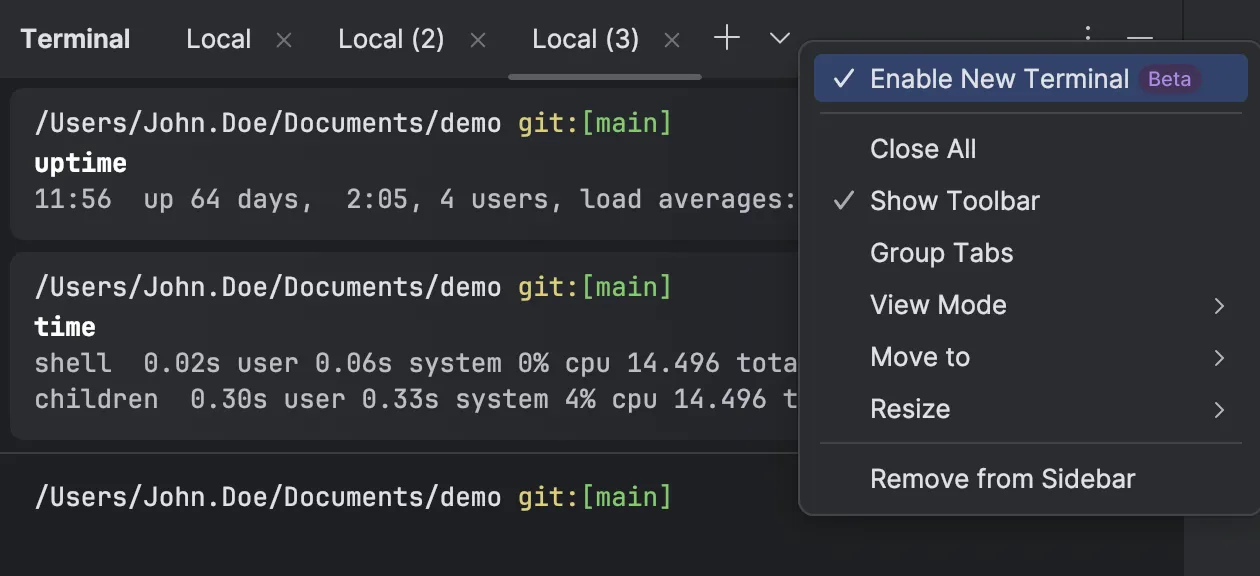
 icon and uncheck Enable New Terminal.
