

Orchestrate multi-stage work and manage inputs, Wakers, confirmations, run records, and automated triggers.
WakerFlow turns a validated working method into a repeatable executable workflow. Each run collects structured inputs, invokes assigned Wakers by stage, controls sequential work, parallel work, branches, and human confirmation, and returns one defined result. Use it when execution order and delivery format must remain stable across runs—not to make an untested or ambiguous task reliable.
Before creating a flow, validate each participating Waker with a small task. Confirm its responsibility, workspace, Skills, connectors, and permissions. A workflow can reliably reuse only a working method that is already clear.
A practical progression is: validate one Waker in a chat, validate multi-role work in a Group, then formalize the stable steps as a WakerFlow. A single-step task with one Waker and no structured input usually does not need a workflow.
Path: left navigation → Capabilities & Resources → WakerFlow. Use the management page to create a flow, review participating Wakers, open an existing flow, and maintain automated triggers.
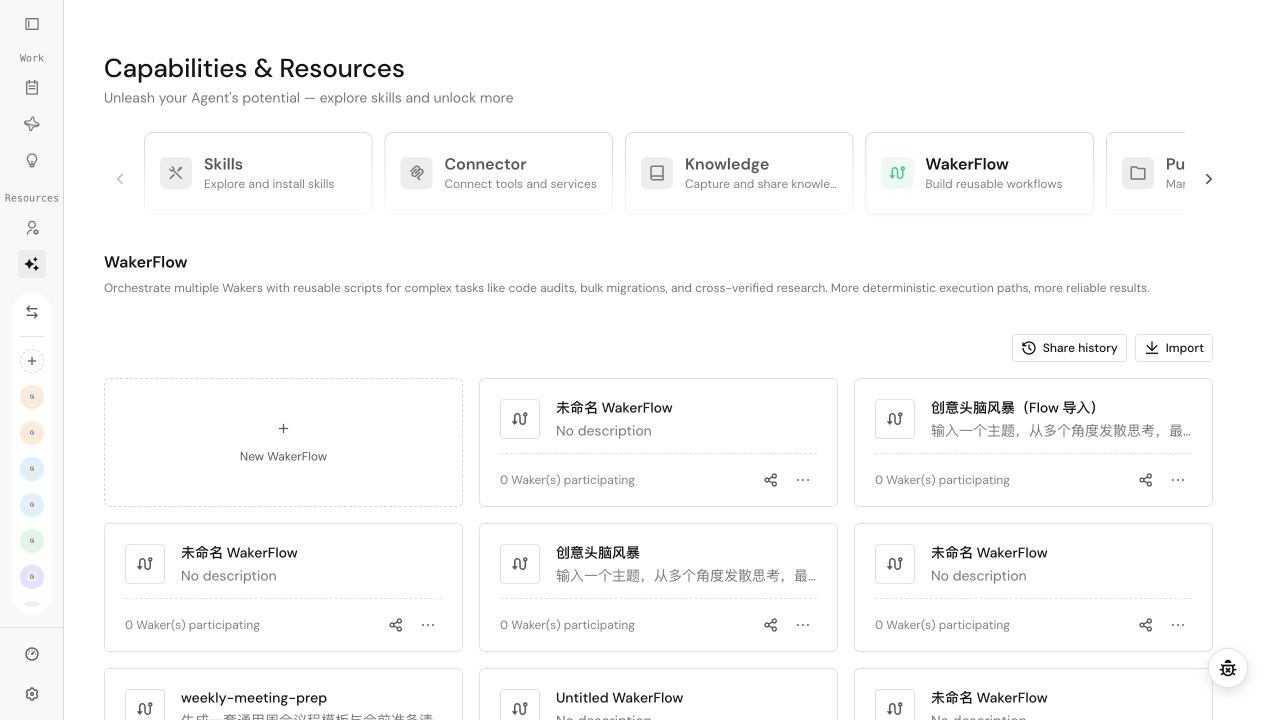 Before editing an existing flow, review its description, inputs, assigned Wakers, and recent runs. The name alone does not define the behavior; input fields, execution nodes, and the final return value do.
When the generated result needs correction, change one type of issue at a time—for example, make two extraction nodes parallel, assign the review node to a QA Waker, or add a confirmation before publishing. Changing nodes, inputs, and outputs together makes validation harder.
The canvas explains the structure, but the script is the executable definition. After changing the script, confirm that the canvas and run form still match it.
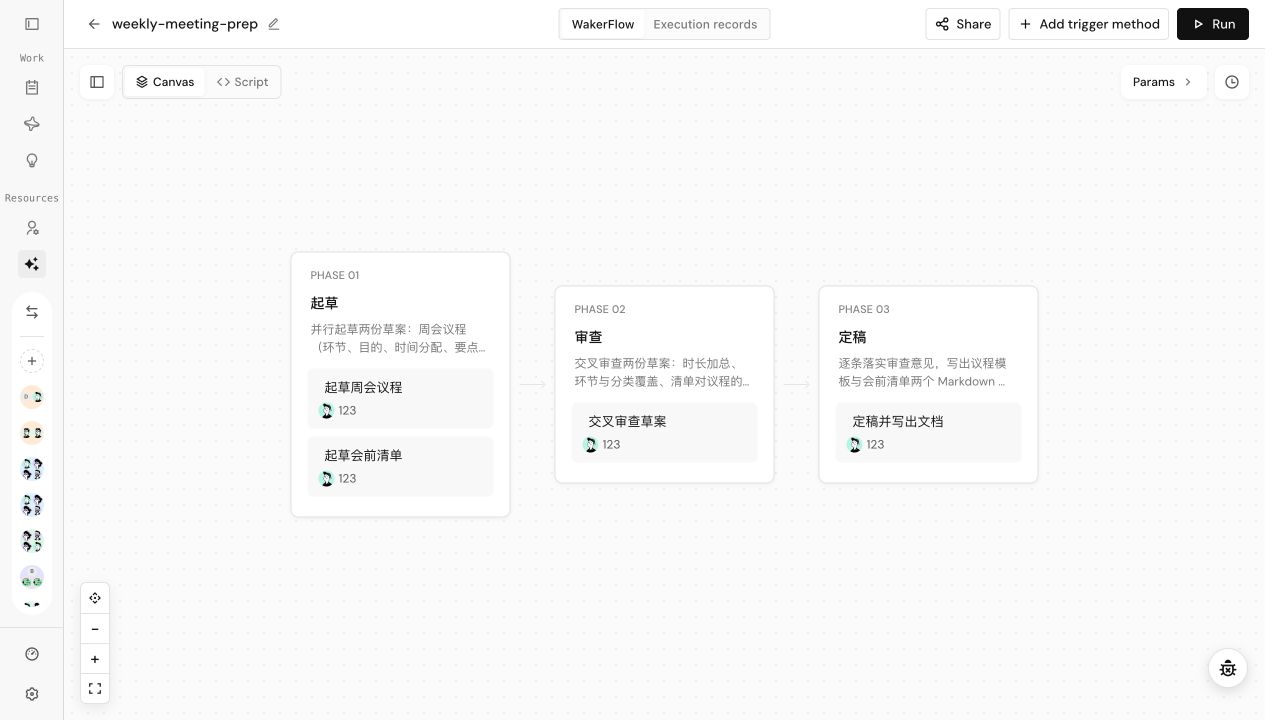
Define only values that change between runs as input fields. Give every field a stable name, type, description, required status, and a safe default where appropriate.
Changing an input field can affect the manual run form and every Autonomous Work item that invokes the flow. Review all callers after an input change.
When several Wakers share a directory, define one primary editor and keep the others read-only or review-focused. Parallel writers can overwrite the same file. A stage can contain several parallel Waker nodes; use a later stage for consolidation instead of allowing multiple nodes to edit the final artifact.
The final
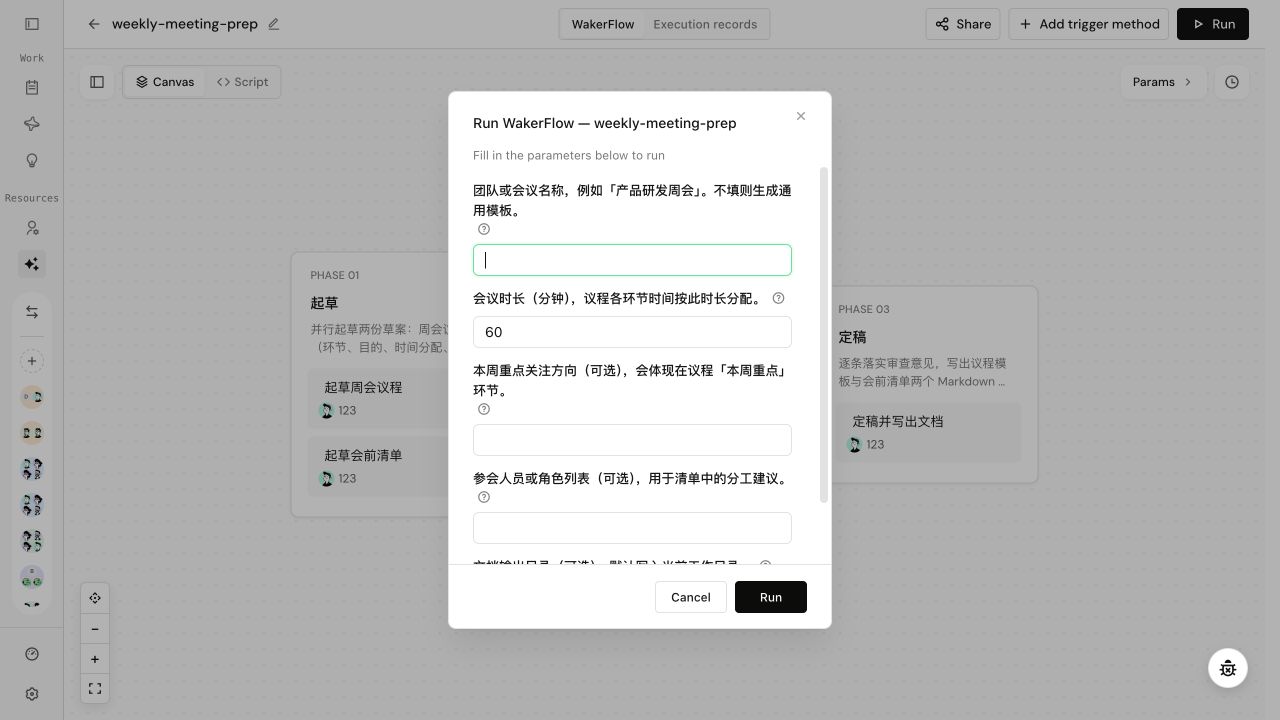 Object and array inputs must contain valid JSON. Missing fields, malformed JSON, or a type mismatch prevents submission or produces a validation error.
Use the run state to decide the next action:
Object and array inputs must contain valid JSON. Missing fields, malformed JSON, or a type mismatch prevents submission or produces a validation error.
Use the run state to decide the next action:
The first validation should cover a normal input, a missing field, an invalid input, a human-confirmation path, and one Waker-node failure.
A configuration summary is not the complete input, and a business log is not the complete output. Use the run configuration for inputs, the final result and artifact for delivery, and the Waker chat for node-level troubleshooting.
Waiting for input is not a failure. A flow can be waiting for a required value or human decision. Investigate only when a node reports failure or the flow terminates unexpectedly.
Terminate stops later execution but does not undo files already written, messages already sent, or completed external actions. Decide whether manual cleanup or rollback is required before terminating.
Retry can reuse nodes already completed in the same run. Retry after a transient failure only when inputs and the script are unchanged. If you changed an input, workflow script, or node configuration, start a new run so it does not inherit stale results.
Start with the first abnormal node:
A workflow script can catch a node error and continue. The overall state may therefore be Completed while the run also shows an N-failure badge. This means the engine finished, not that every business step succeeded. Validate the overall state, failure count, final return value, and actual artifacts together.
Open a failed Action node and inspect its name, error summary, error details, input parameters, and available output. Failures in Waker nodes or subflows can also contribute to the count. If the page does not expose full details, open the corresponding Waker chat or subflow run.
When a failed Action node offers Improve workflow from this failure, it carries the node error and run context into an editable draft. It does not send the draft or change the workflow automatically:
Save a recognizable version after every meaningful change and record the reason in its description.
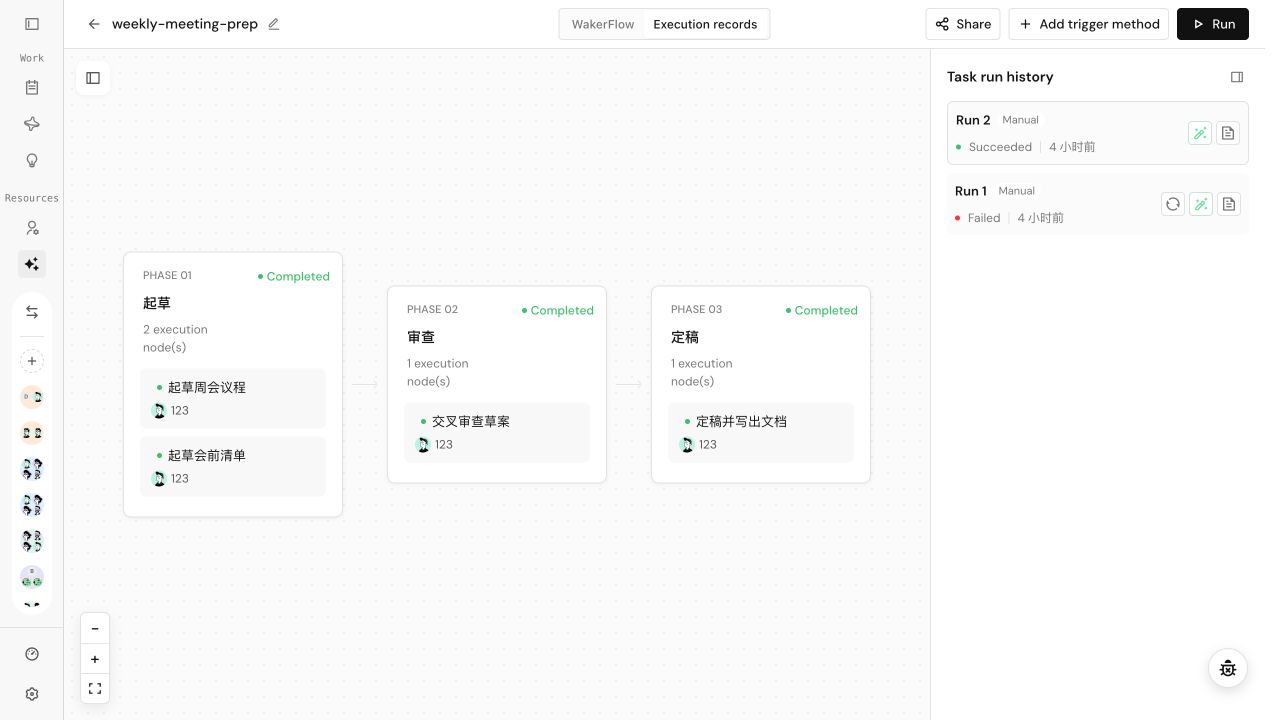
Switch to Run history to see the selected run's stage and Waker-node states on the left and the chronological run list on the right.
WakerFlow can be the execution target of Autonomous Work. For a schedule, event, or API trigger, select Run WakerFlow and map every required workflow input to a fixed value or trigger field.
This page owns workflow structure, input/output design, and failure diagnosis. Configure trigger timing, run limits, and API access in Autonomous Work.
Complete a manual run first, then validate the real trigger with a limited test. If the flow contains a human-confirmation node, an automated run pauses at that node; it does not bypass the decision.
When to use WakerFlow
| Working mode | Best for | Main characteristic |
|---|---|---|
| One Waker chat | Exploratory work with frequent questions and adjustments | Most flexible; validates whether the task is feasible |
| Group | Several Wakers collaborate toward one goal while a Leader assigns work dynamically | Open-ended collaboration and ongoing discussion |
| WakerFlow | Stages, dependencies, inputs, and outputs must stay consistent across runs | Explicit execution path with parallelism, branches, and human gates |
| Autonomous Work | A stable task starts on a schedule, event, or API call | Controls when work starts; the target can be a Waker or WakerFlow |
Open WakerFlow
Path: left navigation → Capabilities & Resources → WakerFlow. Use the management page to create a flow, review participating Wakers, open an existing flow, and maintain automated triggers.
Create a flow
- Select New WakerFlow to open an empty canvas.
- In the chat panel, describe the goal, changing inputs, stages, Waker assignments, error handling, human confirmation, and final output.
- Wait while QoderWake generates the script, stages, and Waker nodes. Do not submit the same request repeatedly.
- Give the flow a clear name and a description that explains both its scope and exclusions.
- On the canvas, verify stage order, parallel relationships, and the Waker assigned to every node. Then check the script and run configuration.
- Save and run a manual test before adding an automated trigger.
Understand the editor
| Area | Purpose |
|---|---|
| Canvas | Review stages, Waker nodes, parallel branches, and dependencies |
| Script | Inspect and edit the executable definition, inputs, outputs, and logic |
| Chat panel | Create or revise the flow with natural language and review generation progress |
| Run configuration | Review the fields required for a manual run |
| Version history | Compare and restore saved workflow versions |
| Run history | Inspect inputs, node states, and results for each run |
Revise a generated flow
- Select a stage or Waker node, then describe the exact change in the chat panel, such as “change only stage 02 and pass its review result to stage 03.”
- For a structural change, state which stages must remain, which nodes are added or removed, and whether inputs and outputs must remain compatible.
- After editing the script directly, resolve parser errors first, then recheck the canvas, run configuration, and final
return. - Save a version after each testable group of changes instead of stacking many unverified revisions.
Configure run inputs
Define only values that change between runs as input fields. Give every field a stable name, type, description, required status, and a safe default where appropriate.
| Setting | Guidance |
|---|---|
| Field name | Use a stable identifier so automated mappings do not break later |
| Description | Explain what to enter and the expected format |
| Required | Enable when the flow cannot complete without the value |
| Default | Use only for safe values that remain valid over time |
| Sensitive data | Never store passwords, tokens, or customer data as ordinary defaults |
Configure stages and Wakers
- Stage: a business step such as collect information, analyze, or generate report.
- Waker node: a node that performs a specific task. Assign one available Waker with a clear responsibility, and define the node's input, work, and deliverable.
- Parallel: use when work items are independent.
- Sequential: use when a later step depends on an earlier result.
- Branch: select a path from structured conditions and include default and error handling.
- Human confirmation: pause before code merges, releases, deletion, external publishing, or other critical actions.
| Item | What to verify |
|---|---|
| Node name | The expected deliverable is immediately understandable |
| Task instruction | Required workflow inputs and upstream results are referenced |
| Assigned Waker | Responsibility, runtime, and availability match the task |
| Workspace | The correct project is available and parallel nodes will not write the same file |
| Downstream result | The output is structured enough for the next stage to consume |
Define the output
The final return should deliver what the business user needs, rather than internal execution logs. Include:
- business conclusions or structured fields;
- accessible links or locations for generated artifacts;
- validation results, unresolved issues, and required human actions.
return, but its final result can be null; content intended for delivery must not exist only in business logs.
Run manually
- Select Run and complete all required fields.
- Check whether defaults are appropriate for this run.
- Confirm that the assigned Wakers, project, model, and connectors are available.
- Start the run and open Run history to track the active stage and node.
- When confirmation is requested, read the context, impact, and choices before deciding.
- After completion, inspect the final result and open the actual artifact.
| State | Meaning | Next action |
|---|---|---|
| Queued / Running | The run exists and is progressing | If it stops changing, inspect the active node and service state |
| Waiting for input | A human answer or confirmation is required | Open the run and respond; do not treat it as a failure |
| Completed | The workflow script finished | Validate the final result, required fields, and actual artifact |
| Completed · N failures | The workflow ended, but one or more nodes failed or returned a failure result | Open failed nodes; do not approve the run from “Completed” alone |
| Failed / Terminated | A node failed or the run was canceled | Start with the first abnormal node, fix the cause, and run again |
Understand configuration, logs, and results
| Information | Source | Completeness | Use |
|---|---|---|---|
| Run configuration | Submitted fields and defaults | Complete | Reproduce the run input |
| Configuration summary | System-generated overview | May be summarized or truncated | Quickly verify key settings |
| Node state | Workflow engine | Execution status | Locate running, waiting, successful, or failed nodes |
| Business log | Explicit workflow or Waker output | Only what the flow chose to log | Follow business progress and key decisions |
| Waker chat | Actual Waker session | Node-level context | Inspect inputs, tool activity, and responses |
| Final result | Workflow return value | Official return | Deliver the run outcome |
Handle waiting and failures
Waiting for input is not a failure. A flow can be waiting for a required value or human decision. Investigate only when a node reports failure or the flow terminates unexpectedly.
Terminate stops later execution but does not undo files already written, messages already sent, or completed external actions. Decide whether manual cleanup or rollback is required before terminating.
Retry can reuse nodes already completed in the same run. Retry after a transient failure only when inputs and the script are unchanged. If you changed an input, workflow script, or node configuration, start a new run so it does not inherit stale results.
Start with the first abnormal node:
- Check the input received by the node.
- Confirm that the Waker assigned to the node is enabled and its device is online.
- Check the workspace, Skill, connector, and permission.
- Confirm that script branches cover the current input.
- Fix the issue and rerun the same test input.
Recognize “Completed with failures”
A workflow script can catch a node error and continue. The overall state may therefore be Completed while the run also shows an N-failure badge. This means the engine finished, not that every business step succeeded. Validate the overall state, failure count, final return value, and actual artifacts together.
Open a failed Action node and inspect its name, error summary, error details, input parameters, and available output. Failures in Waker nodes or subflows can also contribute to the count. If the page does not expose full details, open the corresponding Waker chat or subflow run.
Improve from a failed node
When a failed Action node offers Improve workflow from this failure, it carries the node error and run context into an editable draft. It does not send the draft or change the workflow automatically:
- Review the referenced node, error, and run; remove sensitive input that should not be included.
- Add the expected behavior, allowed stages, and acceptance criteria.
- Send the request, review the proposed change, and save a new version.
- Rerun the same input and compare the failed node and final artifact.
Use version history
Save a recognizable version after every meaningful change and record the reason in its description.
- Run a fixed regression sample after small changes.
- Review all Autonomous Work items and API callers after input or output changes.
- After a restore, reconnect Wakers, projects, or connectors that were removed or replaced.
- Version history records configuration; run history records execution.
Improve the flow from a run record
Switch to Run history to see the selected run's stage and Waker-node states on the left and the chronological run list on the right.
- Select the run you intend to investigate instead of assuming the newest run is relevant.
- Start with the first failed or unexpectedly waiting Waker node and open its result and chat.
- Compare run configuration, configuration summary, business log, and final result to identify an input, task instruction, resource, or workflow-structure problem.
- Use Improve workflow from this run for structural issues. For one failed Action node, prefer the node-level improvement entry. Both create an editable draft before anything is submitted.
- Save a new version and rerun the same input to compare node states and final artifacts.
Configure automated triggers
WakerFlow can be the execution target of Autonomous Work. For a schedule, event, or API trigger, select Run WakerFlow and map every required workflow input to a fixed value or trigger field.
This page owns workflow structure, input/output design, and failure diagnosis. Configure trigger timing, run limits, and API access in Autonomous Work.
Complete a manual run first, then validate the real trigger with a limited test. If the flow contains a human-confirmation node, an automated run pauses at that node; it does not bypass the decision.
Rollout and maintenance checklist
- The name, description, inputs, and outputs are understandable to a new user.
- Every Waker node has one clear responsibility and an available assigned Waker.
- Parallel nodes cannot overwrite the same file or external object.
- High-risk actions have human confirmation and a workable rollback plan.
- Normal, invalid, and empty inputs have been tested.
- Retest after changing inputs, scripts, Wakers, connectors, or permissions.