

Configure human experts for @Waker chats so they can resolve blockers and return confirmed decisions to the original task and group.
When working with Digital Employees in group chats, users may still encounter challenges:
Experts are configured at the chat level, providing the flexibility and specialized support required for effective collaboration between human employees and Digital Employees.
Administrators can configure one or more human experts for each 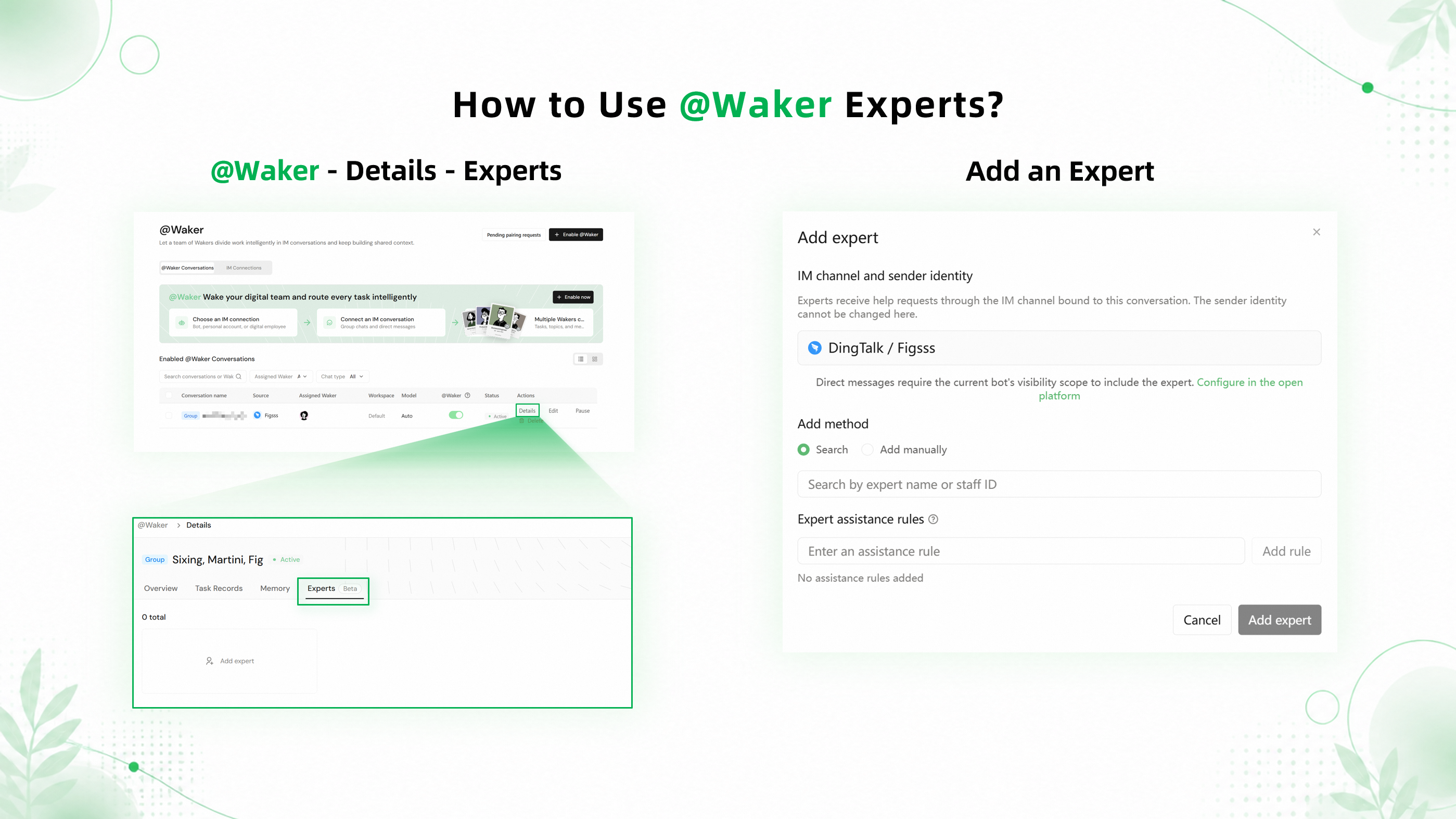
Experts receive help requests through direct messages with the bot. The recommended response method is to quote the specific help request from
After the first response, the expert can continue to provide additional information, answer follow-up questions, or correct the original conclusion.
Experts can continue to use 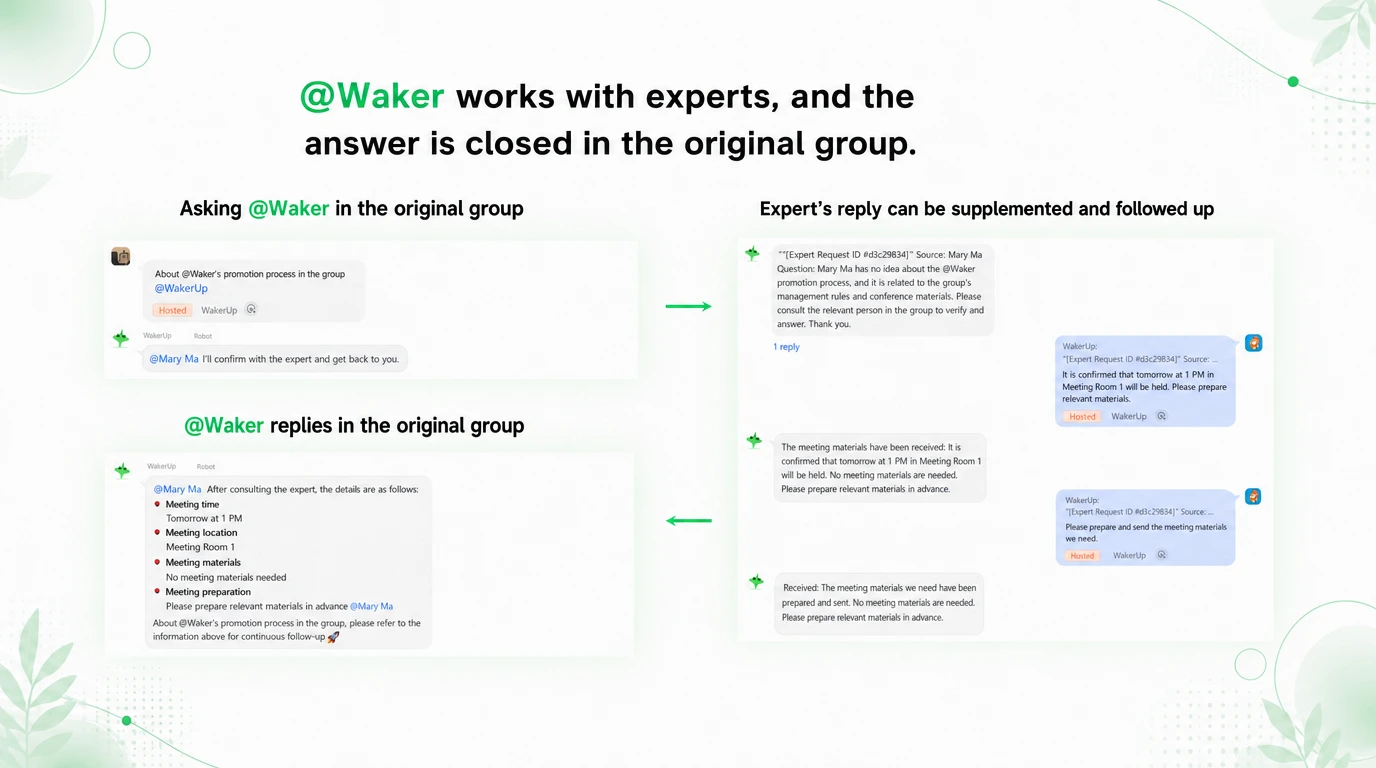
In the “@Waker Adoption Project” group, a member asks about the latest project progress. The meeting time, location, and preparation materials are part of the project's latest arrangements, so
In a development group, a developer asks whether order service PR #482 can be released that evening now that it has passed CI. 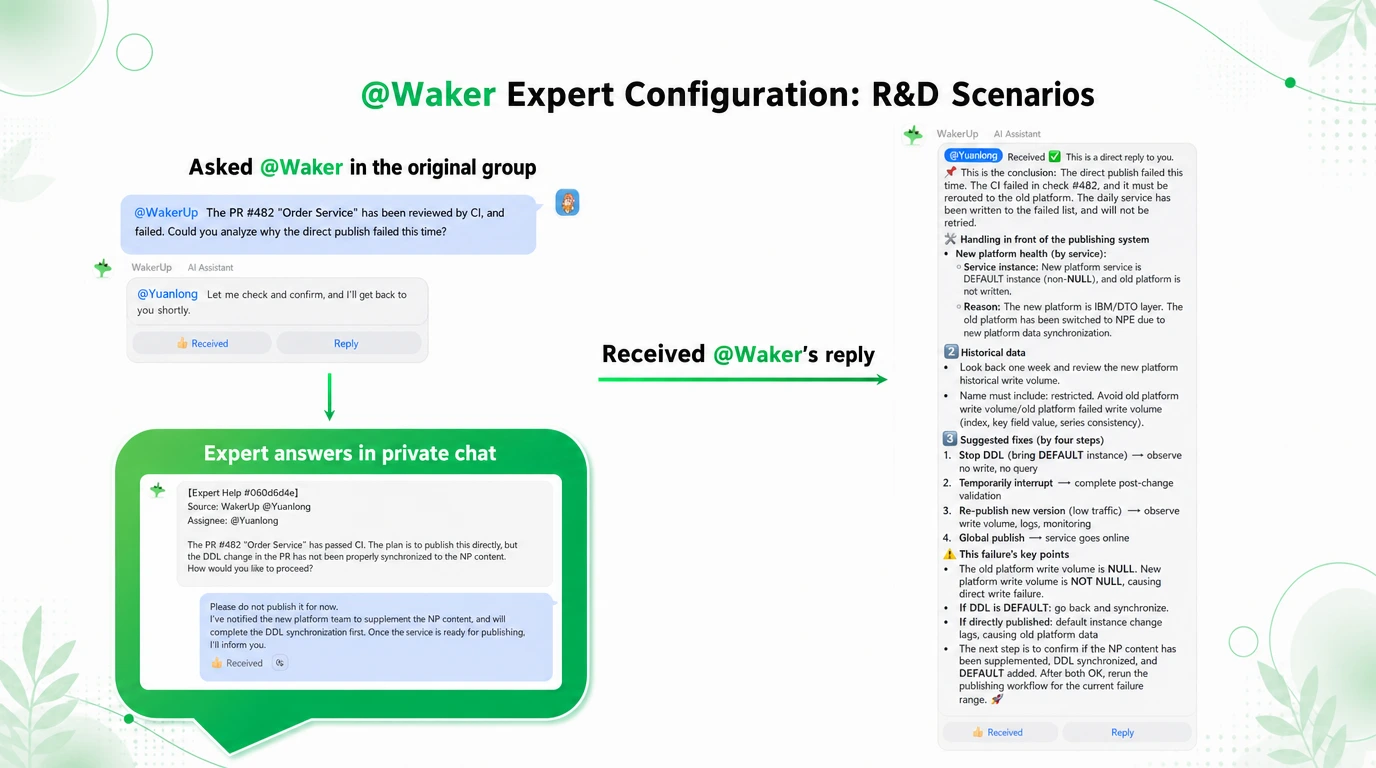
After completing the configuration, run the complete workflow in a test group:
- High-stakes activities such as code releases and product launches often require review and approval from human experts. However, experts do not always have time to read through a large volume of group messages and respond promptly.
- Even when a Digital Employee is connected to the relevant project and knowledge base, it may still be unable to provide accurate definitions for newly introduced concepts and terminology.
@Waker chat, @Waker can proactively seek help from the right expert at the right time based on the configured rules. Once the expert responds, @Waker continues the task and returns the result to the original task and group chat.
Administrators: Configure Experts for Each @Waker Chat
Experts are configured at the chat level, providing the flexibility and specialized support required for effective collaboration between human employees and Digital Employees.
Administrators can configure one or more human experts for each @Waker chat to help resolve specific issues that @Waker may encounter while working. Expert assistance rules should reflect the actual challenges and blockers in the workflow.
Overly broad rules, such as “Ask an expert about difficult issues,” make it harder for @Waker to determine when expert assistance is required. Effective rules include:
Account sign-in, organization permissions, and enterprise verificationVersion upgrades, data migration, and compatibility issuesAsk an expert to review all code before delivery
Add experts to the current
@Waker chat and define specific expert assistance rules.Experts: How to Work Effectively with @Waker
Quote @Waker's Help Request, Then Provide a Conclusion
Experts receive help requests through direct messages with the bot. The recommended response method is to quote the specific help request from @Waker and then provide a conclusion.
After the first response, the expert can continue to add details, answer follow-up questions, or correct the conclusion by quoting the same message again.
An expert may receive multiple help requests from several group chats at the same time. Quoting the relevant request helps @Waker determine which response belongs to which request and prevents responses from being associated with the wrong chat.
Continue Quoting the Same Message When Adding or Correcting Information
After the first response, the expert can continue to provide additional information, answer follow-up questions, or correct the original conclusion.
- To add a condition, write:
Additional note: The solution above applies only to version 3.0 or later. - To correct a conclusion, write:
Correction: The original solution does not apply to hosted environments. Use the platform upgrade process instead.
Expert Help Requests Remain Separate from the Expert's Own Work with @Waker
Experts can continue to use @Waker normally in the same direct-message chat. For example, if an expert sends “Help me organize these meeting notes,” the request is handled as an ordinary direct message and is not forwarded to any group chat.
Only a response that clearly corresponds to an expert help request enters the original task. Expert help requests and the expert's own direct chats with @Waker do not become mixed simply because they appear in the same chat.
The expert quotes the help request in the direct chat with the bot.
Example: Coordinating Work in a Project Group
In the “@Waker Adoption Project” group, a member asks about the latest project progress. The meeting time, location, and preparation materials are part of the project's latest arrangements, so @Waker does not guess. Instead, it tells the requester: “I'll confirm with an expert and get back to you as soon as I receive a response.”
@Waker then sends a direct message to the adoption project expert configured for the current chat. It explains where the question came from, who asked it, and which details need to be confirmed.
The expert quotes the help request and replies: “Tomorrow at 3:00 PM in Meeting Room 1.” The expert then adds: “The relevant owner needs to prepare the website documentation before the meeting.”
Both responses enter the same task. The expert does not need to join the project group, and the requester does not need to relay information between different chats. After receiving the expert's responses, @Waker organizes the meeting time, location, and preparation requirements and returns the complete information to the original adoption project group.
Example: Expert Review Before a Code Release
In a development group, a developer asks whether order service PR #482 can be released that evening now that it has passed CI. @Waker can inspect the code and build results, but the change modifies the database schema. According to the expert assistance rules configured for the current chat, all database changes must be reviewed by a backend and database expert before release.
@Waker tells the group: “I'll inspect the code and database changes and ask an expert to confirm the release risks.”
It then sends the expert a direct message containing the key information needed for a decision: the PR has passed CI, but the database migration adds a non-nullable field without a default value, and the team needs to determine whether the change can be released immediately.
The expert quotes the help request and replies: “Do not release it yet. Add a compatible default value for the new field and backfill the historical data first. Otherwise, writes from the old service version may fail while the old and new versions are running at the same time.”
@Waker organizes the expert's guidance and returns it to the original development group: postpone the full release, resolve the field compatibility issue, complete the data backfill, and prepare a rollback plan. Once the changes are complete, begin with a small canary release and gradually expand it after confirming that the monitored metrics remain normal.
@Waker asks the expert to confirm release risks, then returns the conclusion to the original development group.Run a Simple Validation Before Rollout
After completing the configuration, run the complete workflow in a test group:
- Ask
@Wakera question that requires expert judgment. - Confirm that the correct expert receives the help request through a direct message.
- Ask the expert to reply by quoting the help request.
- Confirm that the result returns to the original group.
- Ask the expert to start an ordinary direct chat and confirm that it is not forwarded to the group.
@Waker expert configuration, each chat can have the right experts to help @Waker resolve blockers, while confirmed answers return to the original group. Once a task is delegated to @Waker, it becomes more reliable: instead of stopping when it encounters a problem, it can proactively seek expert assistance and continue moving the work forward.