

Create public or Waker-private projects and provide stable workspaces to chats, Autonomous Work, and WakerFlow.
A project gives Wakers reusable access to code, documents, and other working files. Create a public project when several Wakers need the workspace; create a private project under one Waker when access should be limited to that Waker.
A project configuration stores a workspace path and access relationship. It does not copy the original files, and deleting the configuration does not delete the directory on disk.
Do not expose a broad parent directory that contains unrelated projects, personal files, or sensitive data.
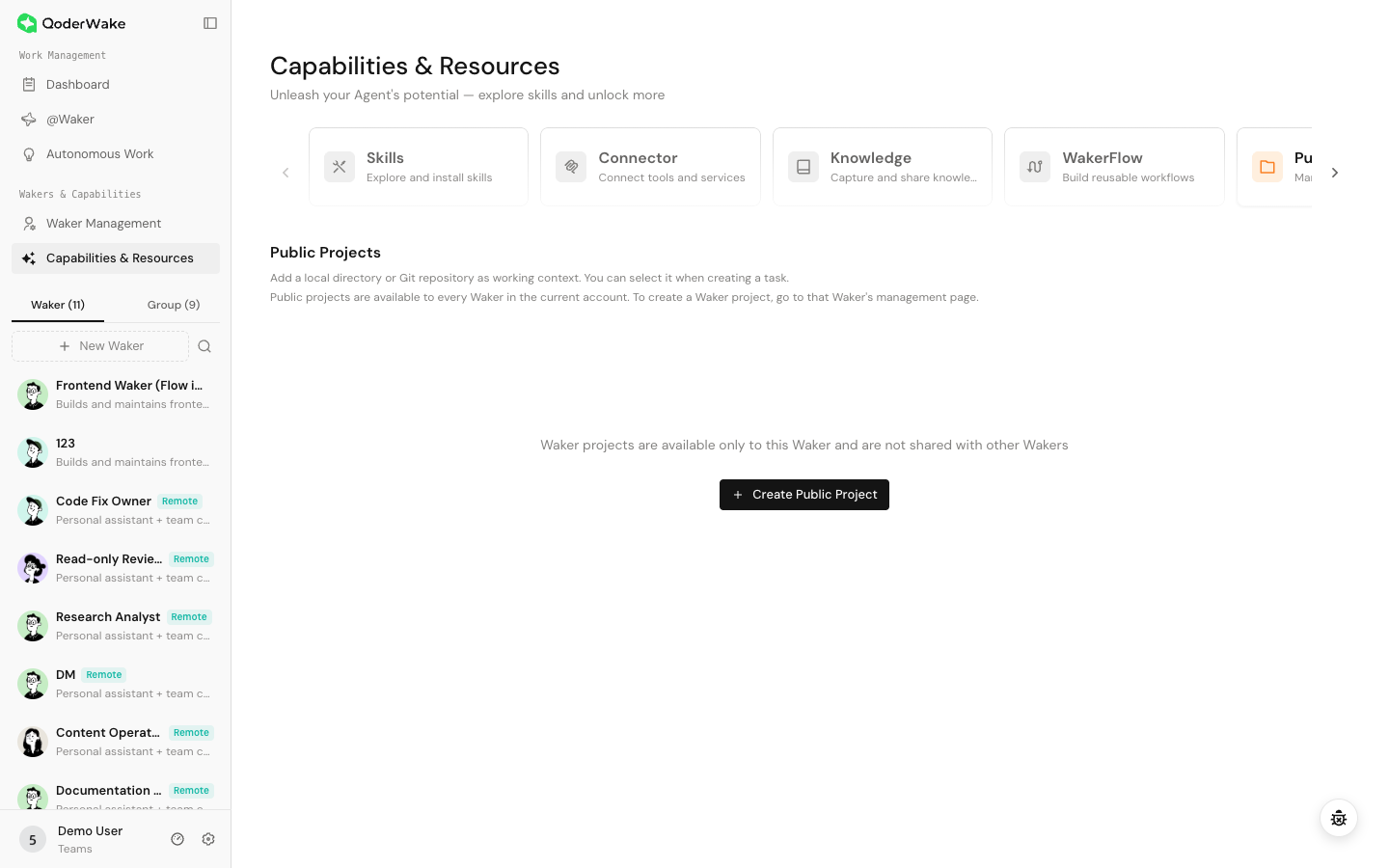
Path: left navigation → Capabilities & Resources → Public Projects.
Path: Waker Management → select a Waker → Capabilities & Resources → Projects.
An automated trigger cannot correct a wrong directory interactively. Before rollout, verify:
When several Wakers use the same project, define:
After changing the path, device, or scope:
Choose public or private
| Type | Scope | Best for |
|---|---|---|
| Public Project | Wakers in the account that can use public projects | Shared repositories, common standards, and long-term team workspaces |
| Waker Private Project | One Waker | Specialized repositories, individual workspaces, and limited access |
Create a public project
Path: left navigation → Capabilities & Resources → Public Projects.
- Select Create Public Project.
- Choose a local directory or Git repository source supported by the page.
- Enter a name that distinguishes the environment, repository, or purpose.
- Verify the actual path, execution device, and access scope.
- Save and reopen the item from the list.
- In a new chat for a test Waker, select the project and perform a read-only check.
Create a private project
Path: Waker Management → select a Waker → Capabilities & Resources → Projects.
- Select Add project.
- Choose a directory or repository that the Waker's execution environment can access.
- Enter a clear name and save.
- Start a new chat with the Waker, select the project, and run a read-only check.
Use a project in a chat
- Start a new task for the intended Waker or Group.
- Select Project as the workspace type.
- Choose the project and confirm the execution device and branch.
- State the allowed read/write scope, artifact location, tests, and acceptance criteria.
- After completion, inspect the actual files and version-control diff.
Use a project in Autonomous Work
An automated trigger cannot correct a wrong directory interactively. Before rollout, verify:
- the path is stable and the device will be online at trigger time;
- another automation cannot overwrite the same branch or directory;
- write operations, tests, and output locations passed a manual run;
- connector and file permissions will remain valid during unattended execution.
Use a project with Groups and WakerFlow
When several Wakers use the same project, define:
- the Waker responsible for actual modifications;
- the Wakers limited to analysis or review;
- whether each participant uses the same branch or an isolated workspace;
- the owner that consolidates and delivers the result.
Update or delete a project configuration
After changing the path, device, or scope:
- Pause automated tasks that depend on the project.
- Update the project configuration.
- Use a new chat for a read-only check, then validate one limited write.
- Resume automation and Group use.
Troubleshooting
| Symptom | Check |
|---|---|
| Waker cannot find project | Public/private scope → assignment → execution device |
| Project selectable but files unreadable | Actual path → file permission → device status |
| Wrong repository or branch modified | Stop the task → inspect workspace and branch → assess changes |
| Automation suddenly fails | Moved project → device and permission → connector and branch |
| Multi-Waker conflict | Define a primary writer and use isolated branches or workspaces |