This guide shows how to use @Waker as a shared IM entry point for team work. Once connected, group members always mention the same bot or account. Behind that identity, QoderWake recognizes the task, selects the right Waker, and returns progress and results through the same IM identity.
Use @Waker to execute, follow up, and deliver work such as code changes, plans, data analysis, and documents. Use a Group Chat Q&A Specialist for recurring questions answered from knowledge. Both can serve the same team, but they solve different problems.
Choose a collaboration pattern
| Pattern | How work starts | Best suited for |
|---|
| Group bot or connected account | Mention the shared identity and describe the task | Project delivery, incident response, and operations work followed by a team |
| IM direct chat | Send an ordinary message; no mention is required | Personal research, plan preparation, iterative editing, and private confirmation |
How one bot connects multiple Wakers
Connect only one bot or account to a group as the shared entry point. Members do not need to know how many Wakers are configured behind it or remember a separate address for each role. After every mention, QoderWake determines:
- Whether the message starts a new task or continues, checks, changes, or cancels existing work.
- Whether the requester explicitly selected a Waker or responsibility for a new task.
- If not, whether a routing rule matches. When no rule matches, the default Waker responds or asks for clarification.
- Which Waker performs the task. Task status identifies that Waker, while the same bot or account returns every message to the group.
Group discussion → mention the same bot → identify task relationship → route to a Waker
                 → same bot returns progress and results → human approval → continue task
Establish a rollout baseline
For the full IM connection, chat pairing, Waker assignment, and Wake-up Mode setup, see @Waker. This practice keeps only the baseline that should be consistent before scenario rollout.
Assign two to four complementary Wakers to a chat:
- Define what each Waker owns and what is explicitly out of scope. Avoid broad roles such as “General Assistant.”
- Choose a default Waker that can handle general requests, determine intent, and ask clarifying questions.
- Add routing rules for each category of work and human-approval boundaries for code merge, production changes, and external publishing.
- Configure each Waker's response model, workspace, and file permissions. Include only the directories required by that responsibility.
- Save the chat, confirm that it is
Active, and turn on @Waker. In a test group, use the same bot to start two categories of work. Confirm that task status shows different Wakers while the visible sender remains unchanged.
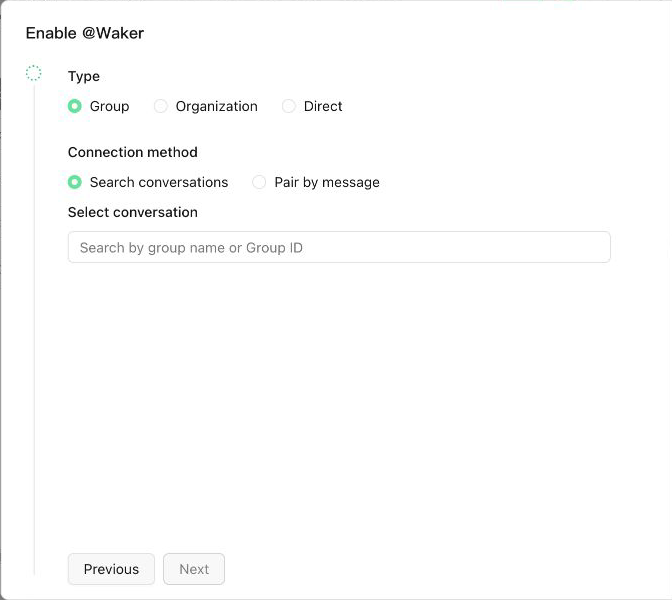
When enabling @Waker, select the chat and responding Wakers, then configure the default Waker, model, and related permissions.
If the page provides Check Responsibility Conflicts, run it before rollout. Narrow overlapping responsibilities first, then add routing priority where overlap is intentional.
Scenario 1: Drive engineering delivery from a project group
Use this pattern when requirements, implementation, testing, and release preparation are coordinated in one group. The bot turns confirmed discussion into work and keeps it moving, while project owners retain scope, merge, and release decisions.
| Waker | Owns | Does not own |
|---|
| Project Coordinator (default) | Requirement breakdown, schedules, progress, and risks | Does not edit application code |
| Engineering Executor | Code investigation, implementation, and tests | Does not decide scope or release to production |
| QA Reviewer | Test design, regression, and acceptance summaries | Does not approve production release |
Route requirement breakdown, schedules, and progress summaries to Project Coordinator. Route code, builds, and troubleshooting to Engineering Executor. Route test cases, regression, and acceptance results to QA Reviewer. Code merge and production release always require human approval.
Follow the workflow
1. Turn a confirmed discussion into work
The team discusses normally. Once the scope is confirmed, an owner mentions the shared bot:
Product owner (ordinary message): This release changes only coupon stacking validation. It does not change the coupon-claiming flow.

Engineering lead: @ProjectBot New task: Break down the delivery work from the discussion above.
Deliverable: Engineering, QA, and release-preparation checklist with owners, dependencies, acceptance criteria, and risks.
Constraints: Finish by Friday. Do not edit code yet.
2. Run approved work in parallel
After the owner confirms the breakdown, the team still uses the same bot:
Engineering lead: @ProjectBot New task: Inspect coupon stacking validation, implement the approved change, and run unit tests. Do not merge code.

QA lead: @ProjectBot New task: Add edge cases from the approved acceptance criteria. Run this in parallel with implementation.
3. Follow up in the original group
Engineering lead: @ProjectBot Report the status of the implementation task. Do not create a new task.

Engineering lead: @ProjectBot Continue the implementation task and verify compatibility with legacy coupons.
4. Keep a human gate before critical actions
Do not combine code merge, release, or production changes with analysis in one request. Have the Waker return readiness, risks, and rollback steps first. Continue the same task only after an owner approves the action.
An approval message in a group must still mention the same bot and identify the task it continues:
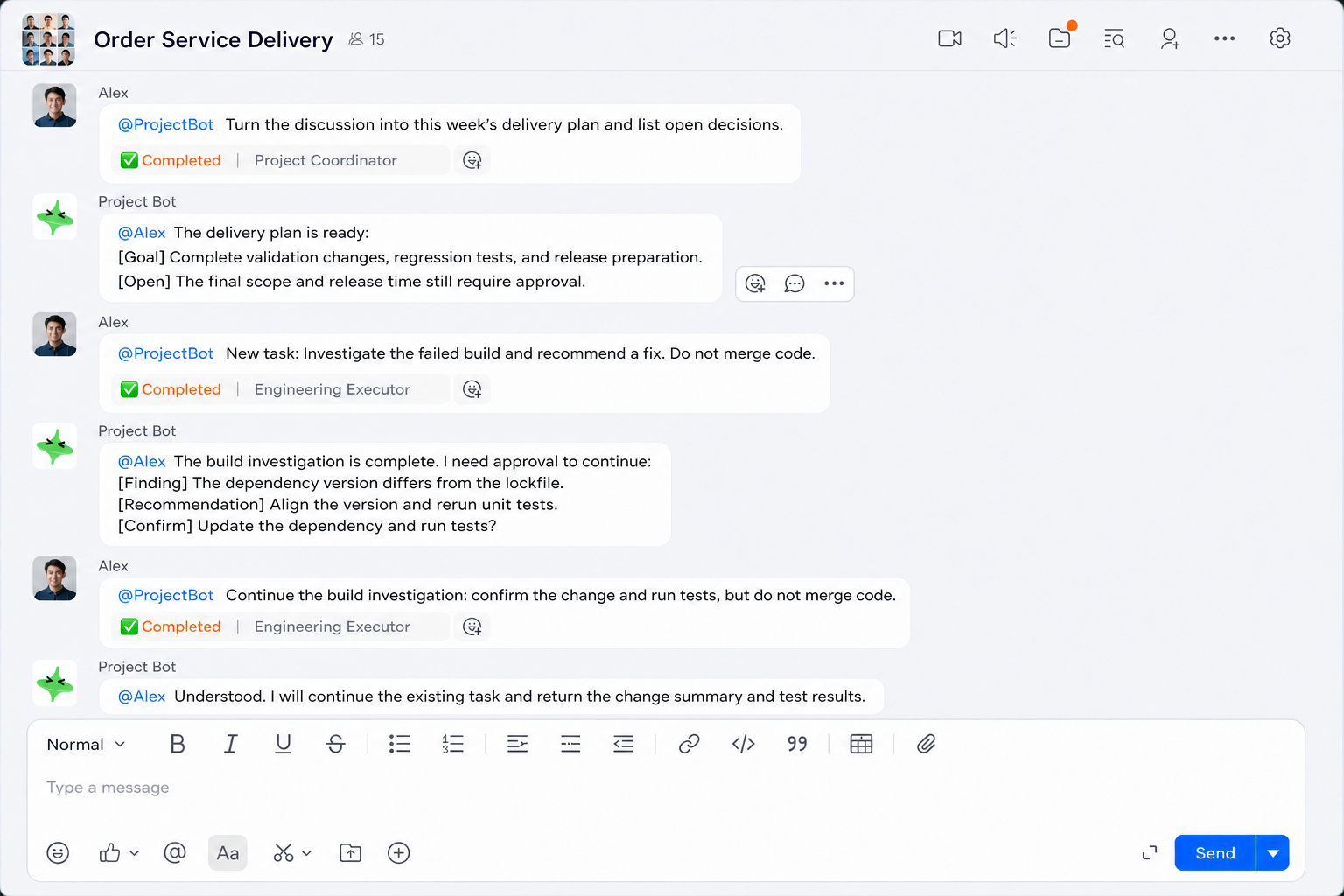
Engineering lead: @ProjectBot Continue the build investigation:
Confirm the change and run tests, but do not merge code.
In a DingTalk group, the same Project Bot routes plan preparation and build investigation to different Wakers. Task status identifies the executing Waker; every message returns through the same bot.
Scenario 2: Complete individual work in an IM direct chat
Direct chats work well for organizing material, preparing a proposal, analyzing data, or iterating on a draft before bringing it back to the team. Assign one default Waker when one role covers most work; add a specialized Waker only when responsibilities are distinct.
Personal Work Assistant (default): organize material, prepare plans, and revise deliverables.Data Analyst (optional): process tables, metrics, and findings; access only the designated data directory.
Follow the workflow
No mention is required in a direct chat. The first message creates a task, and an explicit “Continue” follows up on it:
New task: Turn the attached customer interview notes into a requirements summary.
Deliverable: Organize it as Problems, Evidence, Recommendations, and Open Questions, and create a Markdown file.
Constraints: Remove names and contact details. Do not invent conclusions not present in the interviews.

Continue the interview-summary task and rank the recommendations by impact and implementation cost.

New task: Have Data Analyst process the attached feedback statistics. Keep this separate from the interview-summary task.
In a DingTalk direct chat, a generated document returns as a clickable link; a follow-up continues the task and updates the same artifact.
@Waker can deliver documents, images, and spreadsheets generated by the task. On DingTalk, QoderWake currently uploads the artifact to DingTalk file storage, grants the recipient download access, and returns a clickable link in the same reply; it does not appear as a native file bubble. Presentation on Feishu and other channels, including whether Automatically Send Artifact Files must be enabled, depends on the connection settings. Code changes are not sent as attachments.
Scenario 3: Support investigation and recovery in an incident group
An incident group must quickly establish shared facts, investigate causes in parallel, and prepare a reviewable recovery plan. One bot accepts every request while backend Wakers divide the work. Every production action remains subject to human approval.
| Waker | Owns | Does not own |
|---|
| Incident Coordinator (default) | Timeline, impact, progress, and action tracking | Does not perform system changes |
| Engineering Investigator | Code, stack traces, and recent changes | Does not operate production directly |
| Operations Analyst | Monitoring, logs, capacity, and recovery steps | Does not restart, scale, or deploy without approval |
Route impact, timeline, and progress summaries to Incident Coordinator. Route code, stack traces, and version changes to Engineering Investigator. Route monitoring, logs, capacity, and recovery plans to Operations Analyst. For every production change, provide the steps, risks, and rollback plan, then wait for human approval.
Follow the workflow
1. Establish the incident summary
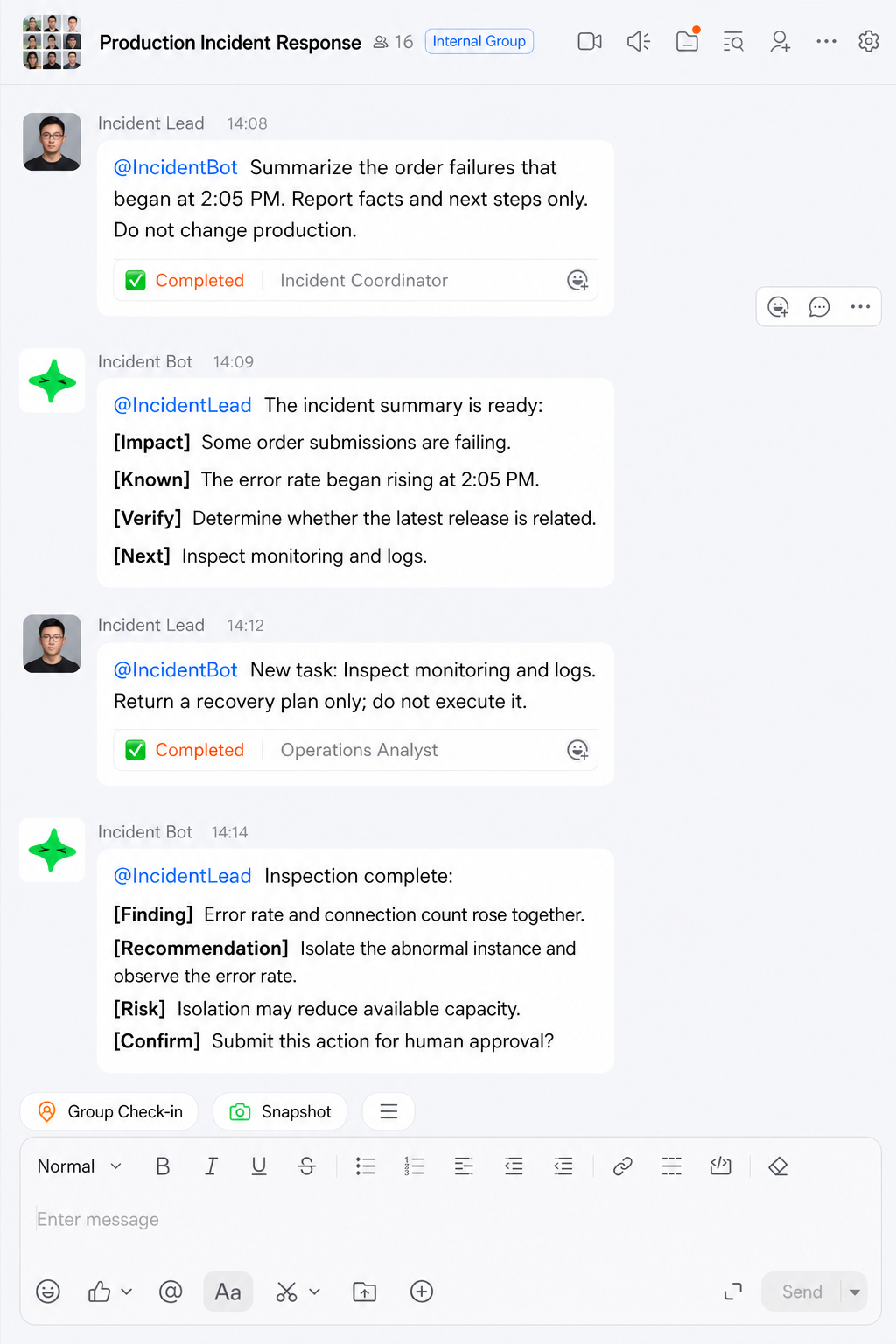
Incident lead: @IncidentBot New task: Create an incident summary.
Symptom: Order submission failures increased at 2:05 PM. The affected scope is not yet confirmed.
Input: Redacted logs and monitoring screenshots are attached.
Deliverable: Timeline, impact, known facts, hypotheses to verify, and next-step owners.
Constraints: Do not restart, scale, roll back, or deploy anything.
2. Start technical investigations in parallel
Engineering lead: @IncidentBot New task: Compare the latest release with the stack trace. Return evidence and remediation options only.

Incident lead: @IncidentBot New task: Inspect monitoring and logs. Return a recovery plan, risks, and observation signals. Do not execute it.
3. Consolidate findings and request approval
Incident lead: @IncidentBot Continue the incident-summary task. Add the engineering and operations findings, then list every recovery action that requires approval and its rollback method.
In a DingTalk group, the same Incident Bot routes incident synthesis and log analysis to different Wakers, returns every result, and retains a human approval gate.
Do not attach unredacted logs. Also, do not use “restore service as soon as possible” as a substitute for explicit prohibited actions and approval boundaries.
Scenario 4: Produce and review content in an operations group
Use this pattern for topic planning, drafting, data verification, and publishing review. Members always use the same Operations Bot, while final external publishing remains a human decision.
Content Planner (default): understand the audience, plan topics, draft, and revise content.Data Analyst: verify sources, calculations, and chart definitions.Publishing Reviewer: check facts, sensitive information, links, asset rights, and release readiness; does not publish automatically.
Follow the workflow
Operations lead: @OperationsBot New task:
Draft a launch post from the attached public product material.
Audience: Engineering teams using the product for the first time.
Deliverable: Three title options, a first draft, and an image list.
Open items: Facts that still require confirmation.
Constraints: Do not use internal links or unpublished data.
Do not publish.

Operations lead: @OperationsBot New task:
Verify the metrics and sources in the completed launch post.
Deliverable: A list of items to revise or confirm.
Constraint: Do not rewrite the draft.

Operations lead: @OperationsBot New task:
Complete a pre-publish review of the finished launch post.
Check: Factual accuracy, sensitive information, links, and asset rights.
Constraints: Mark every unresolved item for human confirmation.
Do not publish.
Use a reusable request structure
Usually, do not name an executor. Describe the work and let routing select one:
@Bot [New task / Continue task / Report status / Modify task / Cancel task]
Goal: The problem to solve
Input: Files, links, directories, or confirmed conclusions
Deliverable: Required response, files, and completion criteria
Constraints: Prohibited actions, permission boundaries, deadline, and approval gates
Owner: Waker name or responsibility only when overriding automatic routing (optional)
| Intent | Recommended wording |
|---|
| Continue a task | “Continue the build investigation and also check dependency versions.” |
| Start a separate task | “New task: Draft the release notes. This is unrelated to the investigation.” |
| Check progress | “Report the status of the build investigation. Do not create a new task.” |
| Modify a task | “Change the deliverable to a remediation plan only; do not edit code yet.” |
| Cancel a task | “Cancel the release-notes task.” |
Validate and maintain the workflow
Complete these checks in a test group before broader rollout:
- Only one bot or account appears in the group. Different work routes to different Wakers, and task status identifies the executor.
- Ordinary group messages do not create tasks, while a correct mention can use recent discussion as context.
- Continue, new task, status, modify, and cancel all target the intended task.
- Wakers can access only allowed workspaces, and code merge, production changes, and external publishing retain human approval.
- Text, images, and files returned to the group contain no credentials, personal information, or data from another chat.
After the workflow produces data, use Task Records to review the requester, status, summary, and delivered files. Topic Records and Group Memory may also appear when relevant data exists. Keep only stable team conventions, project boundaries, and delivery formats in memory. Do not retain temporary progress, access tokens, personal information, or unverified conclusions.
Whenever Wakers, the default Waker, model, workspace, permissions, or routing rules change, use the same bot to retest one default route and one specialized route. 

 A direct chat is not a credential channel. Provide passwords, tokens, customer-private data, and other sensitive information through protected credentials or data connections.