

Understand personal, project, and @Waker chat memory, then inspect, edit, and restore Waker memory.
Memory preserves role preferences, project conventions, and long-term knowledge that remains useful across tasks. It is not a full chat archive and must not contain one-off instructions, passwords, tokens, cookies, or customer-private data.
Personal and project memory are managed on this page. Group shared, member, and direct-chat memory are managed from the corresponding @Waker chat. Topics summarize a discussion or task context; they are not long-term memory. See @Waker.
A practical test: if a new task will still need the information several weeks from now, it may belong in memory. If it is only needed for this request, keep it in the task or topic.
Path: Waker Management → target Waker → Memory & Learning → Memory. View Full Memory on the Waker home page opens the same page.
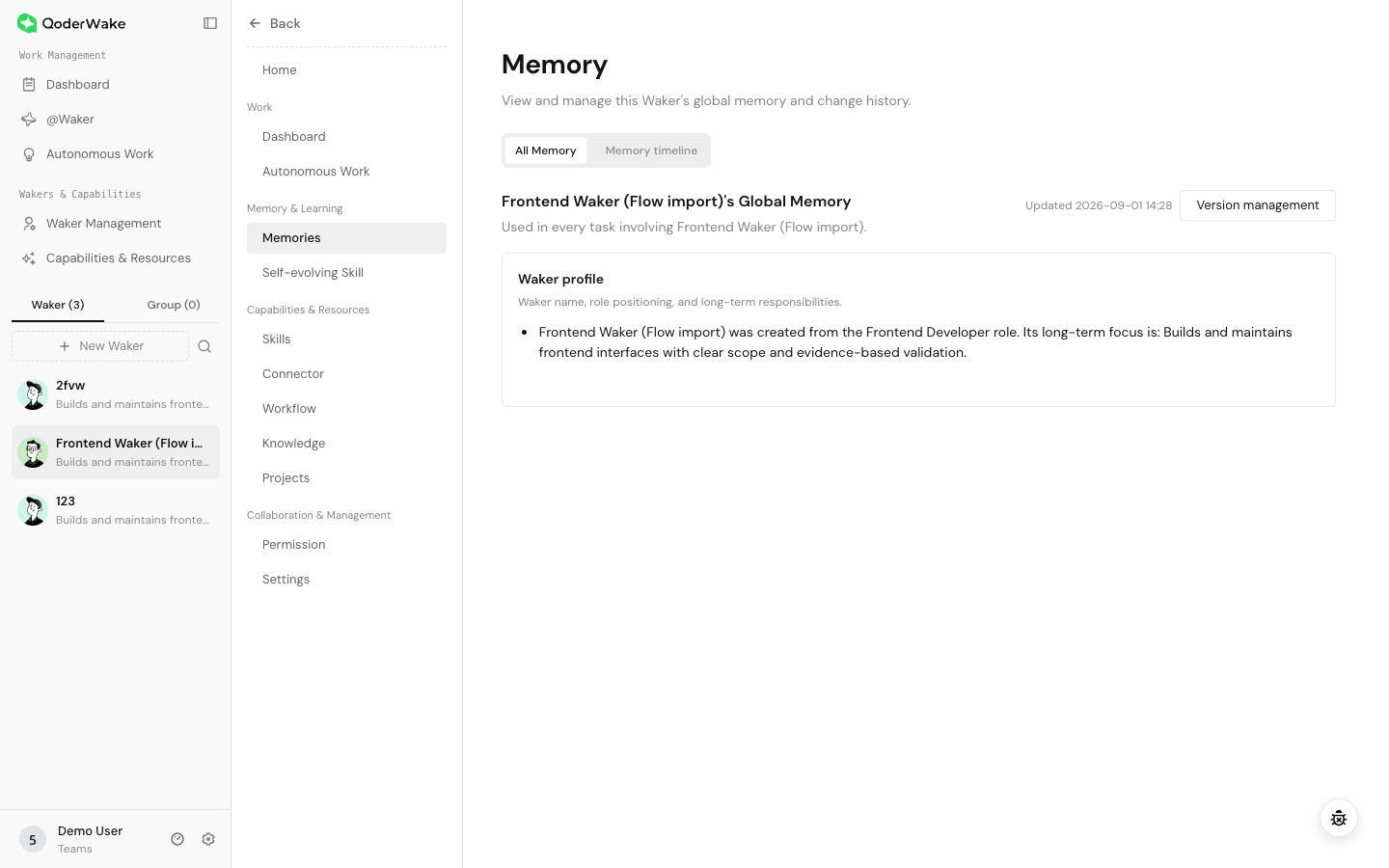 The page shows the current scope, last update, category cards, timeline, and version controls. If a project selector is available, verify whether you are viewing personal memory or a project. Archive an ended project when its memory must be retained.
A new Waker may show only its initial role profile or an empty state. Completing one task does not guarantee a new memory; the information must be useful beyond that task.
The page shows the current scope, last update, category cards, timeline, and version controls. If a project selector is available, verify whether you are viewing personal memory or a project. Archive an ended project when its memory must be retained.
A new Waker may show only its initial role profile or an empty state. Completing one task does not guarantee a new memory; the information must be useful beyond that task.
Store each rule at the narrowest useful scope. Do not turn a project rule into a personal default or a member preference into a group-wide fact.
Use Edit Full File in version management when categories must be reorganized or conflicts resolved. Confirm whether the current scope is personal or project memory and record the current version first.
Headings affect category display. Do not remove the main structure casually. If the page reports a conflict, load the latest version, compare changes, and merge intentionally.
Open @Waker → enabled chat → Memory:
Done when: the information is stored at the correct scope, changes can be traced and restored, and new tasks follow the intended rule without affecting unrelated work.
Choose the correct scope first
| Scope | Store | Applies to |
|---|---|---|
| Personal memory | Long-term role, output preferences, and general rules | Future relevant tasks for this Waker |
| Project memory | Repository structure, project conventions, test commands, and stable context | Tasks using that project or directory |
| Group shared memory | Confirmed facts and conventions everyone in the group should reuse | The current enabled @Waker group chat |
| Member memory | One member's role, preferences, and collaboration habits | That member in the current group |
| Direct-chat memory | Long-term context specific to a member's bot chat | The current @Waker direct chat |
Open Memory
Path: Waker Management → target Waker → Memory & Learning → Memory. View Full Memory on the Waker home page opens the same page.
Decide what belongs in memory
| Appropriate | Not appropriate |
|---|---|
| Stable responsibilities, preferences, and testable rules | Instructions that apply only to the current task |
| Project conventions reused by many tasks | One-off dates, people, or version details |
| Confirmed group collaboration decisions | Unverified assumptions or raw chat transcripts |
| Verified operating rules and risk boundaries | Passwords, tokens, cookies, and private customer data |
Inspect and edit memory
- Confirm the Waker and scope at the top of the page.
- Open a category card and inspect its source and update time.
- Edit the content using concise Markdown.
- Remove one-off, expired, duplicated, or unverified statements.
- Save, then check the timeline for the edit.
- Start a new task that clearly tests the rule.
Edit the complete MEMORY.md
Use Edit Full File in version management when categories must be reorganized or conflicts resolved. Confirm whether the current scope is personal or project memory and record the current version first.
Headings affect category display. Do not remove the main structure casually. If the page reports a conflict, load the latest version, compare changes, and merge intentionally.
Use the timeline
- Select a date range and, when useful, a source filter.
- Find events before and after a behavior change.
- Open an event and verify its scope, category, and source.
- Edit the correct scope or restore a version when the change is wrong.
Use version management
- Open version management and confirm the current scope.
- Select a version and inspect its time, source, and complete content.
- Compare it with the current version.
- Restore it, then recheck categories and update time.
- Validate important rules with a new task.
MEMORY.md for that scope, not one item. For a small correction, editing the category is usually safer.
Maintain @Waker chat memory
Open @Waker → enabled chat → Memory:
- Group chats expose group shared memory and member memory. Filter by member, time, or source before editing.
- Direct chats maintain memory only for that member and bot chat.
- Topics organize summarized discussion and task context. Confirm any conclusion before promoting it to long-term memory.
- Before pausing or removing a chat, move durable conclusions to a team-accessible project or knowledge base.
Routine maintenance
- Remove one-off dates, people, versions, and obsolete paths.
- Merge duplicate rules.
- Check for conflicts between personal, project, and chat memory.
- Review automatically learned content.
- Remove credentials, personal data, and information that should not persist.
Troubleshooting
| Symptom | Resolution |
|---|---|
| A new Waker has no memory | Complete useful tasks or add an immediately required stable rule manually |
| A rule is ignored | Check scope, save state, role conflicts, and current instructions; test in a new task |
| A project rule affects other projects | Move it from personal memory to project memory |
| A member preference affects everyone | Move it from group shared memory to member memory |
| An obsolete rule is still used | Locate its source in the timeline, then edit or restore that scope |
| A save conflict appears | Load the latest content and merge the difference |
| A restore seems ineffective | Refresh the same scope and start a new task |
| Categories look wrong | Check the current MEMORY.md heading structure and save a corrected version |