

IM channels connect QoderWork CN to popular chat tools such as DingTalk, Lark, WeChat, and WeCom. In your IM application, you can mention the bot with an at sign (@) to run tasks, query data, and organize documents. The results are sent directly to the current chat window.
By default, QoderWork CN handles conversations and tasks on the desktop client. However, most work communication occurs in instant messaging (IM) applications. You can enable IM channels to connect QoderWork CN to the chat tools you use every day. Whether you are on the move or between meetings, you can mention the bot in your IM to run tasks, query data, and organize documents. The results are sent directly to the current chat window.
The desktop client remains your control center. Every IM session has a corresponding session window on the desktop client. From there, you can check progress, take over operations, or adjust configurations, such as MCPs, Skills, and connectors. These settings apply to all IM sessions.
QoderWork CN currently supports the following IM platforms:
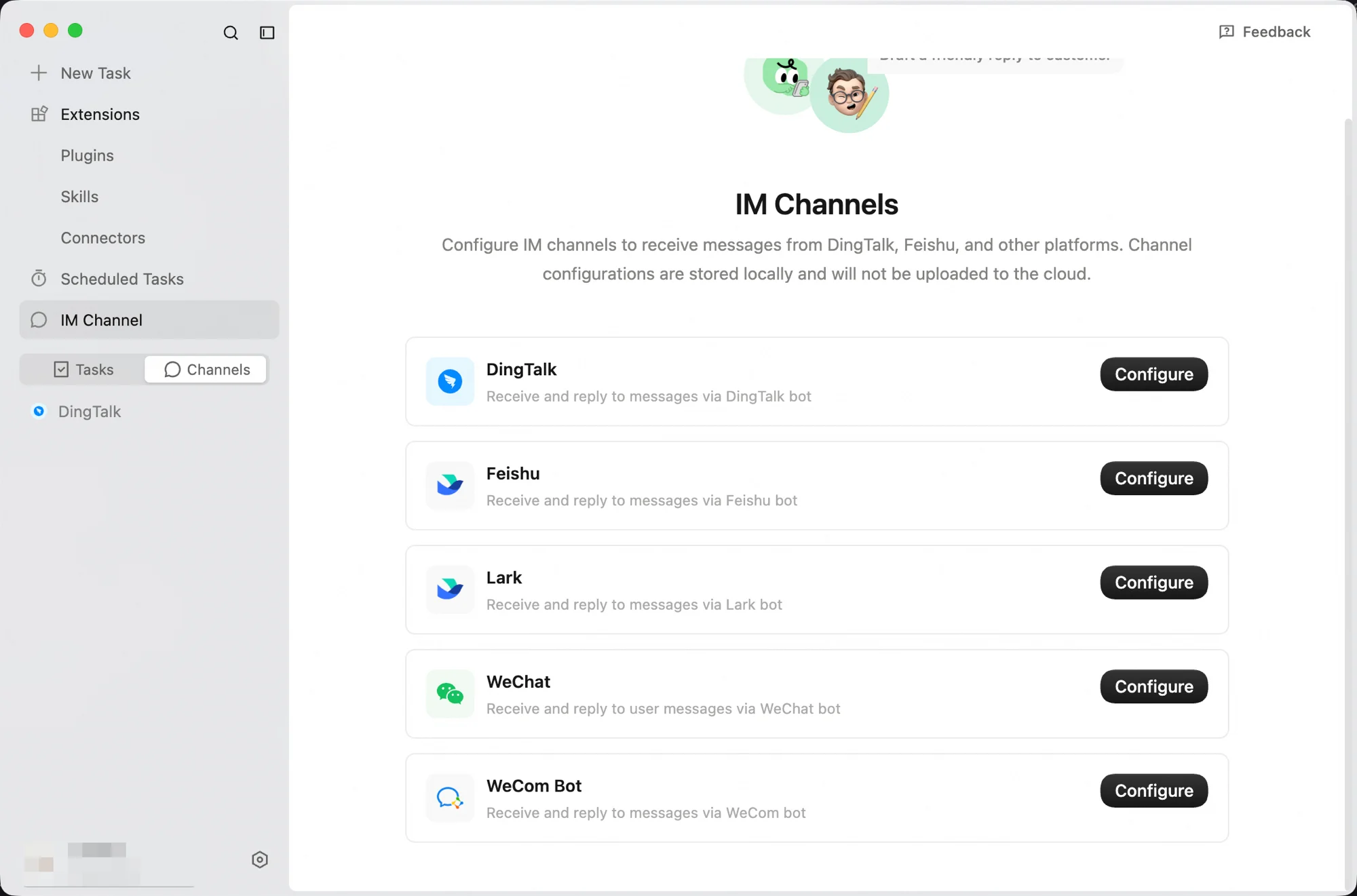
All IM channels are managed on the IM channels page.
IM integration follows one core principle: Responses are sent back to where requests came from.
When you send a message from a chat window, QoderWork CN processes it and sends the result back to that same window. Results for tasks created on the desktop client remain on the desktop and are not pushed to any IM application. Each IM session maps to a separate session window on the QoderWork CN desktop client. The context is completely isolated. Sessions on different IM platforms or in different chat windows do not interfere with each other. You can view the history and status of all IM sessions on the desktop client. You can also continue the interaction in the corresponding desktop session window. The results will still sync back to the IM application.
In any connected IM channel, you can send the following types of messages:
When you send multiple messages in a row, the system processes them in order. No messages are lost or processed out of sequence.
DingTalk, Feishu, and Lark allow you to configure an access policy to control who can interact with the bot:
Open mode is ideal for quick team-wide adoption. Pairing mode is useful when you need to control access, for example, by allowing only specific users. In pairing mode, a pairing request is automatically triggered when a user sends a private message to the bot or mentions it in a group. To approve the request, go to the Pairing Management section on the channel card and click Allow.
Private chat: Search for the bot's name in the search bar at the top of DingTalk. Click to open the chat window and send a message directly.
Group chat: Add the bot to a group chat, then mention the bot with an at sign (@) to send a message. To add the bot, click group settings (top right corner) > Bots > Add Bot > search for and select the bot you created.
Private chat: You can search for the bot's name in the Lark search bar and click its name to open the chat window.
Group chat: You can add the bot to a group and mention it with an at sign (@) to send a message.
Scan a QR code to complete the attachment. No additional configuration is required.
QoderWork CN offers two methods to connect a WeCom bot: quick attach and manual configuration.
Each channel card has a switch. Turning on the switch sets the status to 'Connected', allowing the IM client to function normally. If the switch is turned off, messages sent from the IM client will no longer receive replies. Turning off the switch does not clear the configuration. You can turn it on again to resume service.
To permanently remove a channel's configuration, click Remove Configuration on the channel card. This action purges the channel's configuration, and the IM client will no longer respond.
Switch from Open to Pairing mode: After switching, users who are not already paired can no longer use the bot. They must trigger a new pairing request and receive approval.
Switch from Pairing to Open mode: All users can use the bot without pairing.
You can enable all IM channels simultaneously. Each channel is independent, so sessions in DingTalk, Lark, and WeChat each maintain their own context and history.
QoderWork CN lets you use an IM application to interact with standard tasks on the desktop client. This feature provides remote control, allowing you to operate QoderWork CN from anywhere.
Prerequisites: You have enabled at least one IM channel, such as DingTalk or WeChat. You have created a standard task in the QoderWork CN desktop client.
In any connected IM channel, you can use the following instructions to manage task binding:
You can ask the bot questions directly in your IM application. This is ideal for simple Q&A and saved searches. For example, "Find the price quote for Company XX and send it to me." The bot invokes the configured MCP tools and data sources and sends the result directly in the IM.
You can send images and files from your phone directly to the bot for processing. For example, you can send a PDF contract with an instruction, such as "Review this contract and highlight the risks in the breach-of-contract clauses." It supports various processing capabilities, such as OCR, background replacement, information extraction from receipts, file summarization, format transformation, and data analytics.
QoderWork CN can perform tasks for you when you are away from your computer. For example: "Take the Q1_sales_data.xlsx file on my desktop and create an analysis report. Include sales trends, customer distribution, and quarter-over-quarter changes. Save it as a PDF on the desktop." QoderWork CN executes the task in the background. When the task is complete, it automatically sends a result summary and the generated file to your IM session.
You can use this feature with scheduled tasks to automatically push results to your IM. For example, you can create a scheduled task to generate a summary of yesterday's operational data at 9:00 AM every day. When the task is complete, the results are sent to a daily operations report group in DingTalk.
Mentioning the bot with an at sign (@) in a team group chat allows all group members to use it. For example, "@QoderWork, summarize the key points discussed in the group today."
| Platform | Connection type | Scenarios |
|---|---|---|
| DingTalk | Scan QR code to attach | Team collaboration in an enterprise |
| Lark | Scan QR code to automatically create an application | Quick integration for individuals or teams |
| Lark | Scan QR code to automatically create an application | Quick integration for individuals or teams (outside China) |
| Scan QR code to attach and start using immediately | Lightweight interaction on mobile devices | |
| WeCom | Quick attachment by scanning a QR code or manual configuration | Internal enterprise collaboration and automation |
How it works
IM integration follows one core principle: Responses are sent back to where requests came from.
When you send a message from a chat window, QoderWork CN processes it and sends the result back to that same window. Results for tasks created on the desktop client remain on the desktop and are not pushed to any IM application. Each IM session maps to a separate session window on the QoderWork CN desktop client. The context is completely isolated. Sessions on different IM platforms or in different chat windows do not interfere with each other. You can view the history and status of all IM sessions on the desktop client. You can also continue the interaction in the corresponding desktop session window. The results will still sync back to the IM application.
Supported message types
In any connected IM channel, you can send the following types of messages:
| Message type | Description |
|---|---|
| Text message | Send text instructions directly. |
| Image | Send an image. Supports processing such as Optical Character Recognition (OCR) and background replacement. |
| File | Supports common formats such as PDF, Excel, PPT, Word, CSV, and TXT. |
| Voice messaging | Send a voice message. The content is automatically recognized and the operation is executed. |
| Merged and forwarded messages | Multiple forwarded messages are parsed correctly. |
| Image and text combination | The image and text instructions are understood in context. For example, send an image with the text "extract the table". |
Access policies
DingTalk, Feishu, and Lark allow you to configure an access policy to control who can interact with the bot:
| Policy | Description |
|---|---|
| Open mode | All users and groups can chat directly with the bot without extra steps. |
| Pairing mode | A session can use the bot only after you grant permission. |
Connect to DingTalk
Configure in QoderWork CN
- Open the DingTalk configuration page: In QoderWork CN, go to IM channels, find the DingTalk card, and click Configure.
- Scan the QR code to attach the application: In the Configure DingTalk window that appears, open DingTalk and scan the QR code to register and attach the application.
- Select an access policy: Open mode (all users and groups can chat directly) or Pairing mode (requires your permission).
- Complete the configuration: Confirm that the DingTalk status shows as 'Connected'. You can now use the bot in DingTalk.
How to use
Private chat: Search for the bot's name in the search bar at the top of DingTalk. Click to open the chat window and send a message directly.
Group chat: Add the bot to a group chat, then mention the bot with an at sign (@) to send a message. To add the bot, click group settings (top right corner) > Bots > Add Bot > search for and select the bot you created.
The organization that owns the group chat must be the same as the organization that was used to create the bot. Otherwise, the bot will not appear in search results.
Connect to Lark
Configure in QoderWork CN
- Open the configuration page: Go to IM channels, find the Lark card, and click Configure.
- Scan the QR code to grant authorization: Open the Lark app, scan the QR code, and confirm the authorization. The system automatically creates an application in your organization and configures the required permissions and event callbacks.
- Select an access policy: Open mode or Pairing mode.
- Complete the configuration: Confirm that the status shows as 'Connected'. You can now use the bot.
How to use
Private chat: You can search for the bot's name in the Lark search bar and click its name to open the chat window.
Group chat: You can add the bot to a group and mention it with an at sign (@) to send a message.
Connect to WeChat
Scan a QR code to complete the attachment. No additional configuration is required.
- Open the WeChat configuration page: Go to IM channels, find the WeChat card, and click Configure.
- Scan the QR code to grant authorization: Open WeChat, scan the QR code, and confirm the authorization.
- Start using: Once the account is attached, wait for the status to change to 'Connected'. You can then start a conversation by sending a message directly to QoderWork CN in WeChat.
Connect to WeCom
QoderWork CN offers two methods to connect a WeCom bot: quick attach and manual configuration.
Method 1: Scan QR code to attach (Recommended)
- Open the WeCom configuration page: Go to IM channels, find the WeCom card, and click Configure.
- Scan the QR code to attach the bot: Select Quick Attachment (Recommended). Open WeCom and scan the QR code to create and attach the bot.
Method 2: Manual configuration
- Obtain the bot credentials: Create a bot in the WeCom admin console and obtain the Bot ID and Secret.
- Enter the configuration information: In the configuration window, select Manual Configuration, enter the Bot ID and Secret, and click Save.
Manage IM channels
Enable and disable
Each channel card has a switch. Turning on the switch sets the status to 'Connected', allowing the IM client to function normally. If the switch is turned off, messages sent from the IM client will no longer receive replies. Turning off the switch does not clear the configuration. You can turn it on again to resume service.
Delete a channel
To permanently remove a channel's configuration, click Remove Configuration on the channel card. This action purges the channel's configuration, and the IM client will no longer respond.
Switch access policies
Switch from Open to Pairing mode: After switching, users who are not already paired can no longer use the bot. They must trigger a new pairing request and receive approval.
Switch from Pairing to Open mode: All users can use the bot without pairing.
Use multiple channels at once
You can enable all IM channels simultaneously. Each channel is independent, so sessions in DingTalk, Lark, and WeChat each maintain their own context and history.
Task binding (Remote control)
QoderWork CN lets you use an IM application to interact with standard tasks on the desktop client. This feature provides remote control, allowing you to operate QoderWork CN from anywhere.
Prerequisites: You have enabled at least one IM channel, such as DingTalk or WeChat. You have created a standard task in the QoderWork CN desktop client.
In any connected IM channel, you can use the following instructions to manage task binding:
- /bind: Displays a list of tasks that you can bind to. Use /bind <number>, such as /bind 1, to bind the current IM session to a specific desktop task. After binding, messages sent from the IM session are forwarded directly to the task. Replies from the task are synchronized to the IM session in real time.
- /unbind: Unbinds the current IM session from the desktop task. After unbinding, the IM session reverts to a normal, independent session.