

A Skill is a pre-written guide that tells QoderWork CN how to handle a specific type of task—what steps to follow, what format to output, and what details to focus on. Define it once. QoderWork CN then automatically recognizes and applies it in subsequent conversations.
What is a Skill?
In your daily work, you often handle similar tasks repeatedly, such as writing weekly reports, organizing documents, or generating infographics. Explaining your requirements, preferences, and processes to an AI every time is not only time-consuming but also prone to missing key details.
Skills are designed to solve this problem. A Skill is a pre-written guide that tells QoderWork CN what steps to follow, what format to output, and what details to focus on for a specific type of task. Once defined, QoderWork CN automatically recognizes and applies the Skill in every subsequent conversation, delivering results with the consistency and reliability of a well-trained assistant.
Technically, each Skill is a folder stored in the ~/.qoderwork/skills/ directory that contains a SKILL.md file. The SKILL.md file uses natural language to describe the Skill's name, trigger conditions, and execution steps. No coding is required; simply articulate your work experience and processes.
Benefits of Skills
Stop repeating yourself. Every new conversation requires time to describe your needs and preferences. A Skill saves this information once. You can then trigger it with a single sentence or even have it applied automatically.
Ensure consistent output. When your team has specific format or style requirements for a certain type of output, such as a weekly report that must include particular sections, a Skill ensures that every result meets the established standard.
Turn personal expertise into reusable assets. You can capture best practices, processing techniques, and decision-making criteria from your work in a Skill. You can share it with team members to circulate and reuse expertise within the organization.
Turn a generalist AI into a specialist. QoderWork CN has broad, general-purpose capabilities. A Skill acts as an expert module, transforming it into a document processing expert, a design assistant, or a data analyst.
Get Skills
QoderWork CN provides several channels to seamlessly discover and install Skills.
Search and install in a conversation
Describe your needs in natural language. QoderWork CN uses its built-in find-skills feature to search its library and recommend the best-matching Skill. For example:
Find me a skill that converts web content into Markdown notes
QoderWork CN lists the matching results with their descriptions. After you confirm, it installs the Skill to the ~/.qoderwork/skills/ directory with a single click, all without leaving the conversation window.
Install from the Skill Marketplace
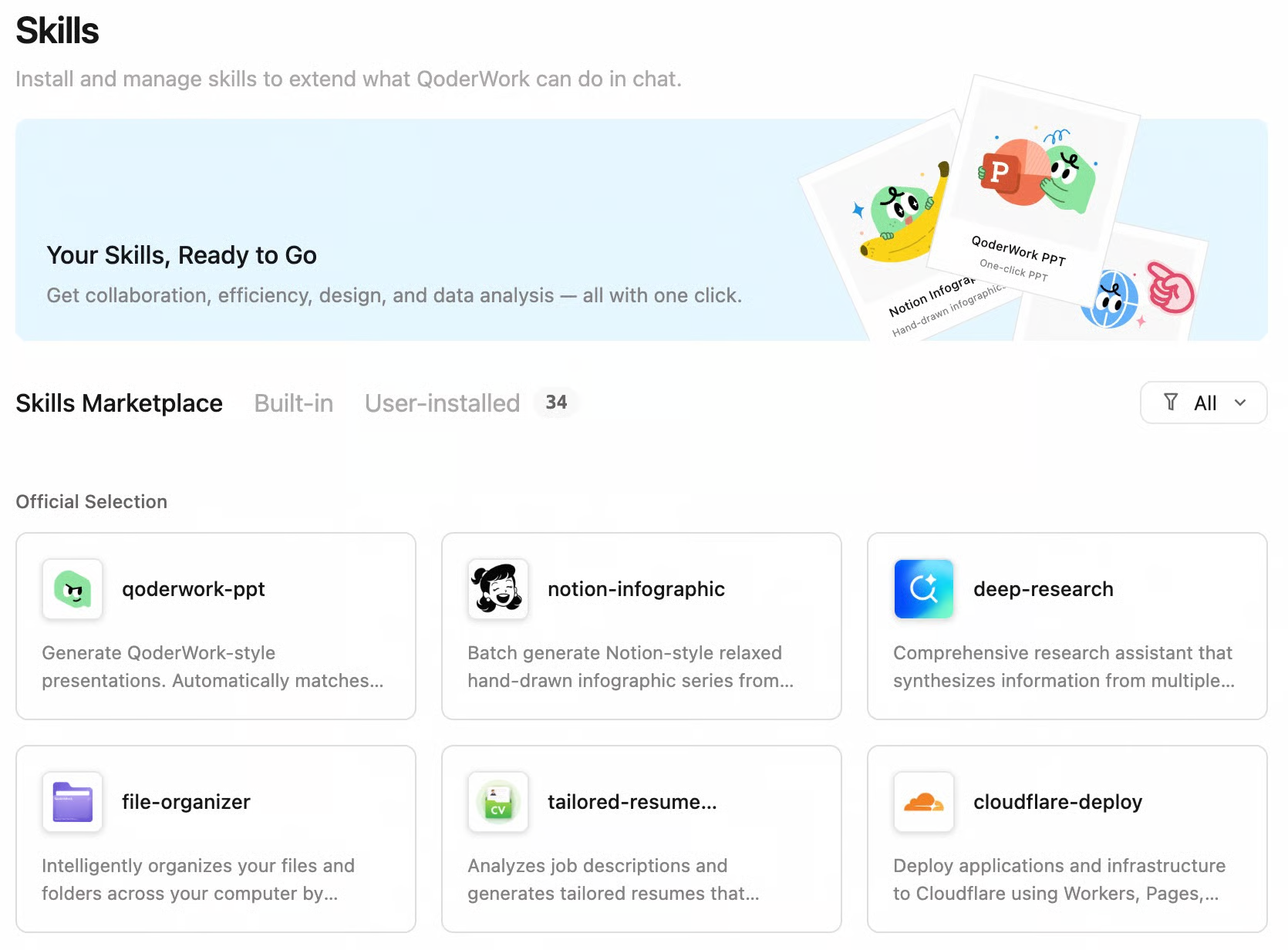
In the left navigation pane, click Extensions and then Skills to enter the Skill Marketplace—QoderWork CN’s built-in marketplace for official and community-contributed Skills. Browse by category or search by keyword, then click Install to start using it.
Get from the open-source community
Platforms like GitHub host many community-shared Skills. Send the repository link to QoderWork CN and ask it to install the Skill. For example:
Please download <skill_source_url> and place it in the ~/.qoderwork/skills/ directory
QoderWork CN automatically clones the repository, places the files, and loads the Skill. You do not need to run any manual commands.
Manually upload local files
If you already have Skill files (for example, from a colleague), go to Extensions in the left navigation pane and then Skills. Click Install Skill and upload the SKILL.md file along with any auxiliary files. After uploading, QoderWork CN automatically recognizes and loads the Skill.
Use Skills
After a Skill is installed, you can call it in a conversation in the following ways.
Automatic trigger
Simply describe your request, and QoderWork CN automatically determines if a matching Skill is available and applies it. For example, after installing a "Resume Optimization" Skill, if you say "Help me optimize my resume based on this job description," QoderWork CN automatically recognizes and invokes the corresponding Skill.
/ shortcut
Type / in the chat input, and QoderWork CN will show a list of your installed Skills. Select one to invoke it.
@ to add context
Type @ in the chat input to add contextual information, such as files or folders, to help QoderWork CN better understand your request. Use @ to supplement context, not to invoke a Skill.
Specify a Skill in the conversation
Directly name the Skill you want to use in your message, such as "Use the kancolle-infographic Skill to generate an image set." QoderWork CN loads the specified Skill, executes it, and presents the result directly in the conversation.
Manage Skills
Manage via the file system
All Skills are stored in the ~/.qoderwork/skills/ directory. Each Skill is an independent folder containing a SKILL.md file and optional auxiliary files. You can add, delete, and edit them directly in your file system.
Share Skills
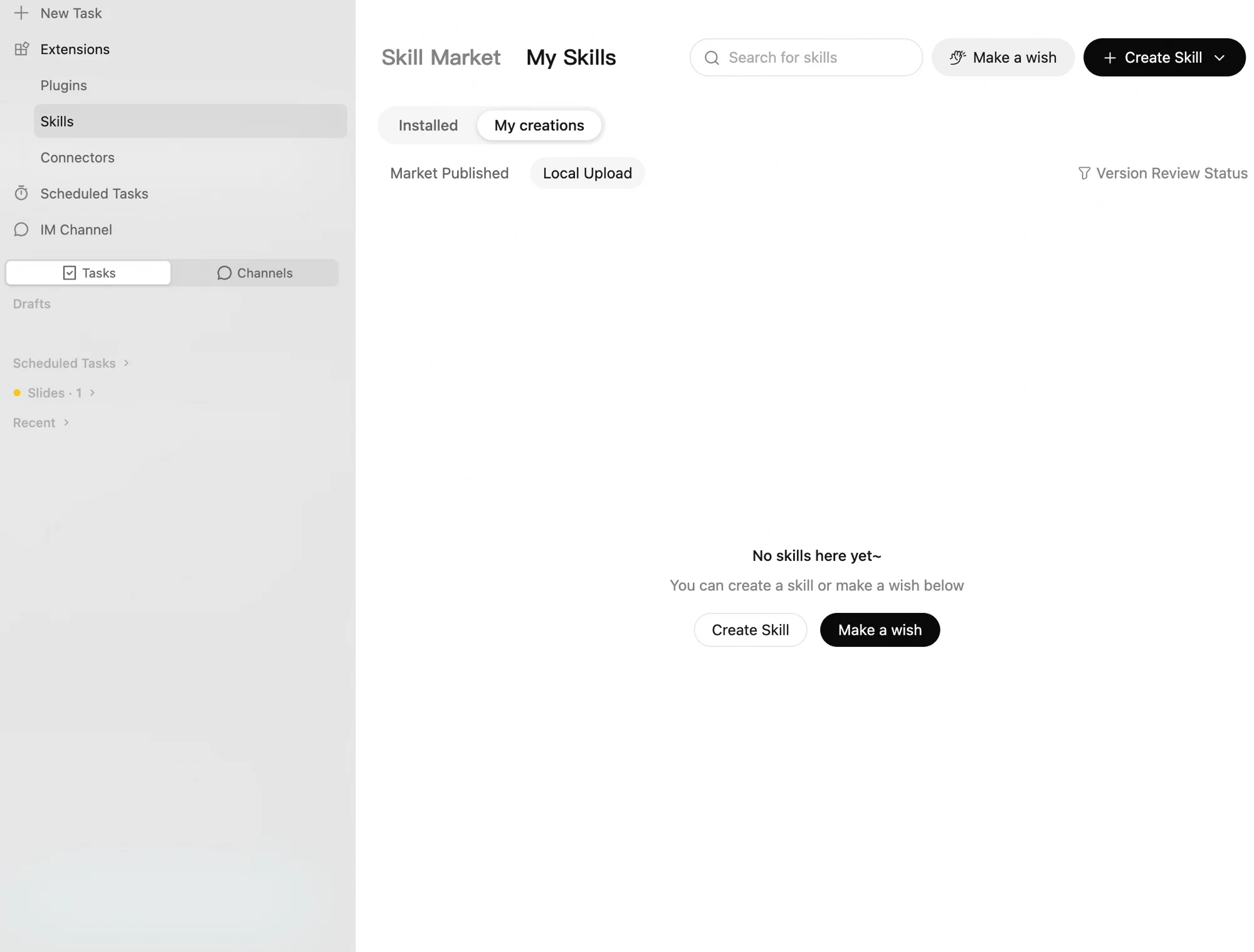
The unique workflows you develop shouldn't be confined to your computer. You can share Skills you've created or customized with team members, who can install them by clicking a link.
- Generate a share link: On the Skills page, find a Skill you created and click the share icon. The system generates a unique share link.
- Send it to others: Click Copy Link and send it to your colleagues or friends. Note that a share link typically expires after 24 hours, at which point you must generate a new one.
- One-click install: The recipient clicks the link to open QoderWork CN and completes the installation in one click.
Built-in Skills
QoderWork CN comes pre-installed with a set of built-in skills that are ready to use out of the box:
| Skill name | Function | Trigger method |
|---|---|---|
| docx | Create, read, and edit Word documents | Automatically triggered when you mention Word or .docx |
| Read, merge, or split PDF files, and add watermarks | Automatically triggered when you mention PDF | |
| pptx | Create and edit PowerPoint presentations | Automatically triggered when you mention PPT or presentations |
| xlsx | Process Excel spreadsheets | Automatically triggered when you mention Excel or spreadsheets |
| find-skills | Search for and install new Skills from the Skill Marketplace | Triggered by phrases like "find a skill" or "what skills are available" |
| create-skill | Interactively guides you to create a new Skill | Triggered by phrases like "create a skill" or "write a skill" |
| plugin-creator | Create, customize, or modify an expert module | Triggered when your request involves creating or modifying an expert module |
| install-skill-dependency | Diagnose and fix missing dependencies, binaries, or runtime environments required by a Skill | Automatically triggered when a Skill fails due to missing dependencies |
| vm-error-recovery | Diagnose and fix startup, connection, or download issues for the secure workspace | Automatically triggered when the secure workspace encounters an error |