

QoderWork CN can do more than process files and data through conversation—it can also directly "see" and "control" your computer screen to click buttons, fill out forms, and switch applications. This capability, called Computer Use, lets QoderWork CN complete tasks that require graphical user interface (GUI) interaction.
Core capabilities
- Screen perception: Reads the visible content of the target application window to understand visual information such as layout, button text, and form status. It continuously takes screenshots during a task to verify that the previous step succeeded before deciding on the next action.
- Mouse and keyboard control: Supports a full range of human input methods, including clicks, double-clicks, drags, text entry, and keyboard shortcuts. It operates with pixel-level precision to accurately click small UI elements.
- Autonomous background execution: Operates the mouse, keyboard, and screenshot functions in the background without taking over your foreground focus. You can continue using your computer for other tasks while the AI works silently.
- Cross-application workflow: Switches between desktop applications to combine multi-step operations into a complete workflow. It dynamically adjusts its next move based on real-time feedback rather than following a fixed script.
Use cases
- Automating desktop applications without APIs—When a target application lacks a command-line interface or plugins, the AI interacts with its GUI directly, for example, adjusting parameters in design tools or batch-modifying settings in an admin panel.
- Cross-application workflows—When a task spans multiple applications, the AI automatically switches windows, copies data, and fills out forms to complete the process from end to end.
- GUI validation and testing—Verify that UI changes work as expected, reproduce issues that only appear in the GUI, or check an application's response to a specific sequence of operations.
- Information collection and consolidation—Extract data from applications that do not have an export feature, or gather information scattered across multiple apps.
For web-based tasks, use browser automation, as it is faster and more precise than Computer Use.
System requirements
- macOS 14 or later
- Requires accessibility and screen recording permissions.
Usage
Describe the GUI task you want to complete directly in the chat, and QoderWork CN will automatically identify the need and enable Computer Use:
Enable computer use
Before using Computer Use, enable "Computer Control" in Connectors:
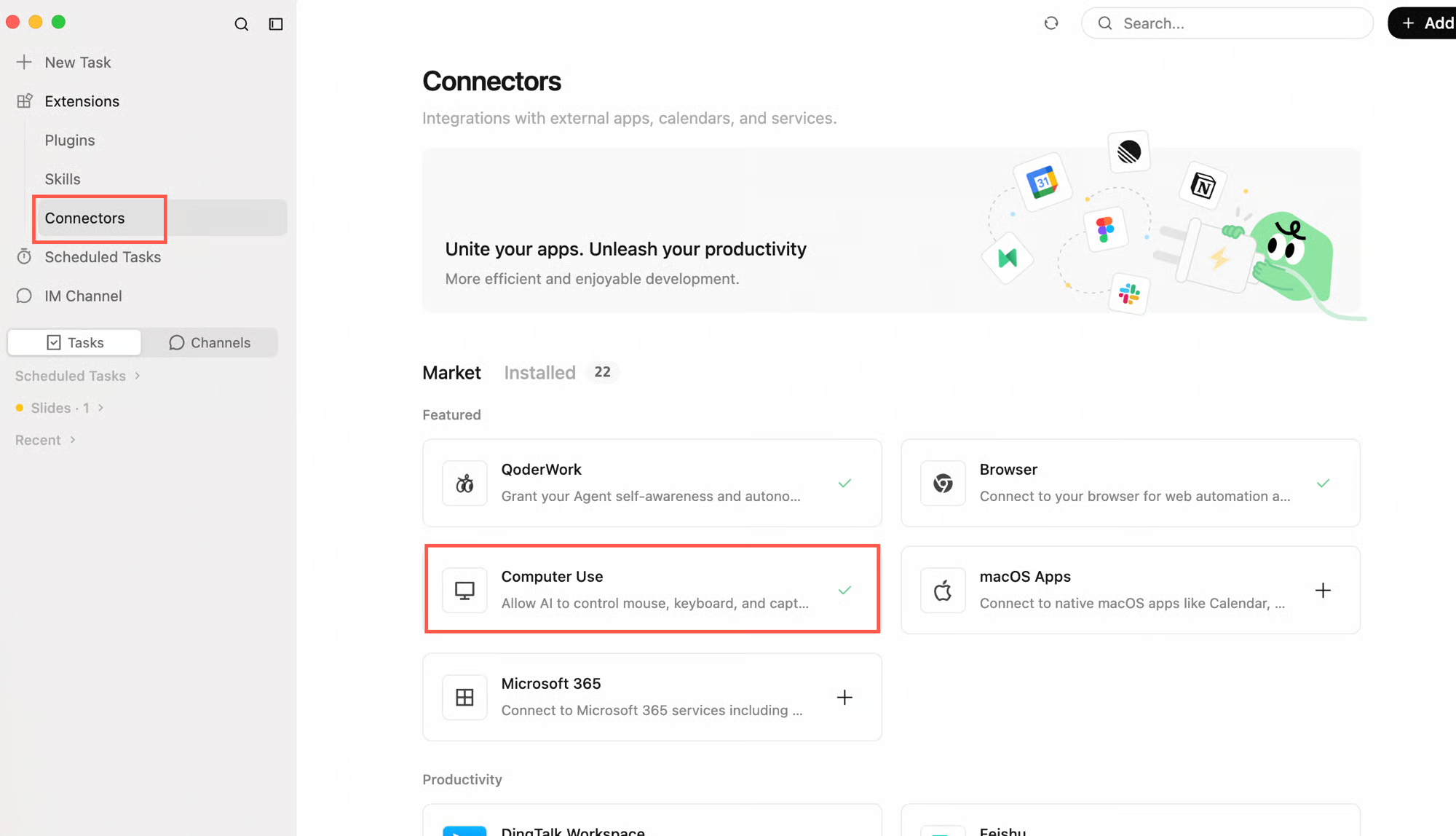
Step 1: Open connectors
Go to Extensions → Connectors, find the "Computer Control" card, and enable it.
Step 2: Review capabilities
A dialog box appears, describing the connector's capabilities:
- AI-Enhanced Tools—Provides desktop automation capabilities, such as clicking, typing, scrolling, and taking screenshots.
- Permission-Aware—Computer Use handles system permissions as needed during runtime.
- Full Control—You can disable this connector at any time.
Grant system permissions
When you first use Computer Use after enabling the connector, QoderWork CN guides you to grant two system permissions:
Accessibility permission
This permission lets QoderWork CN read the UI element tree of applications and perform actions like clicking and typing. Click Allow in the system prompt.
Screen recording permission
This permission lets QoderWork CN capture screenshots of application windows, which enables the AI to "see" the current interface state. Add QoderWork CN in System Settings under "Privacy & Security" → "Screen Recording".
After you grant permissions, QoderWork CN prompts you for confirmation each time it attempts to control an application. You can choose an execution policy in the settings:
| Policy | Description |
|---|---|
| Ask every time (default) | The AI asks for your confirmation each time it needs to control the desktop. |
| Run automatically | The AI performs desktop operations directly without asking for confirmation each time. |
| Disabled | Completely disables the Computer Use feature. |
How it works
When QoderWork CN performs a Computer Use task, it displays a fully transparent process in the chat:
- Screenshot: The AI takes a screenshot of the current screen to understand the interface state.
- Action description: Before each step, it describes what it is about to do.
- Execution: It performs the action, such as a click, text input, or scroll.
- Result verification: After the action, it takes another screenshot to confirm the action was successful.
While Computer Use is running, avoid manually interacting with the application or window that the AI is controlling. Your actions might conflict with the AI's operations. Wait for the AI to complete its current step before you intervene.
Typical scenarios
Extract data from an application
Adjust system settings
Consolidate information across applications
Best practices
Specify the target application and path
Telling QoderWork CN which application to use and where to navigate is much clearer than just saying, "Help me with the settings."
Issue complex instructions in steps
For complex operations, give instructions one step at a time. Let the AI complete a step, verify the result, and then provide the next instruction.
Achieve automation with Skill
Save frequently repeated GUI workflows as a Skill to trigger the entire process with a single command later.
Important notes
Granting access means granting control. When enabled, the AI can operate other applications on your computer on your behalf, as if you were performing the actions yourself. Disable this feature in the settings when not in use.
- Some actions are irreversible. Actions performed by the AI in desktop applications, such as sending messages or deleting files, may be irreversible. For high-risk scenarios, use the "Ask every time" policy.
- On-screen content is captured. To understand the interface, the AI takes screenshots. This means any visible content, including sensitive information, may be captured. Before running an automation, close windows containing passwords or private data.
- Be cautious with network actions. If the AI interacts with an application where you are logged in, it can send emails, submit forms, or perform other actions on your behalf. Be vigilant about such operations.
Limitations
- CAPTCHA and two-step verification: The AI cannot complete tasks that involve CAPTCHA, SMS verification codes, or facial recognition. You must handle these steps manually.
- Speed: Computer Use requires taking and analyzing screenshots, which is slower than text-only operations.
- Precision: The AI's clicking precision can be low on complex or dense interfaces. If an operation fails, try describing the target more specifically.
Next steps
- Connectors: Connect to external systems like your browser, calendar, Microsoft 365, and DingTalk.
- Application snapshot: Use a screenshot of the foreground application as context for your conversation.