

A service account is an organization identity for automated tasks, Agents, and other non-human applications. It does not occupy a member seat.
Usage generated by each service account is tracked separately. You can limit the usage of an individual service account during a billing period by setting a Credits limit. Before using service accounts, an administrator must enable pay-as-you-go billing for service accounts in the organization.
Pay-as-you-go billing for service accounts is enabled at the Qoder organization level and charges only the usage generated by service accounts. After it is enabled, service account usage is billed by the actual number of Credits consumed and settled after use. Other Qoder features continue to use their existing billing methods.
The current pay-as-you-go price is shown below. The price displayed in the Alibaba Cloud console prevails.
Pay-as-you-go billing for service accounts is managed in Alibaba Cloud. The Qoder management console only displays the synchronized status. Service accounts and their credentials are unavailable until pay-as-you-go billing is enabled.
Still shown as disabled? Check that Alibaba Cloud and Qoder display the same organization and that the enablement status has synchronized. Enabling billing does not create a credential: complete the account and credential steps below.
Disabling service account pay-as-you-go in Alibaba Cloud stops existing service accounts and credentials, but retains historical usage. To resume, re-enable it in Alibaba Cloud and refresh the status in Qoder.
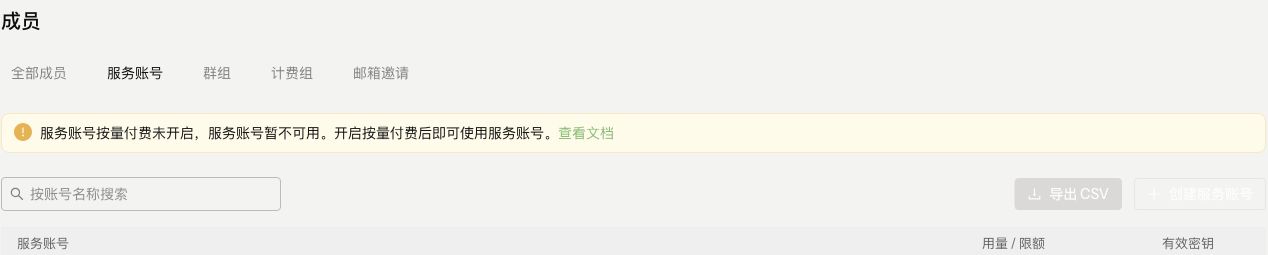 Test-environment example. If this notice is shown, check pay-as-you-go enablement for the organization. An empty service-account list does not establish the availability or balance of an SA resource pack.
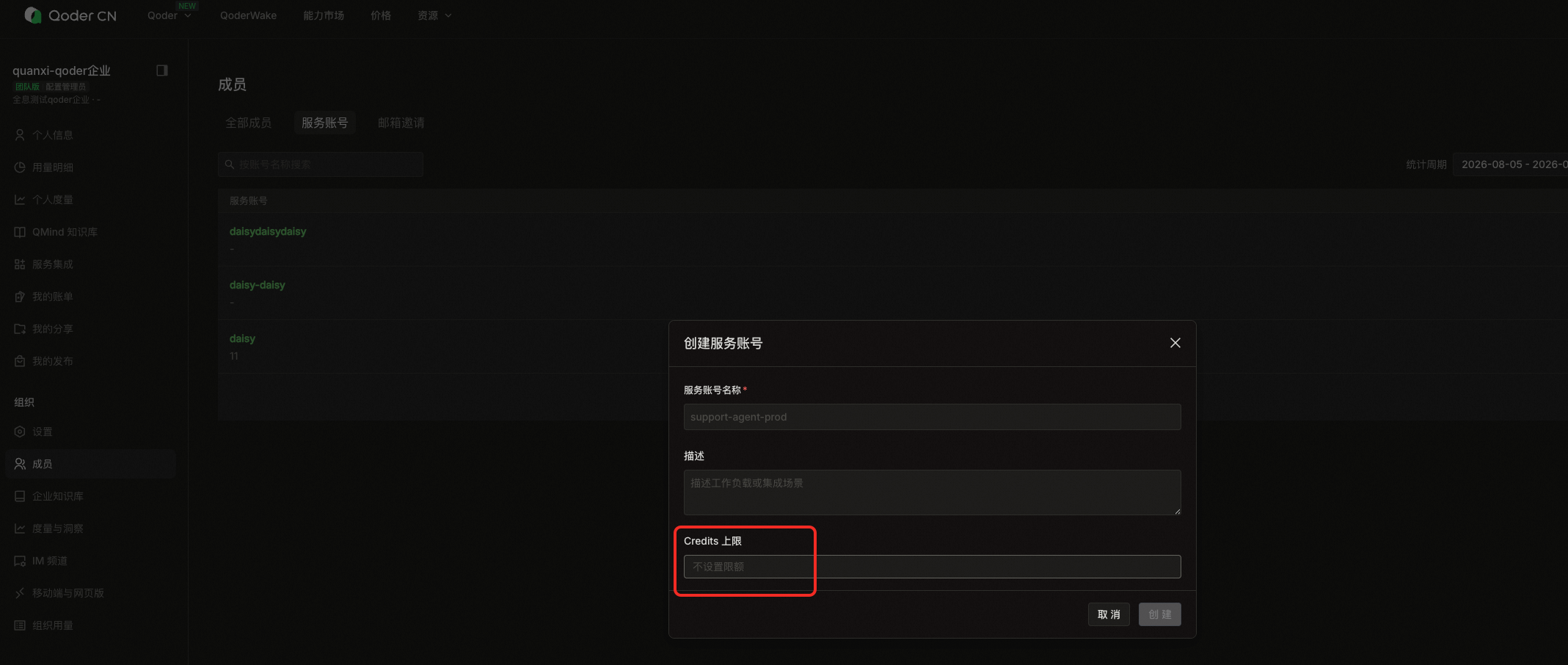
Open the ... menu at the end of a service account row to create a credential directly. You can also select Edit to view credential names and masked credential values under Existing credentials and manage individual credentials.
The service account list displays usage / limit for each account in Credits.
For usage details, go to Organization usage > Service accounts, filter by account and date range, and check Model usage and Cloud resource usage separately. Distinguish Credits from the reference cost shown in the table; check the final bill in Alibaba Cloud.
To adjust the limit, open the ... menu at the end of the service account row, select Edit, change the Credits limit, and save. The new limit takes effect immediately. Clear the field to remove the limit.
When a service account reaches its Credits limit for the current billing period, new calls are paused. Calls can resume within the current period after an administrator raises the limit. Usage resets at the beginning of the next billing period, while the configured limit remains in effect.
 Select Service accounts first, then the account, date range, and model or cloud-resource usage. Check Credits separately from reference costs; this view does not replace the Alibaba Cloud settlement bill.
When a service account is no longer needed, open its action menu and select Archive.
An archived service account and all its credentials become unavailable and cannot be restored. Before archiving the account, stop related automation tasks or migrate them to another service account.
If calls fail, check the following items in order:
No. Enablement is managed per organization, but the billing scope covers only service account usage. Other features retain their existing billing methods.
Check organization enablement and synchronization, account and credential status, the SA limit for the current period, and overdue payments in Alibaba Cloud. Enabling postpaid billing does not remove the SA usage limit.
Disabling billing stops existing service accounts and credentials. Re-enable it in Alibaba Cloud and refresh the synchronized status. For overdue payments, settle the outstanding balance and check recovery using the troubleshooting steps above. Disabling billing does not erase historical usage.
Available for: Teams, Enterprise, and Enterprise VPC
Before you begin
- Make sure your current account has administrator permissions for the Qoder organization.
- To enable or manage pay-as-you-go billing, prepare an Alibaba Cloud account that has permission to manage the corresponding Qoder organization.
- Prepare a server-side secret management tool for storing credentials.
Enable service account pay-as-you-go billing (postpaid)
Pay-as-you-go billing for service accounts is enabled at the Qoder organization level and charges only the usage generated by service accounts. After it is enabled, service account usage is billed by the actual number of Credits consumed and settled after use. Other Qoder features continue to use their existing billing methods.
The current pay-as-you-go price is shown below. The price displayed in the Alibaba Cloud console prevails.
| Billing item | Price |
|---|---|
| Service account pay-as-you-go | CNY 0.046 per Credit |
Postpaid billing, Credits usage, and limits
- Metering unit: Service accounts are metered by actual Credits consumption. Credits usage is not a currency amount.
- Enablement scope: Billing is enabled per organization for SA usage; it does not make all organization features postpaid.
- Per-SA limit: Caps that service account's usage in the current period. It is not a prepaid balance and does not issue Credits.
- Charges and bills: Charges use the unit price shown in Alibaba Cloud and actual usage. See Billing query for payment and billing records.
Enable billing
1
Find the organization in Alibaba Cloud
Sign in to the Qoder console with an authorized Alibaba Cloud account. Open the organization details and locate Service account pay-as-you-go. Verify the organization before enabling billing.
2
Check the price and confirm
Turn on the switch, review the unit price and billing information in the dialog, then confirm. This screenshot shows the Chinese interface; the price in the current dialog prevails.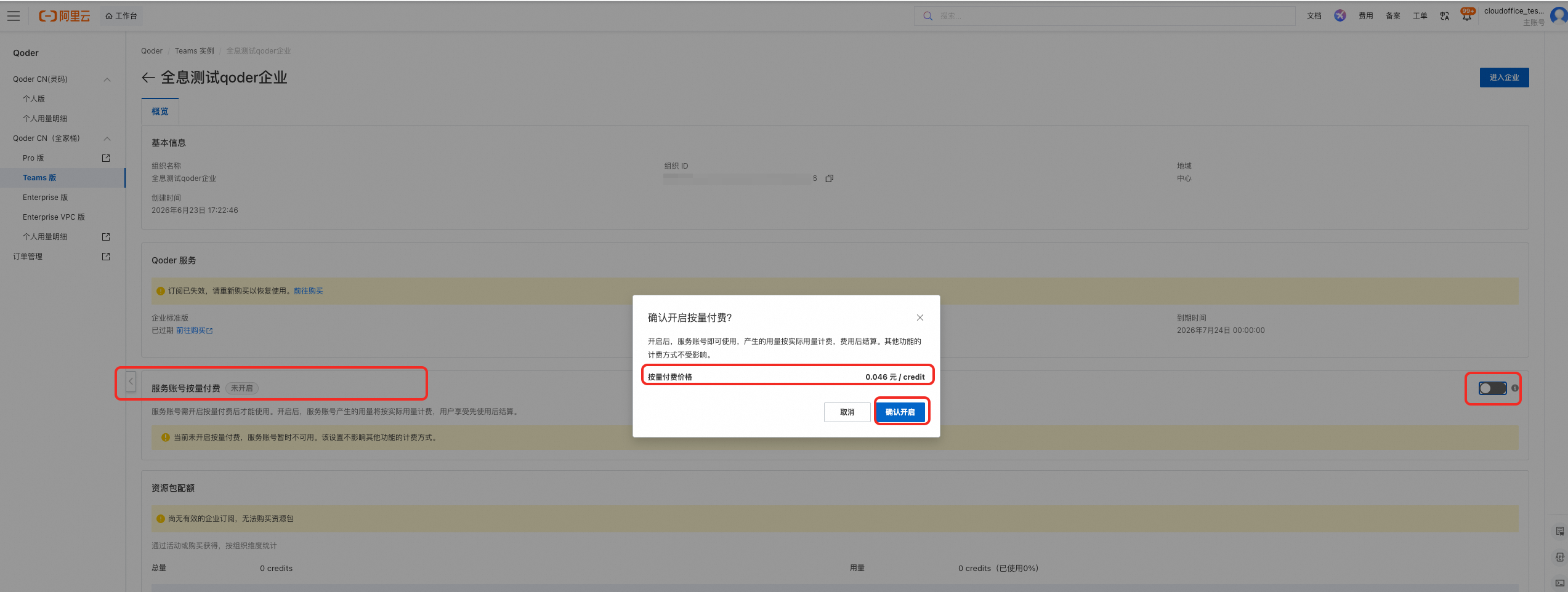
3
Return to Qoder and check the status
Alibaba Cloud organization details should show Enabled. Return to Members > Service accounts in Qoder, refresh, and check the synchronized status before creating a service account.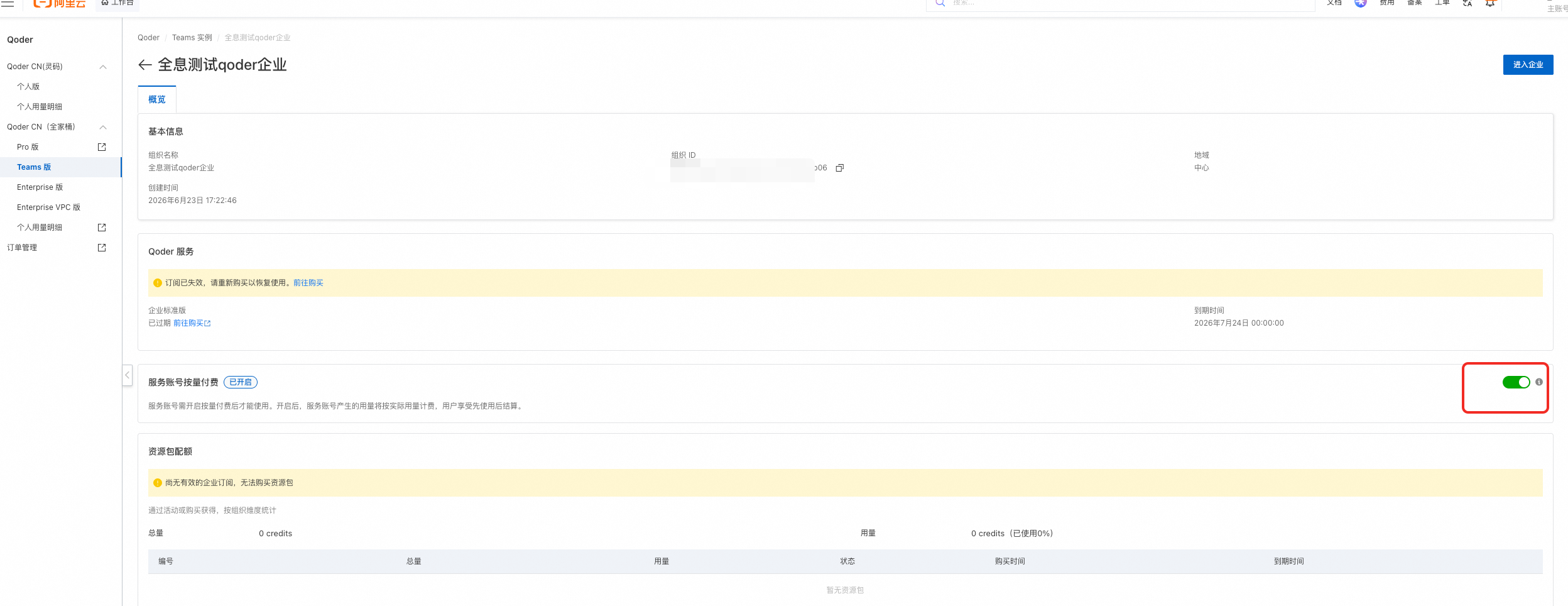
Create a service account
- In the Qoder management console, go to Members > Service accounts.
- Click Create.
- Enter a name and description. Set a Credits limit as needed. Leave the field empty if you do not want to set a limit. Use a name that identifies the purpose and environment, such as
support-agent-prod. - Click Create.
Manage credentials
Open the ... menu at the end of a service account row to create a credential directly. You can also select Edit to view credential names and masked credential values under Existing credentials and manage individual credentials.
Create a credential
- Open the ... menu at the end of the service account row and select Create credential. Alternatively, select Edit and click Create credential in the Existing credentials section.
- Copy the new credential and save it in a server-side secret management tool.
- Configure the credential for the caller and verify that calls succeed.
Rotate a credential
- Open the service account's Edit page and locate the credential to rotate under Existing credentials.
- Open the ... menu at the end of the credential row and select Rotate credential.
- Follow the on-screen instructions, copy the new credential, and update the caller.
Revoke a credential
- Open the service account's Edit page and locate the credential to revoke under Existing credentials.
- Open the ... menu at the end of the credential row, select Revoke credential, review the impact, and confirm the operation.
View usage and adjust the limit
The service account list displays usage / limit for each account in Credits.
For usage details, go to Organization usage > Service accounts, filter by account and date range, and check Model usage and Cloud resource usage separately. Distinguish Credits from the reference cost shown in the table; check the final bill in Alibaba Cloud.
To adjust the limit, open the ... menu at the end of the service account row, select Edit, change the Credits limit, and save. The new limit takes effect immediately. Clear the field to remove the limit.
When a service account reaches its Credits limit for the current billing period, new calls are paused. Calls can resume within the current period after an administrator raises the limit. Usage resets at the beginning of the next billing period, while the configured limit remains in effect.
Archive a service account
When a service account is no longer needed, open its action menu and select Archive.
An archived service account and all its credentials become unavailable and cannot be restored. Before archiving the account, stop related automation tasks or migrate them to another service account.
Troubleshoot service accounts
If calls fail, check the following items in order:
- Confirm that service account pay-as-you-go billing is enabled for the organization and that Qoder shows the synchronized status as enabled.
- Confirm that the service account is not archived and that the current credential has not been revoked or rotated.
- Check whether usage has reached the Credits limit for the current billing period.
- If the Alibaba Cloud account has an overdue payment, add funds to the account. Service resumes automatically after the outstanding balance is paid. You do not need to enable service account pay-as-you-go billing again.