

Qoder CN supports rich context in AI chat, such as code files, directories, images, and Git commits. It also lets you freely combine context with prompts, so developers can flexibly describe their requests.
You can add context in AI chat in three ways:
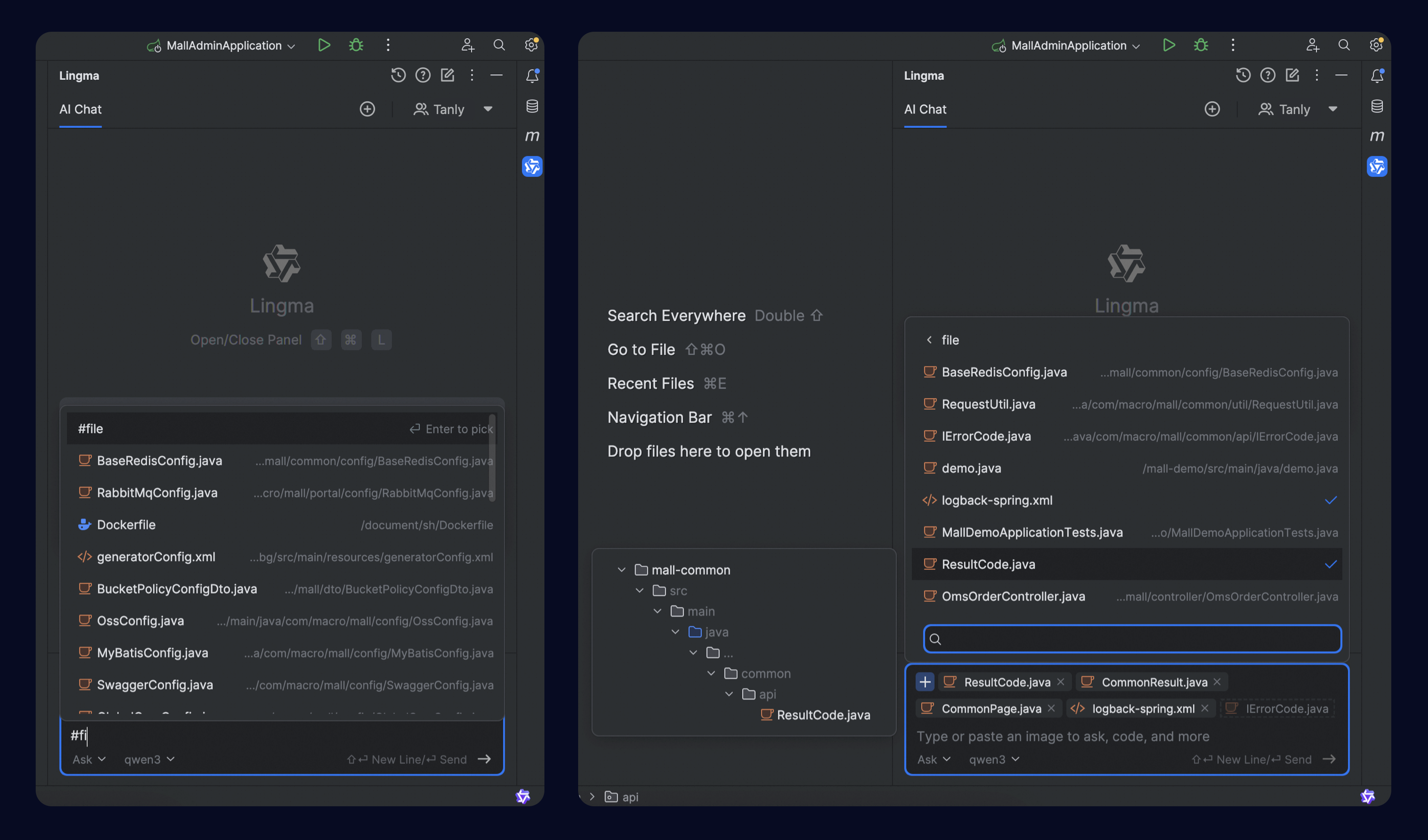
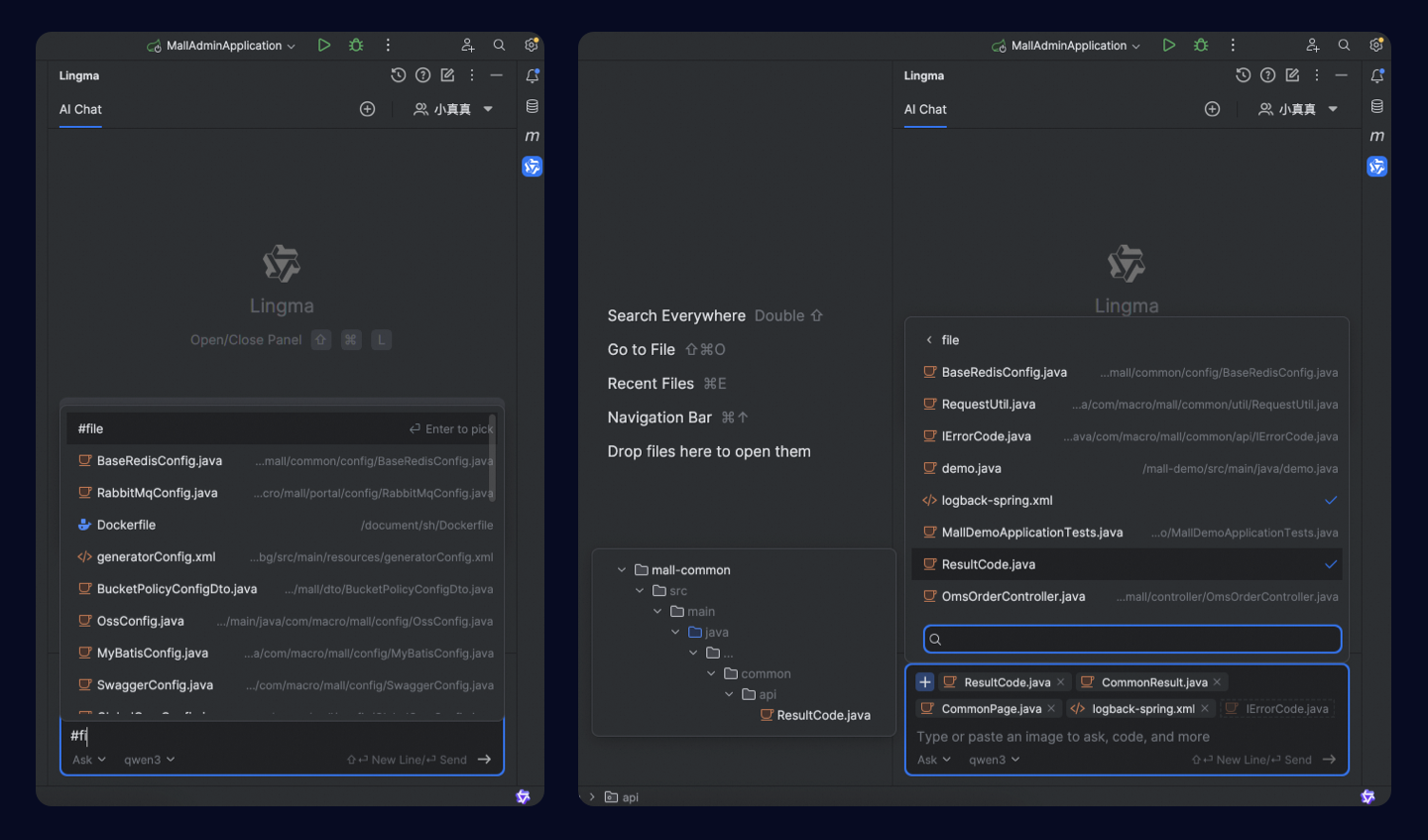
Qoder CN offers various context types. You can combine them with each other, or with natural language input, to build a complete request.
Supported context types: file, folder, image, codebase, teamDocs, codeChanges, gitCommit, and rule. Each is introduced below.
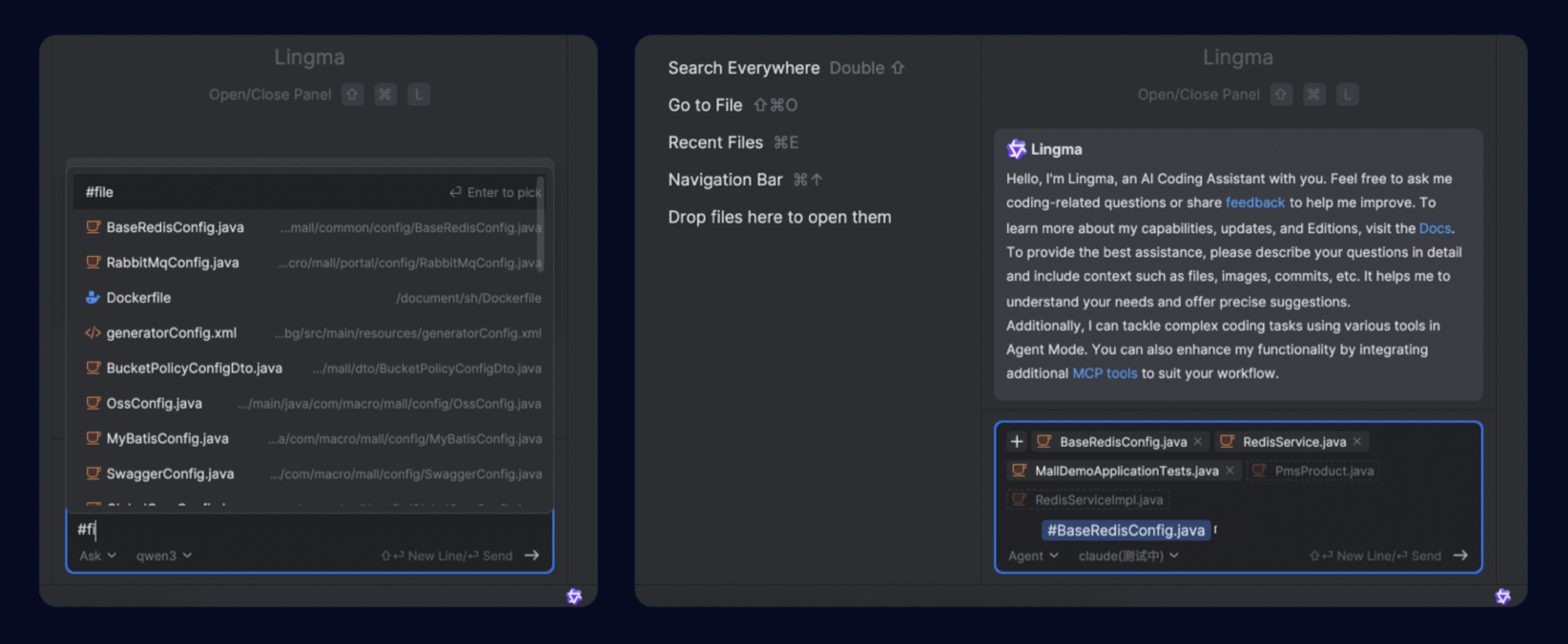
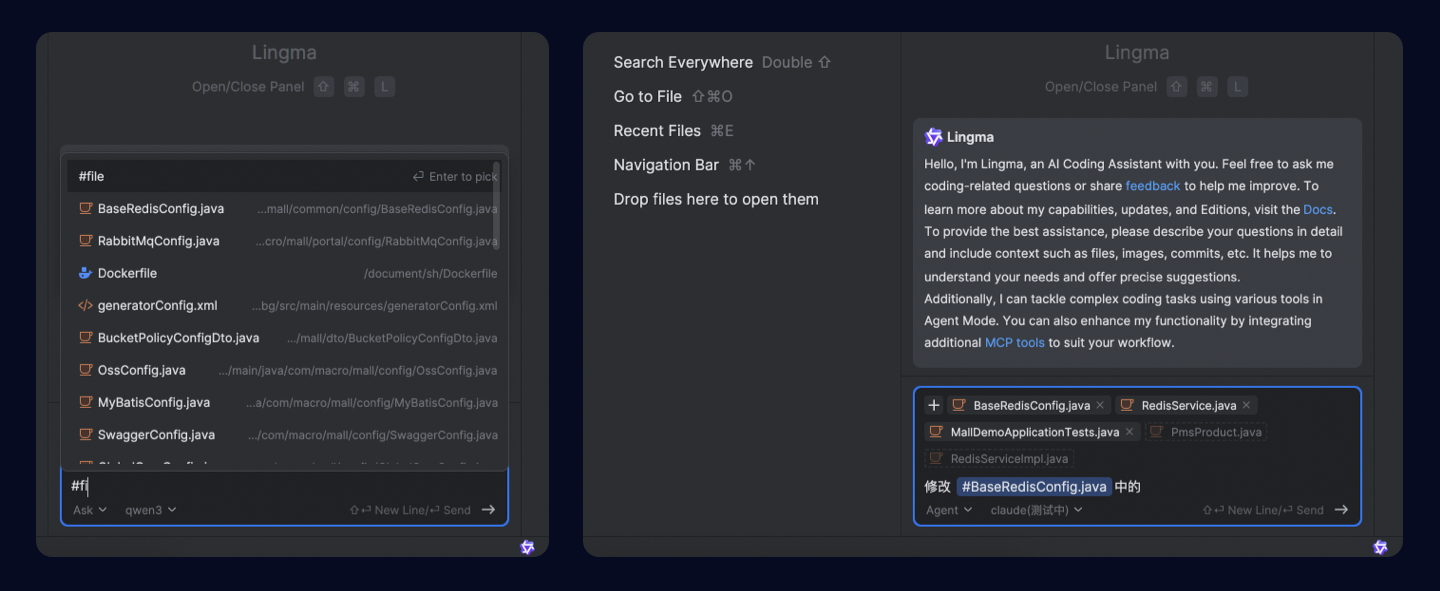
To ask questions about or modify one or more files, type #file in the input box to select code files. The file list supports multi-selection with the mouse. In JetBrains IDEs, you can also drag and drop or copy and paste code files to add them as context.
Two tips when adding files as context:
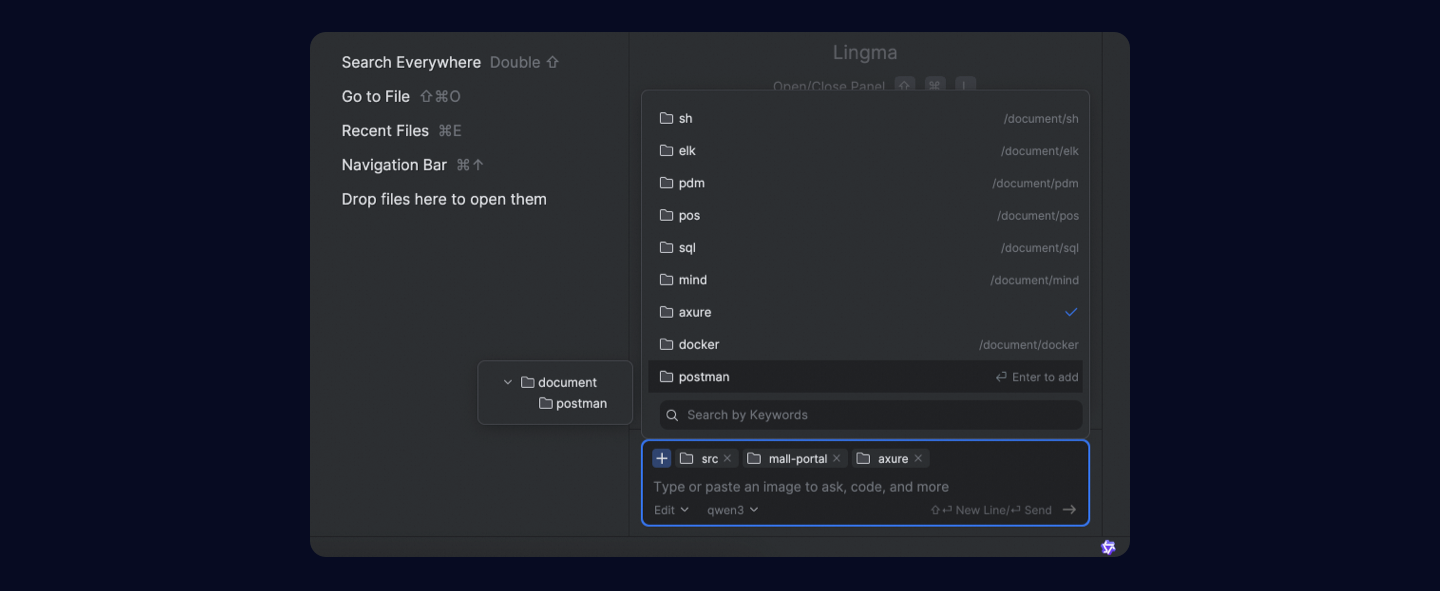
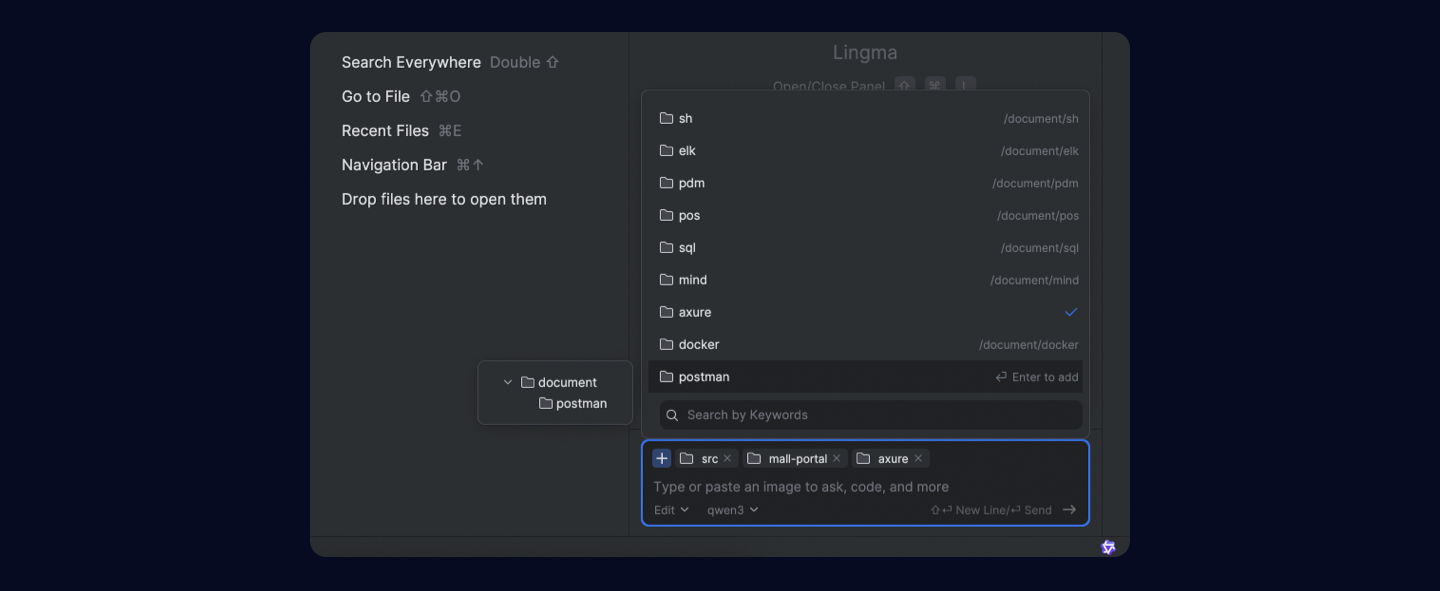
To ask questions about or modify a specific code module, such as batch scenarios like searching, refactoring, adding comments, or generating unit tests, select the required project directory.
To use an image to generate code, fix issues, or express content graphically, click #image after opening the context selection window, or directly copy/screenshot and paste an image. For example, generate a frontend page from a design mockup.
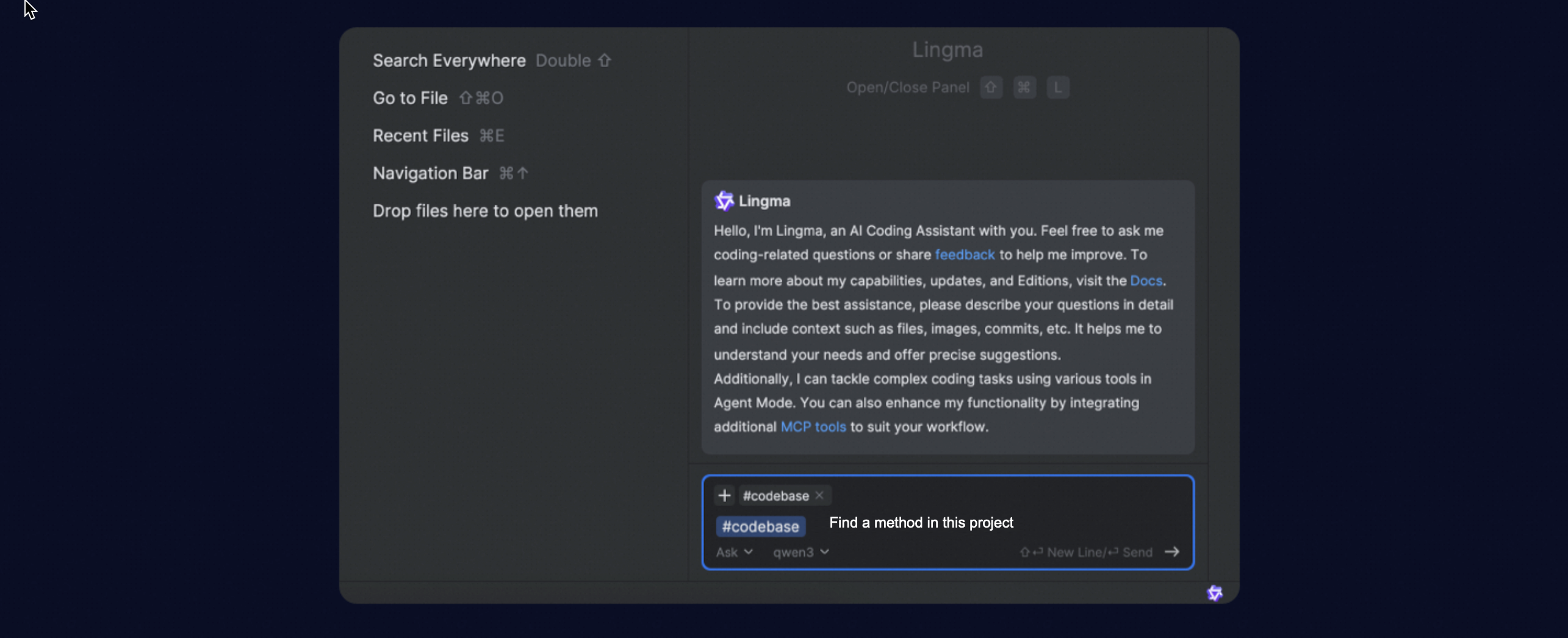
To perform semantic search across the entire project, add #codebase as context. Once added, the model automatically performs semantic search in the current project's codebase to find the code snippets most relevant to your question as reference context. For example, without specifying any file, you can ask "How is user authentication implemented in the project?" — a question that requires whole-codebase understanding.
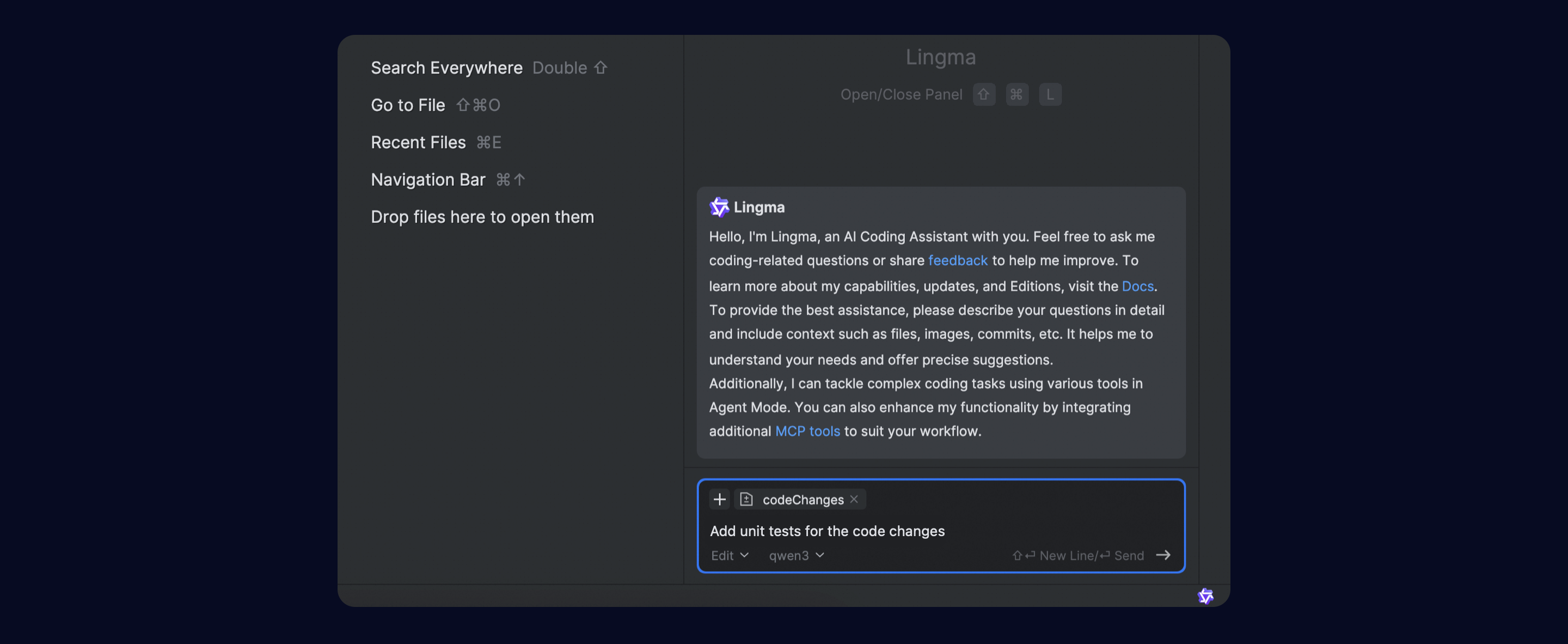
To ask questions about, search, or modify code changes in the current Git staging area, add #codeChanges as context. For example, before pushing to the Git repository, hand the changes to Qoder CN for code review, optimization, or unit test additions.
To ask questions about code changes from a specific committed Git commit, use #gitCommit to add the commit information you need. For example, select one or more Git commit records to perform issue troubleshooting, bug fixing, or unit test generation.
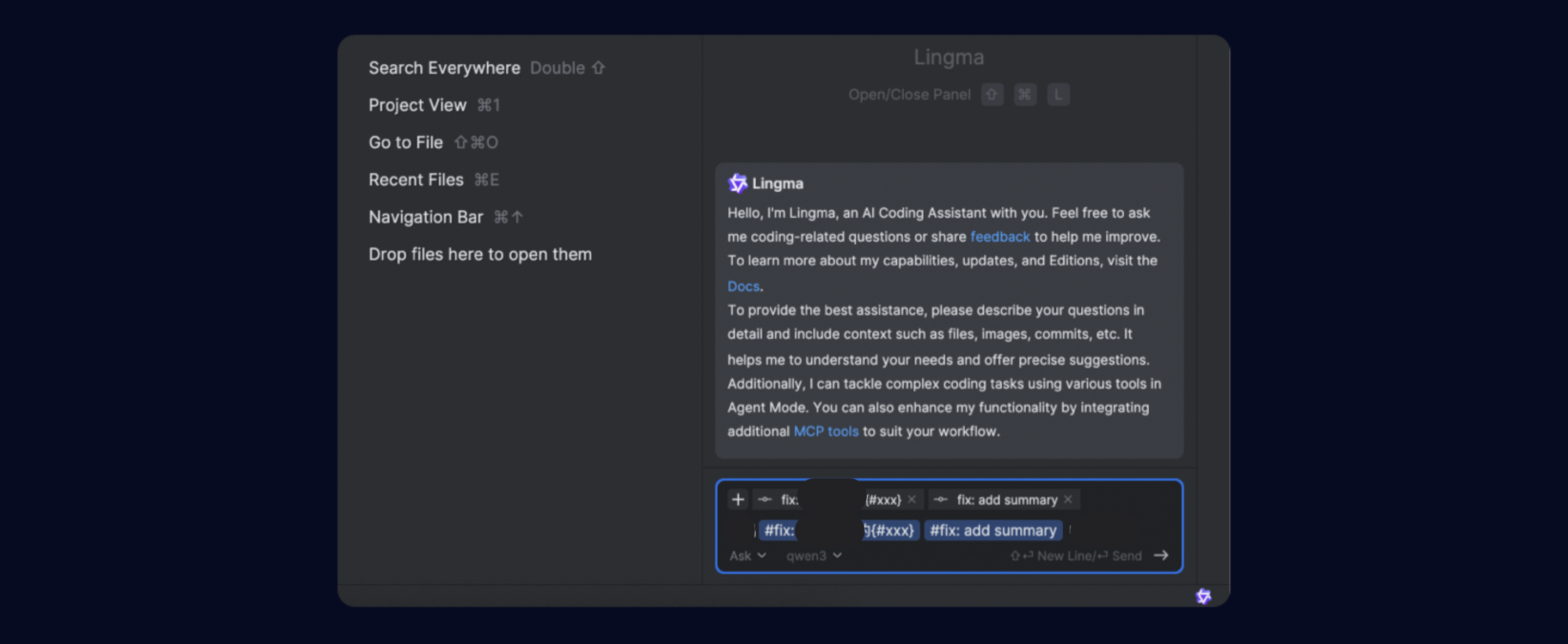
To combine your enterprise knowledge base for Q&A or code generation, use #teamDocs to add the enterprise knowledge base you need. Qoder CN automatically performs knowledge retrieval and uses it as reference information when interacting with the model. For example, use your team's self-developed component guidelines to generate code.
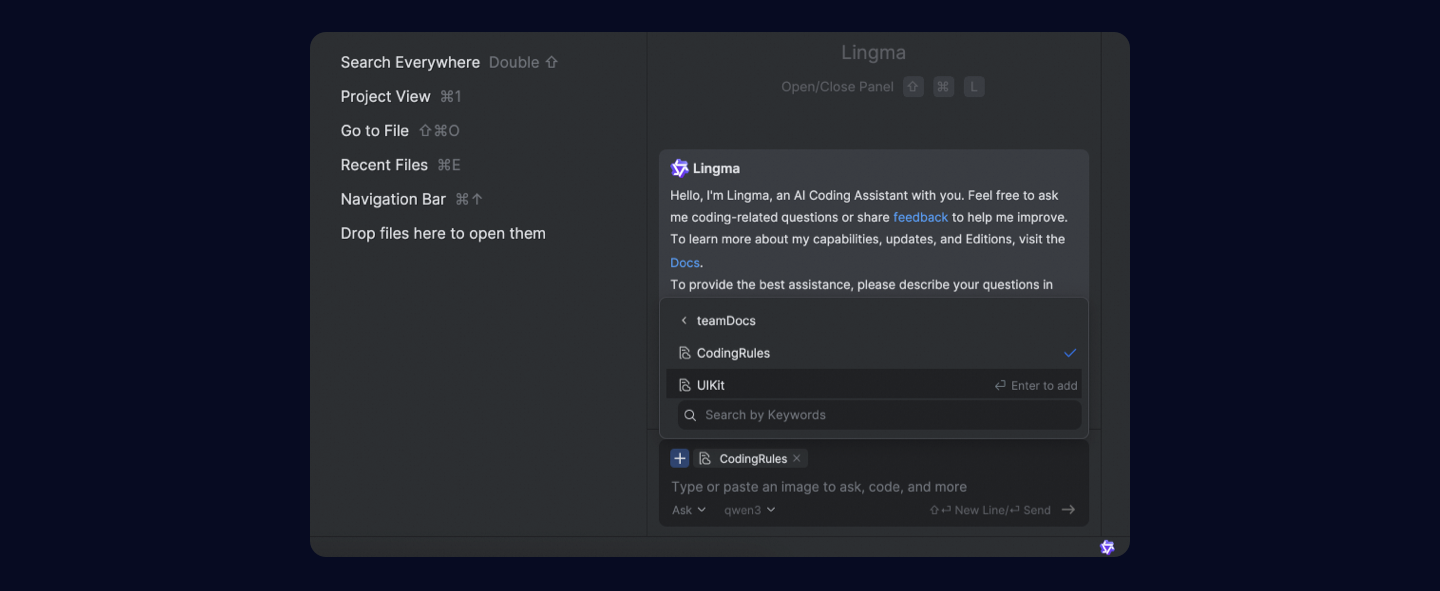

The system prompt embeds preset instructions as persistent, reusable context in every model call, ensuring highly consistent behavior and output when the model performs tasks such as code generation, code refactoring, and workflow automation.
Add context
You can add context in AI chat in three ways:
- Click the add context button in the input box to open the context selection window.
-
Type # or @ in the input box to open the context selection window, then continue typing to search for files.
- In Qoder CN IDE and JetBrains IDE plugins, use @ to open the context selection window.
- In Visual Studio Code, use # to open the context selection window.
- For code files and images, drag and drop or copy and paste to add the content as context (JetBrains IDEs only).
Supported context types
Qoder CN offers various context types. You can combine them with each other, or with natural language input, to build a complete request.
Supported context types: file, folder, image, codebase, teamDocs, codeChanges, gitCommit, and rule. Each is introduced below.
#file
To ask questions about or modify one or more files, type #file in the input box to select code files. The file list supports multi-selection with the mouse. In JetBrains IDEs, you can also drag and drop or copy and paste code files to add them as context.
Two tips when adding files as context:
- After you select a code file, related files are automatically recommended. Click the file name to add it.
- To emphasize a specific file in your prompt, type # to select the file.
#folder
To ask questions about or modify a specific code module, such as batch scenarios like searching, refactoring, adding comments, or generating unit tests, select the required project directory.
#image
To use an image to generate code, fix issues, or express content graphically, click #image after opening the context selection window, or directly copy/screenshot and paste an image. For example, generate a frontend page from a design mockup.
#codebase
To perform semantic search across the entire project, add #codebase as context. Once added, the model automatically performs semantic search in the current project's codebase to find the code snippets most relevant to your question as reference context. For example, without specifying any file, you can ask "How is user authentication implemented in the project?" — a question that requires whole-codebase understanding.
#codeChanges
To ask questions about, search, or modify code changes in the current Git staging area, add #codeChanges as context. For example, before pushing to the Git repository, hand the changes to Qoder CN for code review, optimization, or unit test additions.
#gitCommit
To ask questions about code changes from a specific committed Git commit, use #gitCommit to add the commit information you need. For example, select one or more Git commit records to perform issue troubleshooting, bug fixing, or unit test generation.
#teamDocs
To combine your enterprise knowledge base for Q&A or code generation, use #teamDocs to add the enterprise knowledge base you need. Qoder CN automatically performs knowledge retrieval and uses it as reference information when interacting with the model. For example, use your team's self-developed component guidelines to generate code.