

Combine specialist agents and assign a lead to coordinate engineering work.
This feature is not available on Qoder CN VPC.
Choose a leader and members
You can select available Agents from the current device, the cloud, and connected devices on the same account. Review or enable collaboration when prompted, and verify device connections and account access. Archived or unavailable Agents cannot be used as available members.
A team whose leader is on another device can be used in discussions. Direct execution from a local task remains subject to the leader device’s restrictions. Connected-device workspaces use the teams available on their corresponding devices. Check members, run locations, and availability before starting work.
Create a team
Open Settings > Agent Team and choose Create Agent Team. Start with a blank setup or a template.
Blank setup
Prepare the required Agent, then:
- Choose Blank setup and enter the name and description. Confirm the name before saving; it cannot currently be changed after creation.
- Write collaboration instructions covering responsibilities, requirements, and constraints.
- Select one Team Leader and one to four Additional members. An agent selected as lead is automatically removed from the additional members.
- Choose Save Agent Team. If the button instead asks to enable collaboration and save the team, read the notice first: saving enables collaboration and completes registration for the selected agents, including agents whose collaboration was previously disabled.
- After saving, confirm that the team is enabled in the list, then start a task as described below.
- Choose Create from template and review the description, Agents to create, and collaboration instructions, including the lead and member roles.
- Choose Use this template and adjust the team name, description, and instructions. The page lists the agents that it plans to create and enable with the team.
- Review the preset members and roles, then save. Creation initializes the members and checks for name conflicts in the loaded team directory. Adjust conflicting names when prompted; members can be edited individually afterward.
Create a software development expert team
For work spanning research, development, testing, and review, choose the software development expert-team template under Create from template. A project manager coordinates a researcher, full-stack engineer, test engineer, and code reviewer, covering requirements clarification through acceptance.
Review the template details and member roles, then select the template. Adjust the name, description, and collaboration instructions for your task, review the preset members, and save. Enable the saved team, select it for a new task, and specify the development goal, workspace, and completion criteria.
Use a team
Select a team in a new task to have its lead coordinate the work, or delegate from an existing local conversation and ask for the final team summary to be returned.
Enable the team in the list or enable assignment in its settings. Enabling a team also enables assignment for its lead and members; members can be assigned individually. Disabling a team does not disable its members. Check each agent's settings separately when you need to stop using that agent.
Start a task
After creating and saving the team, select it for a new task:
- Click New Task in the left sidebar to open the new task page.
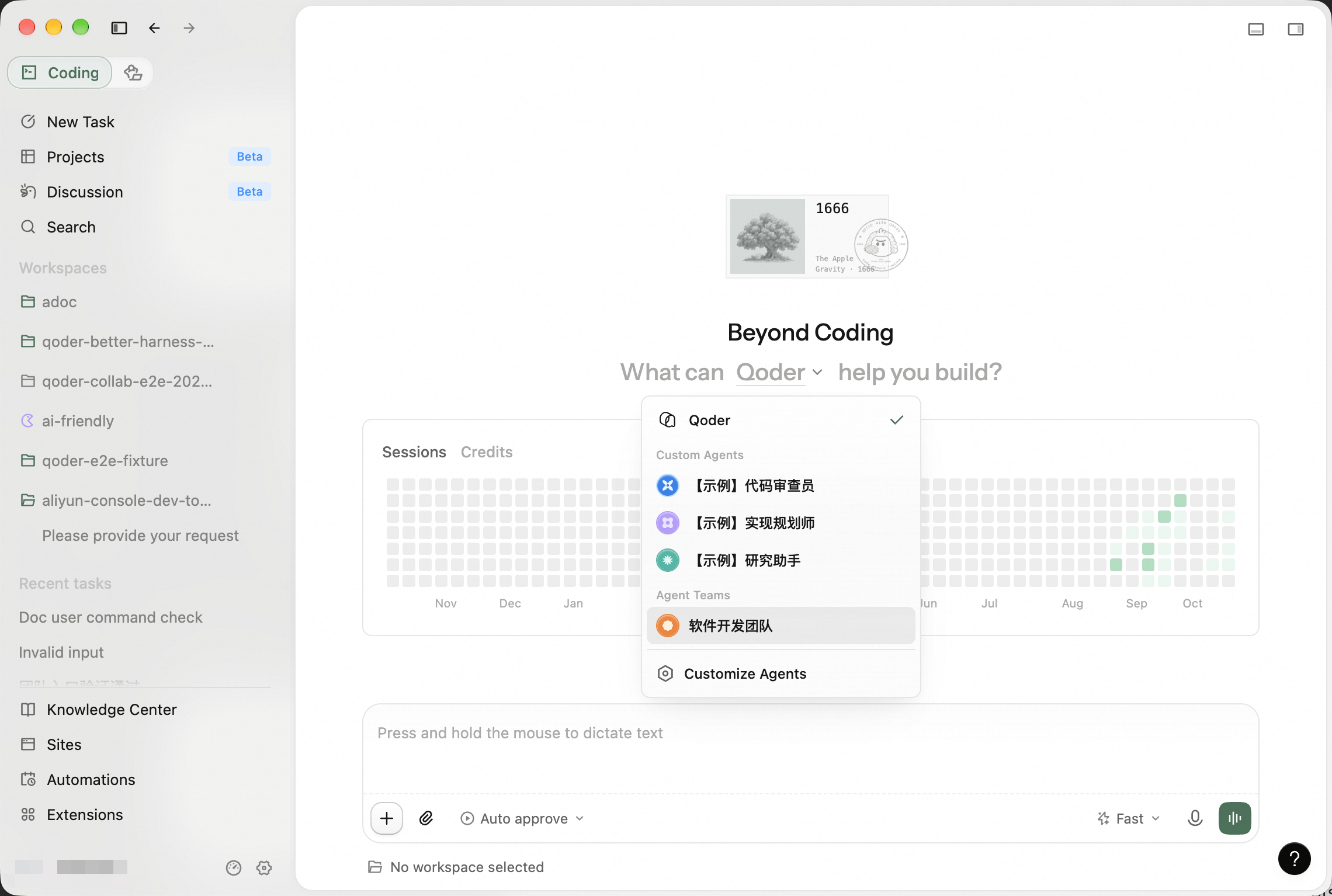
- At the top of the page, click the Qoder name or the arrow next to it to open the executor picker.
- Scroll down in the menu to Agent Teams and select your team. Check that Qoder changes to the selected team's name, then enter and send your request.
Delegate work to a team through conversation
Once the requirements are clear in a local conversation, ask Qoder CN to send the material to a team for work that needs several roles. First check that the team is saved, enabled, and available in Settings > Agent Team, and keep the execution device online. If Qoder reports that the team is not published or not bound to this device, complete its setup before delegating.
For example, enter in the current conversation:
Use in projects and discussions
Projects and discussions require a business plan (Teams or Enterprise). Not yet available on individual plans or Qoder CN VPC.
- Open the Issue, describe the result you need, then select an eligible Agent Team in the agent assignment control and confirm.
- After the team claims the Issue, its lead delegates work and consolidates the results. Open the run in the Issue activity to check progress, items that need your attention, and the final summary.
- To switch to another team or agent, check whether the Issue allows reassignment and choose an eligible target. For a request about a single comment, start a run from that comment to keep the existing assignment.
- Select the team through Agent when creating a discussion, or use Share > Add Agent / Agent Team in an existing discussion.
- Type
@and open the Agent tab. Under the team name, select the lead (marked TL) or a specific member, then send your request. - Read the reply in the discussion, or choose Open execution chat to inspect progress and status.
Adding a team lists its lead and members in the
@ menu; select a specific agent under the team group. You can only invoke agents you own.