

Qoder CN is an intelligent development assistant embedded in JetBrains and VSCode integrated development environments (IDEs). It leverages artificial intelligence to simplify the software development process and improve development efficiency. This topic describes how to make full use of the various auxiliary features during development. Its main capabilities include general large language model Q&A, unit test generation, scenario-based optimization, documentation writing, and high-quality AI-driven code generation based on your existing code. These features provide significant convenience and productivity gains for developers.
Qoder CN provides ready-to-use keyboard shortcuts. The following table lists the most common ones:
Additionally, in the AI Chat panel, press Cmd+Enter (macOS/Linux) or Ctrl+Enter (Windows) to create a line break, and press Enter to submit your question to the model.
When there are no guiding comments, the model can only predict upcoming code based on the current code context and similar code found through project references. When the model's predictions are inaccurate, you can add comments to guide the model toward implementing the desired code.
In addition to cross-file reference capabilities for mainstream programming languages such as Java, Python, and JavaScript, Qoder CN also supports automatically identifying the table structure types referenced by Mapper objects when you write MyBatis XML files. For example, when writing the following insert statement, Qoder CN uses the TaxiOrder type information from the current project to ensure that every generated field is correct. 
Within the same chat session, previous conversation content is automatically provided to the model as context each time you ask a new question. When your current question is unrelated to the previous content, this extra information may interfere with the model's response.  In this case, you can click the New Chat button at the top of the AI Chat panel to ask questions in a new session, or use the
After starting a new chat session, if you need to find the content of previous questions, you can use the chat history feature to return to earlier topics and continue asking follow-up questions. 
To ask questions about a specific code segment, in addition to pasting the code content directly into the chat area, you can also first select a piece of code in the code editor and then ask questions about that segment in the chat area. For example: 
When asking questions, if you select text or code in the code editor, the selection is automatically appended to your question in Markdown quote format. Therefore, when referring to the selected code in your prompt, use phrases like "the following code" or "this content". For example:
Add supplementary information to commands to provide richer context for chat, resulting in more accurate responses.
When conversing with large language models, the richer the context you provide, the better the generated results will match your expectations. You can build upon previous chat turns to add contextual information for subsequent questions, allowing the generated results to better reflect the entire historical context. However, when previous historical information becomes interfering, you should clear the context in a timely manner and then continue with more in-depth follow-up questions on top of the previous turn.
When you need the model to output in a specific format or follow certain preset rules, providing a reference example often works better than a text description alone. For example, when formatting a program's test result file into a specific JSON structure, first open the file, select all content, and then ask a question in the chat area. Compare the two prompts below; the latter produces more stable output in the expected data format.
Use keyboard shortcuts
Default keyboard shortcuts
Qoder CN provides ready-to-use keyboard shortcuts. The following table lists the most common ones:
| Action | Windows | macOS |
|---|---|---|
| Trigger completion at any position | Alt + P | Option + P |
| Replace generated results | Alt + ] | Option + ] |
| Accept all generated code | Tab | Tab |
| Accept generated code line by line | Ctrl + ↓ | Cmd + ↓ |
| Close or open the AI Chat panel | Ctrl + Shift + L | Cmd + Shift + L |
Using the keyboard shortcut to replace generated results may yield a higher temperature parameter and sometimes more divergent content.
Custom keyboard shortcuts
- JetBrains IDE
- VSCode
- Go to the Settings page.
- In the left-side navigation pane, select Keymap. Then, find and expand Qoder CN under Plugins to view and edit the related keyboard shortcuts.


Configure settings
IDE settings
- JetBrains IDE
- VSCode
The configuration panel for JetBrains IDE is located in the top-level Qoder CN section of the Settings page. You can also click the Qoder CN icon in the status bar and quickly select Advanced Settings to access it. 

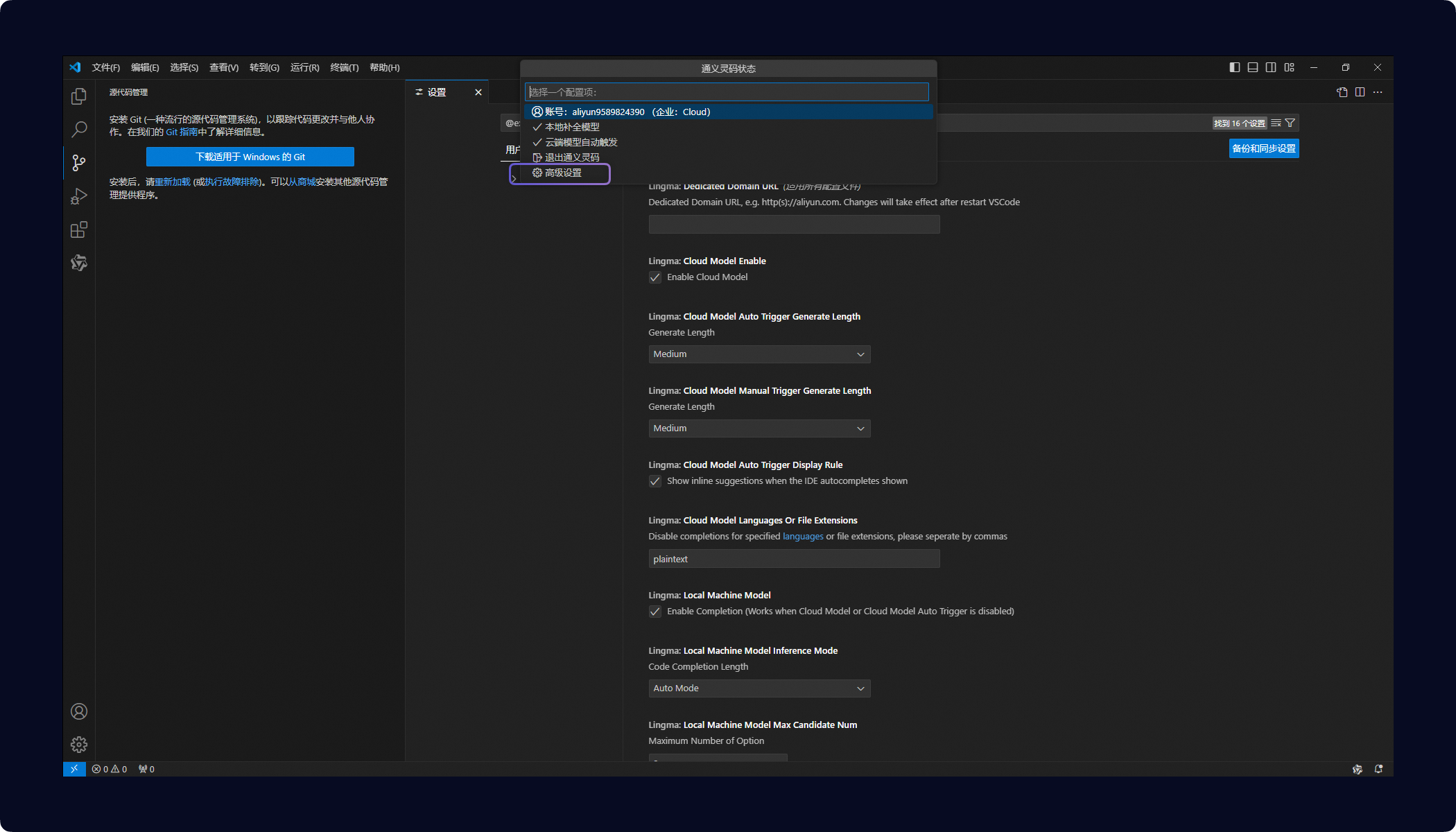
Common configuration items
- Disable auto-completion by file type.
-
If auto-completion creates interference when working with certain types of files, you can add those file extensions to the list. Multiple extensions should be separated by commas (for example: txt,md).
| IDE | Configuration |
|---|---|
| JetBrains IDE | | | VSCode |
 |
| Disabling auto-completion for specific file types primarily disables automatic triggering. However, when auto-completion is manually triggered within a file using the keyboard shortcut (default: Alt+P), the LLM-based content completion feature is still available.
- Keep completion results when drop-down suggestions appear.
-
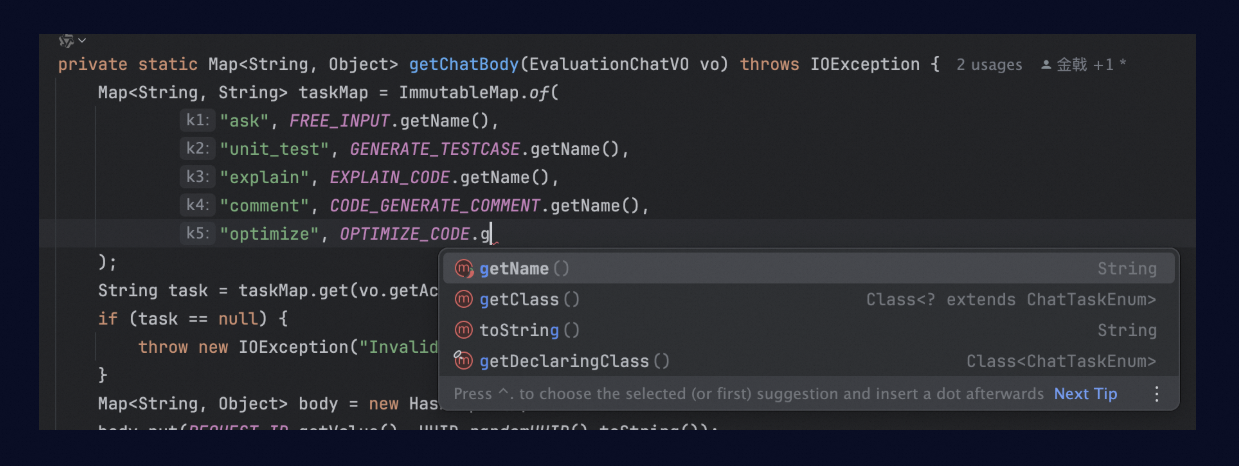
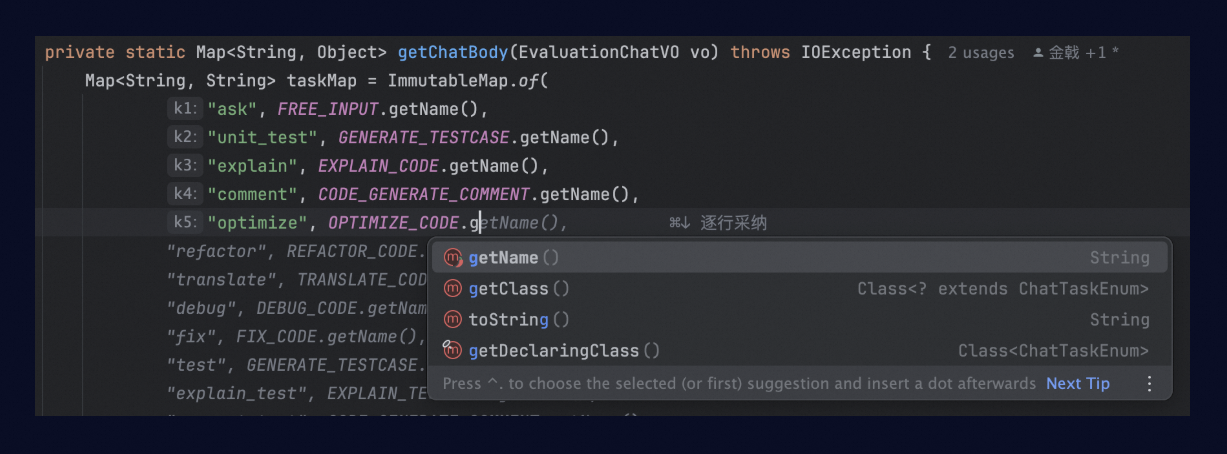
By default, when the IDE shows syntax-based drop-down completion suggestions, Qoder CN automatically stops showing large model completions to avoid visual conflicts.
-
If you want Qoder CN to always generate LLM completions, you can select this configuration option. As shown in the figure below, pressing the Tab key will accept the large model's generated results. | IDE | Configuration | |---|---| | JetBrains IDE |
 | | VSCode |
 |
|
- Control the maximum length of the generated code.
-
Qoder CN supports setting different code completion length parameters for both automatic triggers and manual triggers. It's recommended to set the manual trigger (default shortcut Alt+P) to generate slightly longer completions than automatic triggers.
| IDE | Configuration |
|---|---|
| JetBrains IDE | | | VSCode |
 |
| This configuration option only sets the maximum length that the model is allowed to generate. If the content generated by the model in a completion is naturally shorter, modifying this configuration cannot force the model to generate longer content.
Use code comments
Guide code completion with comments
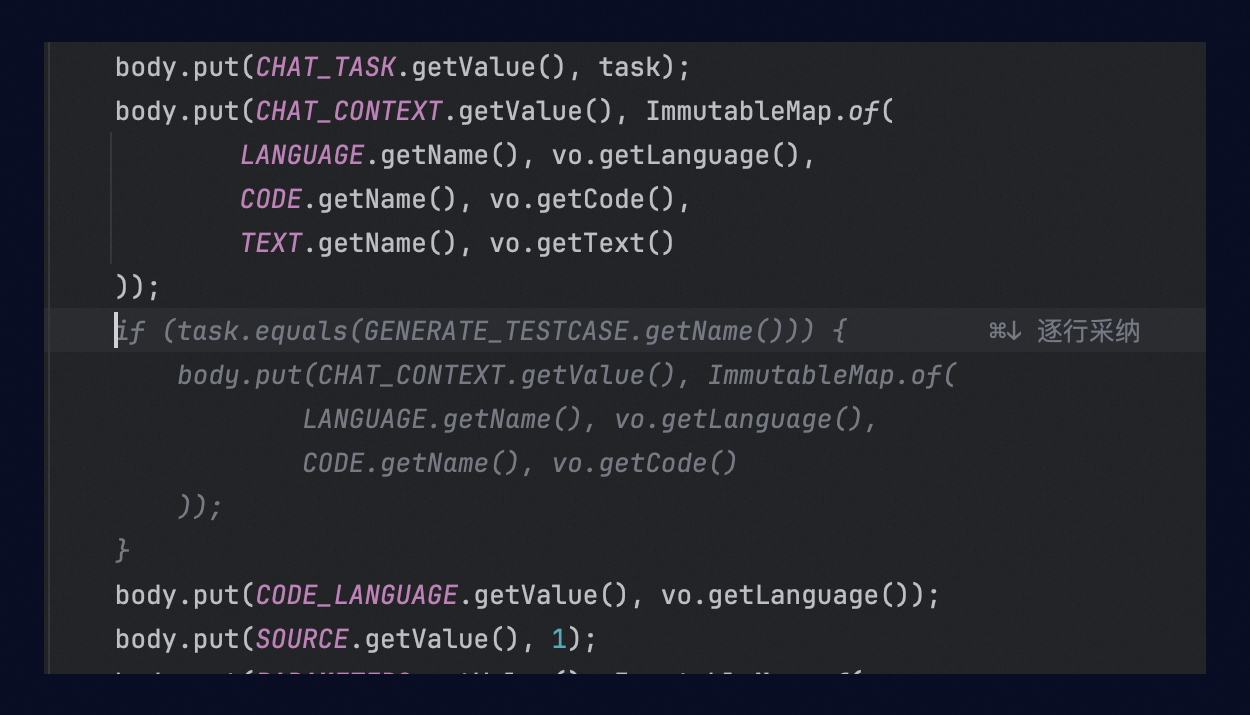
When there are no guiding comments, the model can only predict upcoming code based on the current code context and similar code found through project references. When the model's predictions are inaccurate, you can add comments to guide the model toward implementing the desired code.
- For example, in the following code, the model first predicts a CHAT_CONTEXT field, which is not what we expect.
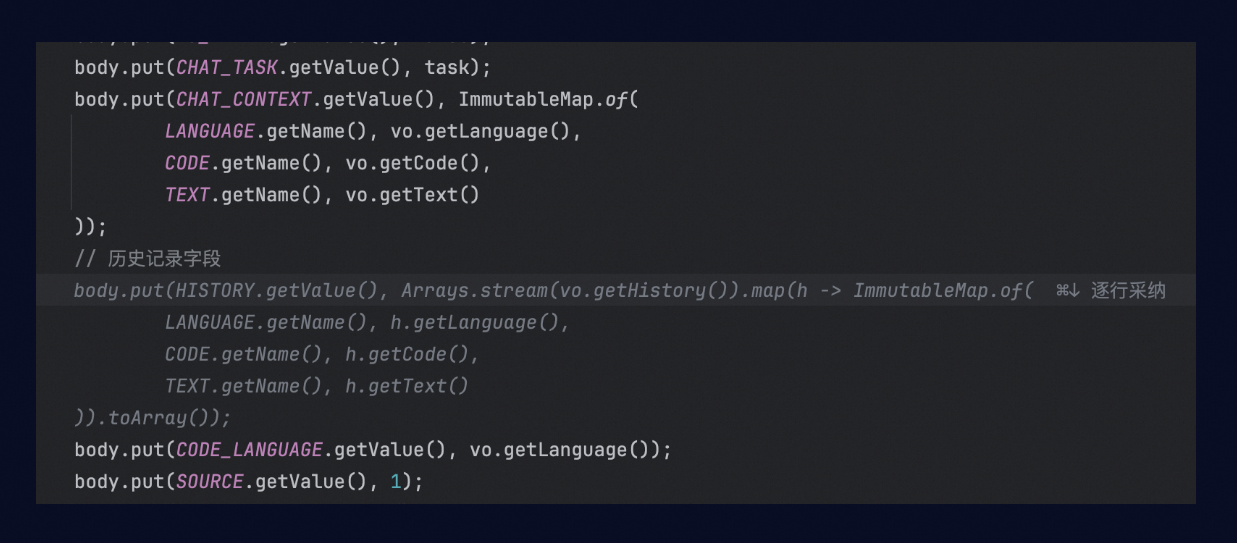
- Next, add a comment to instruct the model that the next field should be a chat history record. The model then generates the expected field along with corresponding data population code.
Use descriptions to generate methods
- You can generate entire methods based on comments by either using code comments in the editor to guide completion or by using the Qoder CN AI Chat panel. Since the model used by Qoder CN's intelligent Q&A scenarios typically has more parameters than the code completion model, we recommend directly describing the desired generation as a question in the AI Chat panel for such scenarios.
- If you have specific requirements for the language or method signature (including method name, parameter types, and return value types), describe these details in your prompt.

Use cross-file indexes
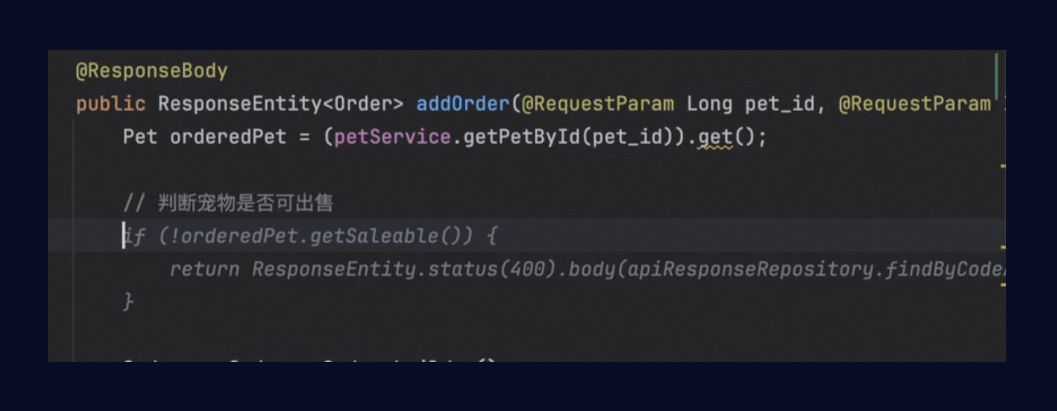
Save files and update indexes
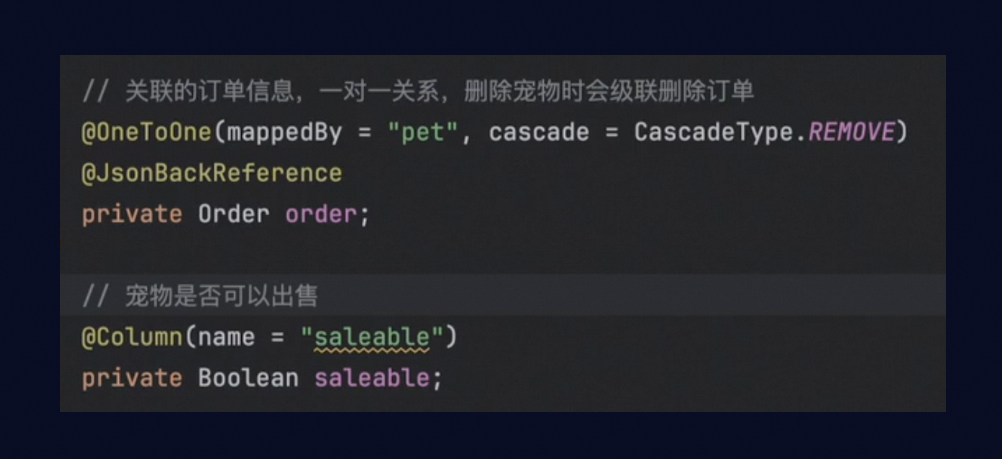
- Qoder CN's cross-file indexing is a crucial mechanism for suppressing code hallucinations. By automatically identifying the types and method definitions involved in the current context, the model can recognize the members of types and the parameters of methods defined in other files across the project. When first opening a new project, Qoder CN automatically creates the project's file index. Thereafter, each file save triggers an incremental index update for that file. However, because IDEs typically cache files in memory, when you switch to another file immediately after editing one, the local index may not yet be updated, and the newly added or modified content may not be recognized. In such cases, the model may still infer based on the original type structure. For example, in one code project, we added a
saleableproperty to the Pet object.
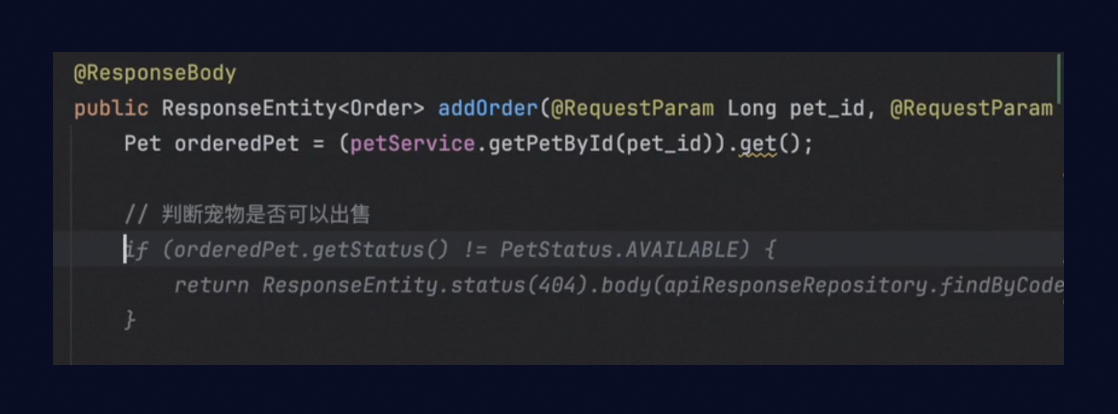
- Then, switch to another file and try to let the LLM complete the code, but the model infers logic using another less relevant field.

- To eliminate this information discrepancy, we recommend that you actively press the file save shortcut Ctrl+S (Cmd+S on macOS/Linux) after editing the previous file, before continuing to edit other files. This ensures that the generated content correctly references the modified object structure.

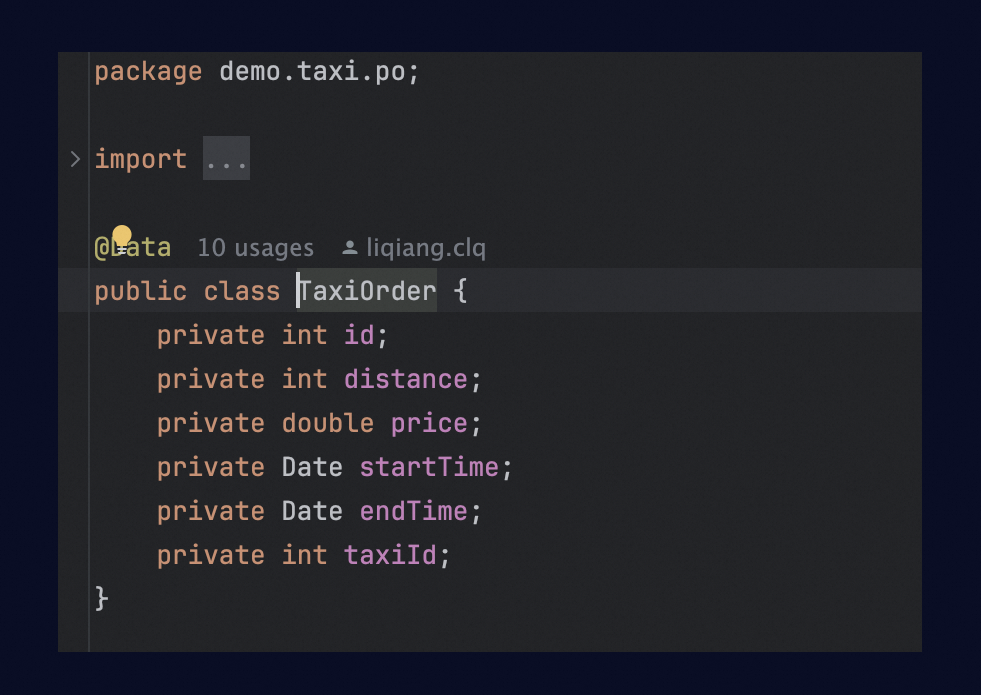
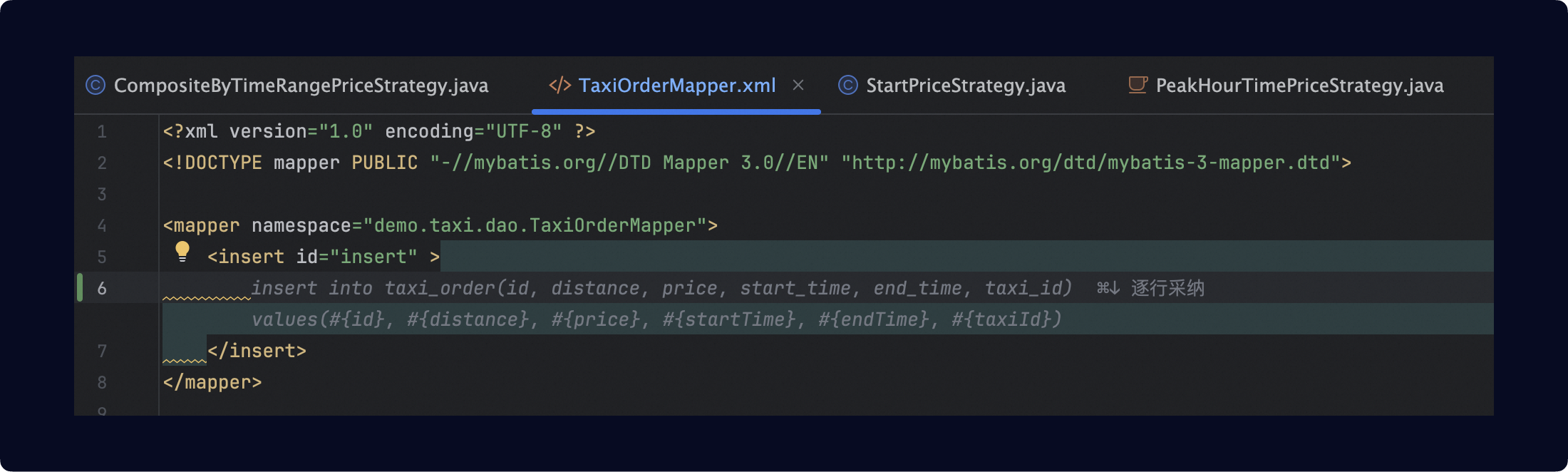
Optimization solution for MyBatis scenarios
In addition to cross-file reference capabilities for mainstream programming languages such as Java, Python, and JavaScript, Qoder CN also supports automatically identifying the table structure types referenced by Mapper objects when you write MyBatis XML files. For example, when writing the following insert statement, Qoder CN uses the TaxiOrder type information from the current project to ensure that every generated field is correct. Clear context information in a timely manner
Clear context when appropriate
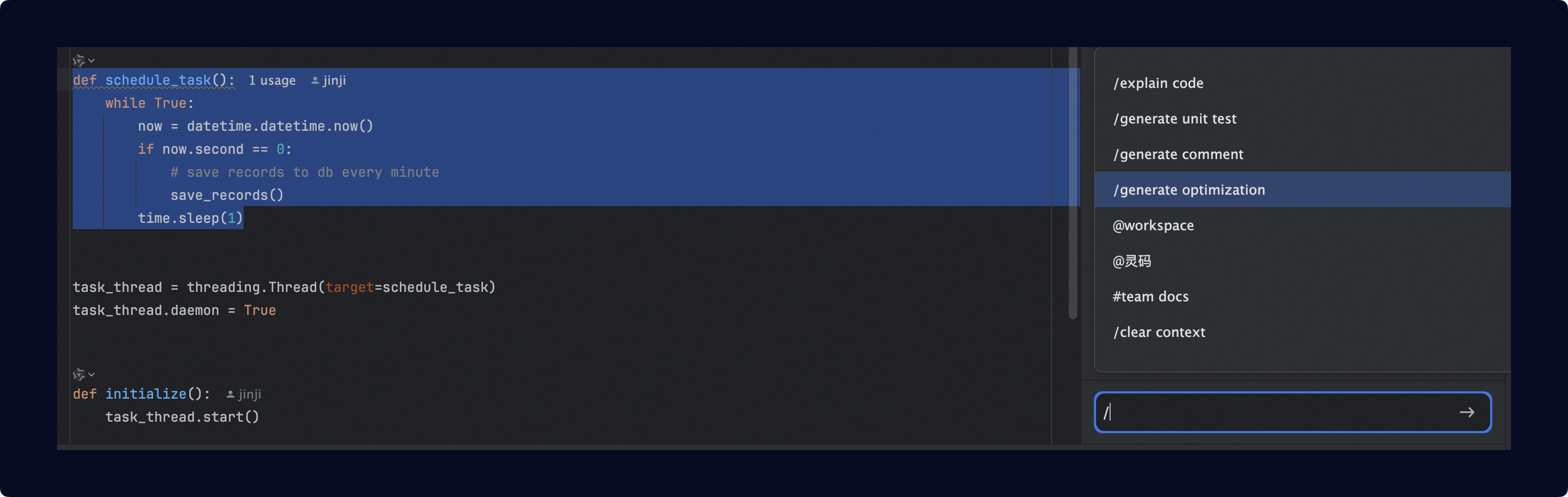
Within the same chat session, previous conversation content is automatically provided to the model as context each time you ask a new question. When your current question is unrelated to the previous content, this extra information may interfere with the model's response. /clear context command to clear the context and reduce interference from previous exchanges on subsequent Q&A. View chat history
After starting a new chat session, if you need to find the content of previous questions, you can use the chat history feature to return to earlier topics and continue asking follow-up questions. Ask about code
General questions
To ask questions about a specific code segment, in addition to pasting the code content directly into the chat area, you can also first select a piece of code in the code editor and then ask questions about that segment in the chat area. For example: Built-in code tasks
- Qoder CN provides four built-in code tasks: explain code, generate unit tests, generate code comments, and generate optimization suggestions. The Qoder CN large language model has been specially trained for these tasks. For example, for unit test generation, using the built-in task yields better results than selecting code and typing a request to generate unit tests.
-
There are three ways to use the built-in code tasks. The most common approach is to click the Qoder CN icon at the beginning of a method definition and directly select the desired task from the drop-down options.
- Method 1: Use a drop-down menu in an IDE. | IDE | Configuration | |---|---| | JetBrains IDE | | | VSCode | |
- Method 2: Select code, right-click, and select Qoder CN from the context menu.
- Method 3: Select code, type / in the AI Chat panel to activate the built-in task menu, and then select the appropriate task.
Prompt engineering
Reference code in questions
When asking questions, if you select text or code in the code editor, the selection is automatically appended to your question in Markdown quote format. Therefore, when referring to the selected code in your prompt, use phrases like "the following code" or "this content". For example:
- Good example: Check whether the following code has a risk of an index out-of-bounds error.
- Bad example: Check whether the selected code has a risk of an index out-of-bounds error. (In this example, the model cannot identify the selected code.)
Add contexts to commands
Add supplementary information to commands to provide richer context for chat, resulting in more accurate responses.
Generate effective code through multi-turn chat
When conversing with large language models, the richer the context you provide, the better the generated results will match your expectations. You can build upon previous chat turns to add contextual information for subsequent questions, allowing the generated results to better reflect the entire historical context. However, when previous historical information becomes interfering, you should clear the context in a timely manner and then continue with more in-depth follow-up questions on top of the previous turn.
Provide examples for the model
When you need the model to output in a specific format or follow certain preset rules, providing a reference example often works better than a text description alone. For example, when formatting a program's test result file into a specific JSON structure, first open the file, select all content, and then ask a question in the chat area. Compare the two prompts below; the latter produces more stable output in the expected data format.
-
Prompt 1: Organize the test report into JSON format, with each test result as a JSON structure. Place the case name in the
namefield, whether it succeeded in thesuccessfield, the running duration in thedurationfield (in milliseconds), and the test coverage in thecoveragefield. The value of thedetailfield is a JSON object containing the input and output of each case, stored in theinputandoutputfields respectively. -
Prompt 2: Organize the test report into JSON format, with the specific format following the input report.
The output data should be as follows. Please generate the test report based on this example.