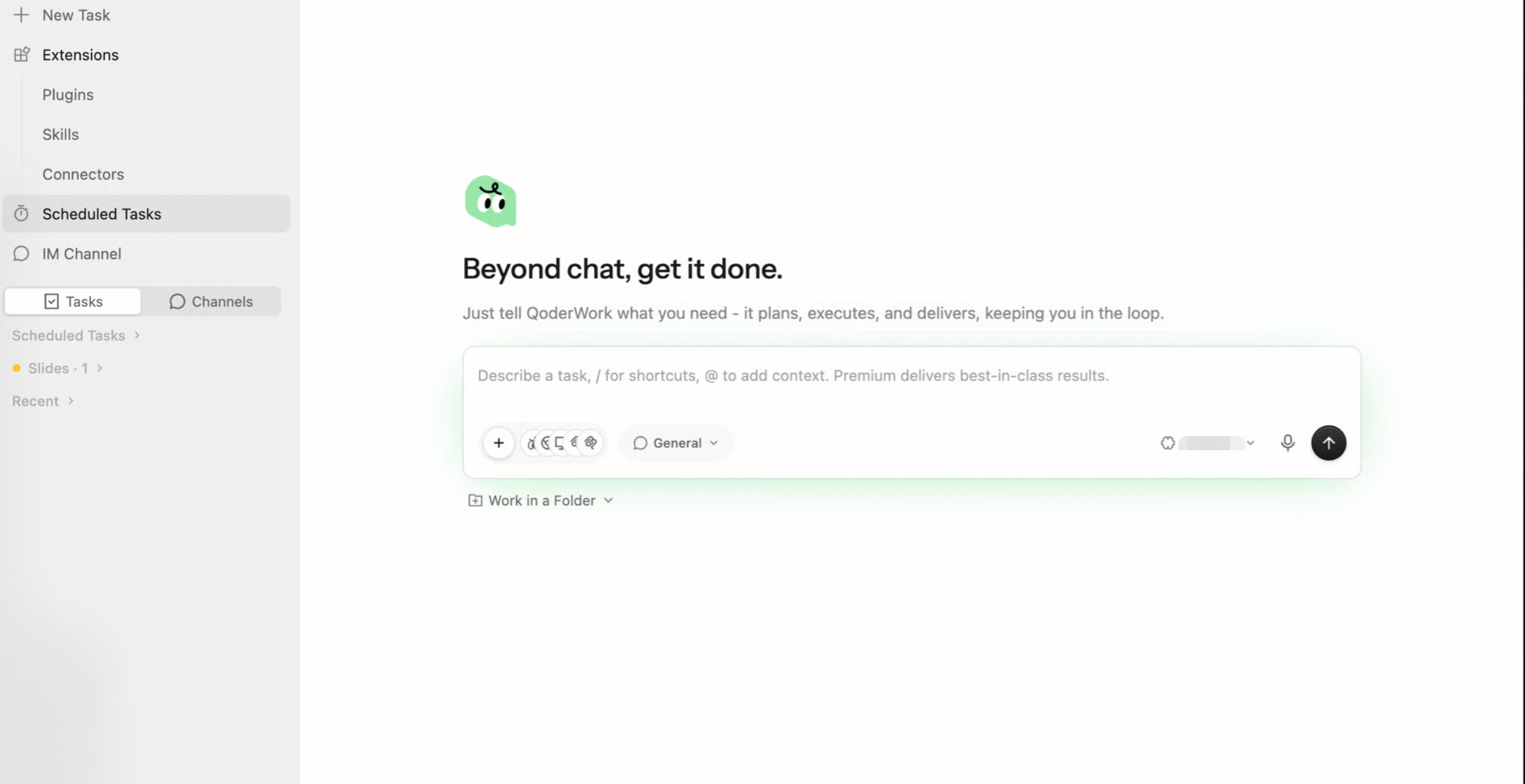
Think about how many of your tasks are time-sensitive. Reviewing data every morning, compiling weekly reports, or summarizing monthly statements—these jobs are not difficult, but remembering to do them on time and consistently can be draining.
With scheduled tasks, QoderWork CN stops waiting for your instructions and starts automating work. You define the schedule and the prompt, and QoderWork CN runs the task at the specified time. The results appear as a new chat task in the sidebar, ready for you to review at any time.
How it works
A scheduled task executes as follows: At the scheduled time → a new chat task is automatically created → the task executes based on your prompt → the results are saved in that chat.
A scheduled task has the same capabilities as a manually started chat. It can call the MCP tool, use connectors (like browser automation and native macOS apps), run skills, and read or write local files. In short, anything you can do in a chat, a scheduled task can do automatically.
Each execution creates a separate chat task and consumes Credits, just like a manual chat. For complex tasks, we recommend running them manually first to estimate the Credits consumption per run.
Scheduled tasks are dispatched by the local desktop client and use your computer's system time zone. If your computer is asleep or shut down, the task will not be triggered. For critical tasks, we recommend enabling the Keep system awake option in the upper-right corner of the Scheduled Tasks page to ensure your device does not sleep during the task's scheduled time.
Create a scheduled task
QoderWork CN provides two ways to create tasks. Choose the one that works best for you.
Method 1: Create in chat (recommended)
The most natural way is to describe "what to do and when" in plain language in any chat. QoderWork CN will automatically create and configure the task for you. For example:
Create a scheduled task for me: every morning at 9 AM, search for the latest news on "AI industry trends,"
summarize it into a 5-point morning brief, and save it to the "Daily Briefing" folder on my desktop.
A good workflow often starts with a successful manual run. If you are satisfied with a chat's result, you can simply say, "Turn what you just did into a task that runs automatically every morning at 9 AM." QoderWork CN will save the logic from the current chat as a new scheduled task.
Method 2: Create from the panel
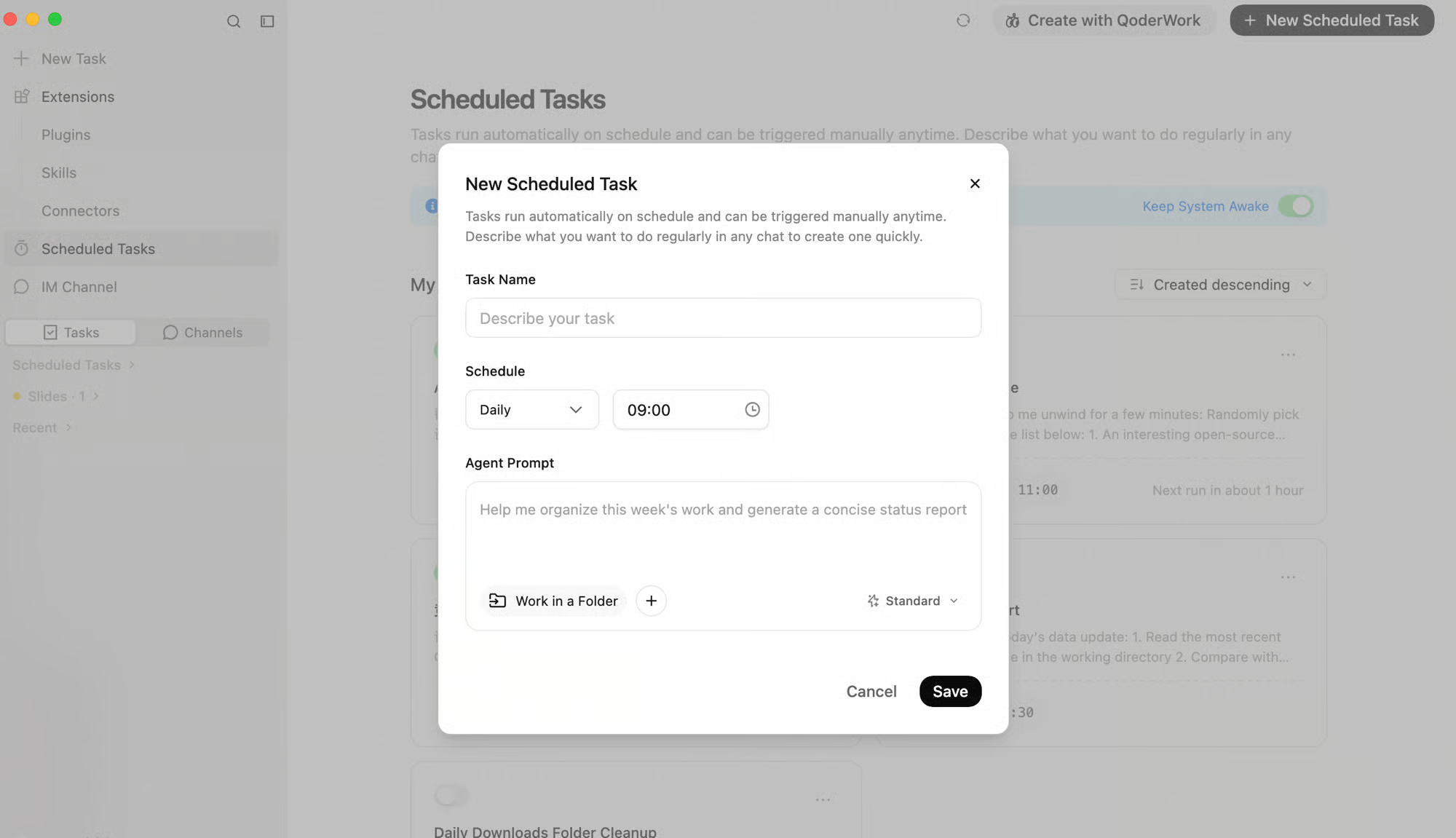
This method is ideal for users who prefer a visual interface or need precise control over scheduling parameters.
- Go to the Scheduled Tasks page: Click Scheduled Tasks in the left navigation bar to open the management page.
- Create a new task: Click + New Scheduled Task in the upper-right corner.
- Fill in the task details: Enter the Task Name, Schedule, Prompt, and optionally, the Working Directory and Attachments.
- Save and activate: Click Save. The task becomes active immediately and will run according to its schedule.
| Type | Description | Use case |
|---|
| one-time | Runs once at a specified date and time | Preparing materials before a meeting, pre-deadline checks, scheduled sending |
| interval | Runs at a fixed time interval | Price monitoring, progress polling, data collection |
| hourly | Runs at a specific minute every hour | Monitoring alerts, service health checks, status synchronization |
| daily | Runs at a specific time every day | Daily briefings, data reports, end-of-day cleanup |
| weekly | Runs on a specific day and time each week | Drafting weekly reports, competitor tracking, meeting materials |
| monthly | Runs on a specific day and time each month | Monthly business analysis, bill aggregation, monthly reviews |
When creating a task through chat, you can describe any scheduling logic in natural language, and QoderWork CN will convert it into the appropriate schedule. For example, it can understand phrases like "check every 3 hours," "on the last workday of each month," or "every Tuesday and Thursday at 2 PM."
Use cases
Daily data reports
Automatically process the latest data each day to generate analytical conclusions, saving you the time of running numbers manually. For example, at 9:30 AM every day, read the latest data, identify metrics that have changed by more than 10% from the previous day, and generate a daily data report saved as a Markdown file.
Daily industry briefings
Automatically gather industry news every morning and compile it into a brief. For example, on weekdays at 8:30 AM, use the browser to search for AI industry news, select the 5 to 8 most valuable items, categorize them by "Product Launch," "Funding," "Technology," and "Policy," and save the brief to a desktop folder.
Weekly competitor tracking
At 10:00 AM every Monday, use the browser to search for updates on competitors like Cursor, Windsurf, and GitHub Copilot. Organize the findings by "Feature Updates," "Market Activities," and "User Feedback," highlight changes from the previous week, and output the summary as a Markdown brief.
Daily file management
At 6:00 PM on workdays, scan for new files added to your Downloads folder that day. Move images, PDFs/documents, and compressed files to their respective "Images," "Docs," and "Archives" directories. After completion, generate a summary of the actions taken.
Daily email summaries
At 5:00 PM on workdays, read all unread emails from the day. Sort them by sender importance, summarize their core content, and flag emails that require a reply or follow-up. Compile this into a daily email summary and save it to a notes app.
Scheduled reminders and preparation
Automatically prepare materials before important events. For example, run a one-time task at 2:00 PM: check the details of a 3:00 PM meeting, search for relevant background information, outline discussion points and questions, save a brief to a notes app, and create a high-priority reminder.
Manage tasks
Execution results
Each time a scheduled task runs, QoderWork CN creates a new chat in the sidebar. You can click it to view the complete execution process and final result, just like a manually initiated chat. You can also continue the conversation in that chat to ask follow-up questions or request modifications.
Task list
On the Scheduled Tasks page, you can manage all your automated tasks in one place:
- Enable / Disable: Use the toggle in the upper-left corner of a task card to control whether it runs on schedule.
- Edit: Update the task name, schedule, or prompt. Click the card to edit.
- Run Now: Don't want to wait for the next scheduled run? Click ... and select Run Now to trigger the task manually.
- Delete: To remove a task you no longer need, click ... and select Delete Task. This action cannot be undone.
Execution history
In the Execution History section of the management page, you can view the historical run status of all your tasks:
| Status | Description |
|---|
| succeeded | The task was triggered and completed successfully. |
| running | The task is currently in progress. You can open the chat to view its real-time progress. |
| failed | An error occurred during triggering or execution. Check the details to investigate the cause. |
Best practices
Test manually, then automate. For complex tasks, run them in a normal chat first. Adjust the prompt until the output meets your expectations, and then convert it into a scheduled task.
Write a clear prompt. A scheduled task runs without manual intervention, so your prompt must be specific: define the output format, specify data sources, clarify decision-making criteria, and set the output location.
Use a working directory. By specifying a working directory, you provide a consistent context for the task. As you add new files to the folder, the scheduled task can always access the latest content.
Combine with connectors and skills. After enabling the browser and macOS app connectors, a scheduled task can automatically fetch web data or interact with your calendar and email. Using skills lets you reuse verified workflows.
Ensure your device is awake. Scheduled tasks are dispatched by the local client and only run when your computer is awake. For high-priority tasks, we recommend enabling Keep system awake on the Scheduled Tasks page.
FAQ
Can scheduled tasks use browser automation? Yes. As long as you have enabled the browser connector in Extensions > Connectors and keep Chrome running, your scheduled task can use browser automation capabilities. However, be mindful that login sessions can expire.
If my computer is asleep, will a missed task run later? No, missed tasks do not run automatically. If your device is asleep or off when a task is scheduled to run, that execution is skipped. You will see a "Skipped" status in the execution history and can manually trigger it by selecting Run Now.
What should I do if task results are not what I expected? This usually happens for one of two reasons: the prompt is not specific enough, or a data source it relies on has changed. Open the chat from the execution history to review the AI's full process, identify the problem, and then refine your prompt or update the data source.
How many scheduled tasks can I run at the same time? There is no hard limit, but each task creates a new chat task and consumes Credits when it runs. We recommend setting up tasks based on your actual needs and avoiding scheduling too many tasks to run at the same time.
Is there a time limit for how long a scheduled task can run? Like a normal chat, there is no fixed time limit, but execution is constrained by your Credits balance.
How do I change the schedule of an existing task? On the "Scheduled Tasks" page, find the task card, click ... and select Edit, modify the schedule, and save your changes. You can also change it through chat by saying, for example, "Change the XX task to run every Tuesday."